Global and specific folders
Managing folders and document types is available in the Administration / Dictionaries section. From this level, users with appropriate permissions can add, delete and manage folder dictionary settings.
Global folder settings
Folder settings are available in the Administration -> Dictionaries section. After selecting the Folders option and the All status, a list of created folders will be displayed.
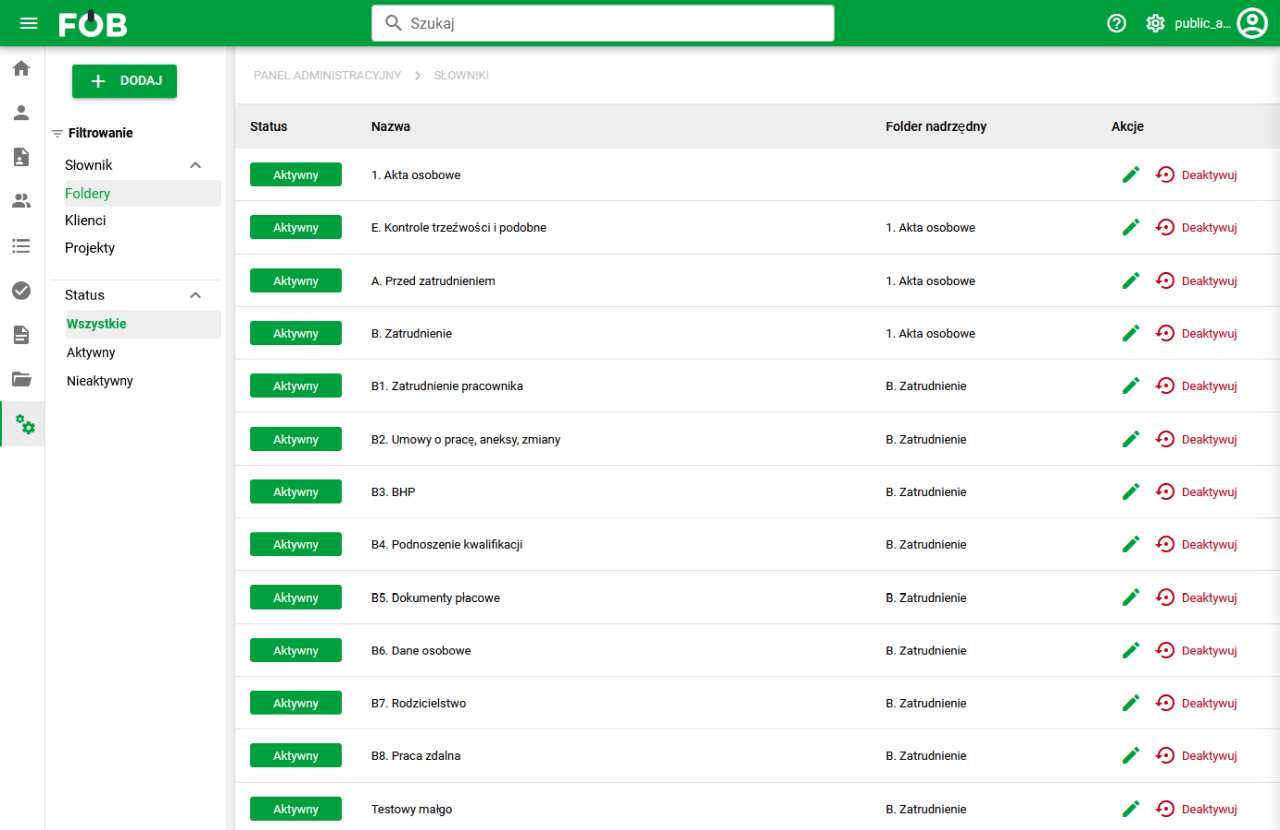
Fig 1. List of folders
Edit folder options
1. Basic data
- Status
- Name – required field with language settings option
- Parent folder
- System code
- Folder code (export) – used when exporting data to the employee-records export format
- Type of documentation in document export
- Is the default
- Is it systemic
- Is it possible to transfer
- Can create subfolders
- Subfolder naming
- Can create documents
- Numbering of documents
2. Retention of documents in a folder
- Calculation by date – checkbox with options:
– No retention – Create a document – According to Polish law – According to Polish law (simple)
When selecting "No Retention", the remaining section fields will be automatically deactivated
- Date rounding – checkbox with options:
– None – counting from the date inclusive – Counting from the beginning of the next year
- Storage period
- Deadline for deletion – time for deletion after the retention period has expired
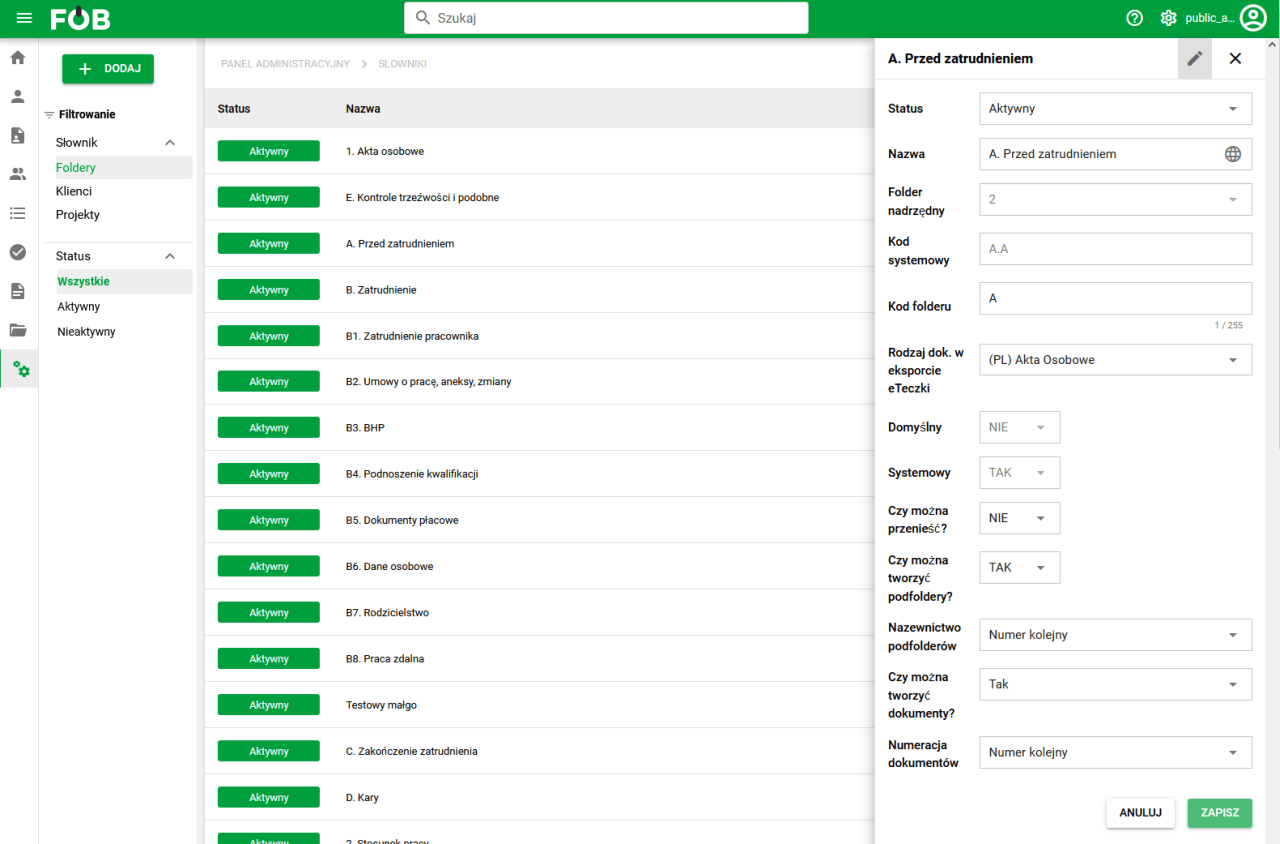
Fig 2. Folder editing window
Employee-specific folders
Adding a specific folder is possible from the selected employee's eFolder. To go to the employee's eFolder in the documents window, search for the selected employee (using the search engine in the top bar of the application).
The system will automatically take us to the view of the selected employee's folder.
To add a folder for an employee, select the folder with permissions to create specific subfolders in the side menu.
After selecting the appropriate folder, the "New Folder" option is activated, available under the "New" button.
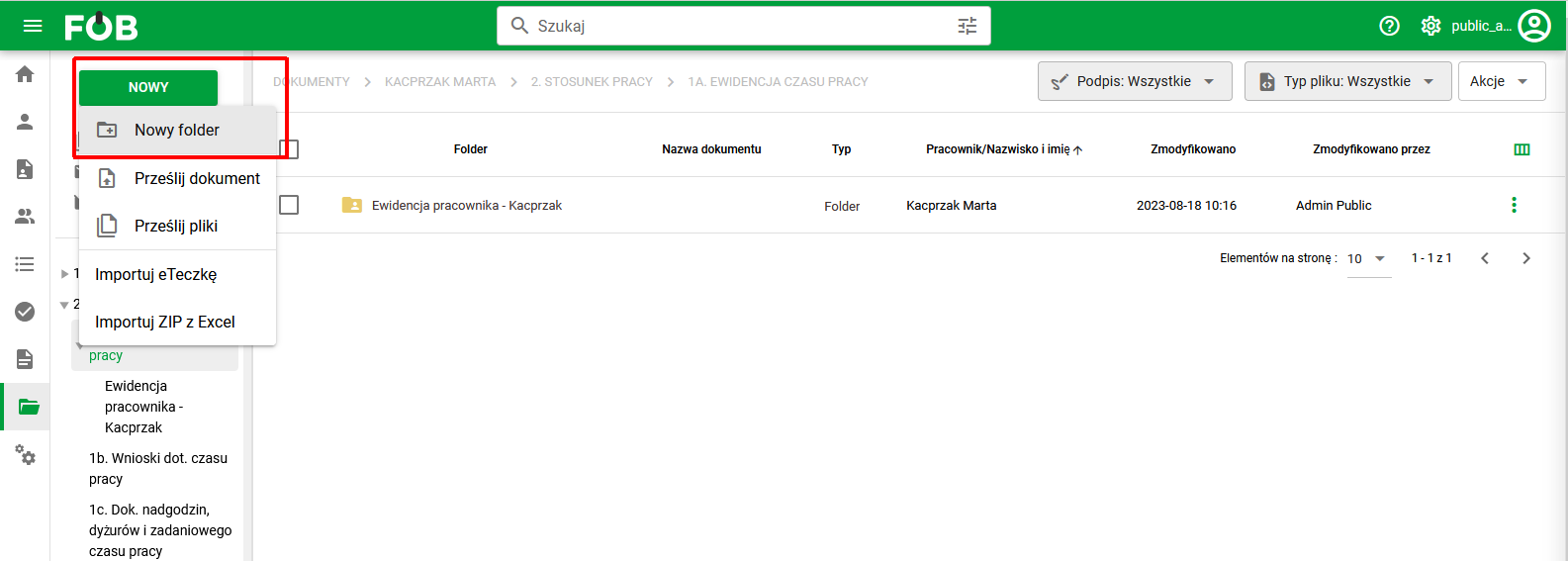
Picture 3. Adding a folder for an employee