Document types – fields and OCR settings
Description
To get to the OCR settings panel for a specific document type, enter the module
ADMINISTRATION and then select DOCUMENT TYPES:
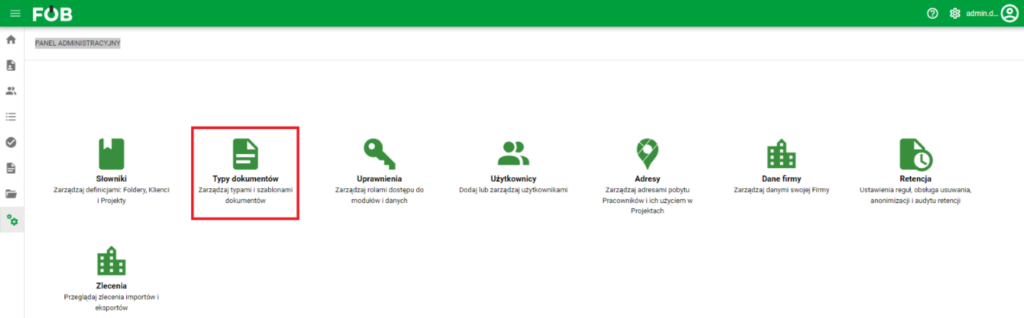
Administration
Then select the record you are interested in and press the EDIT OCR FIELDS: button
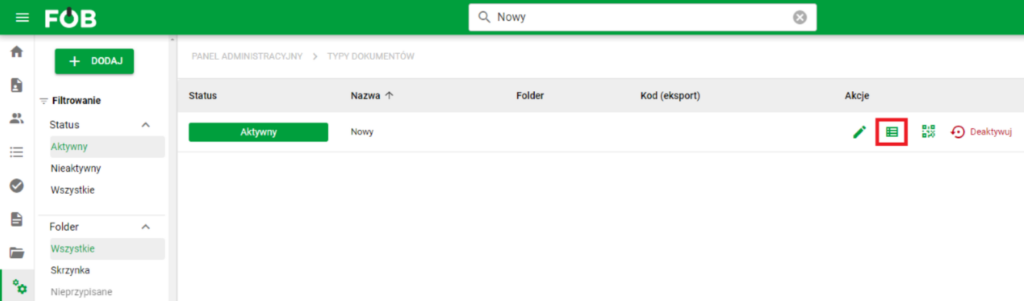
OCR field edit button
It opens the panel on the right:
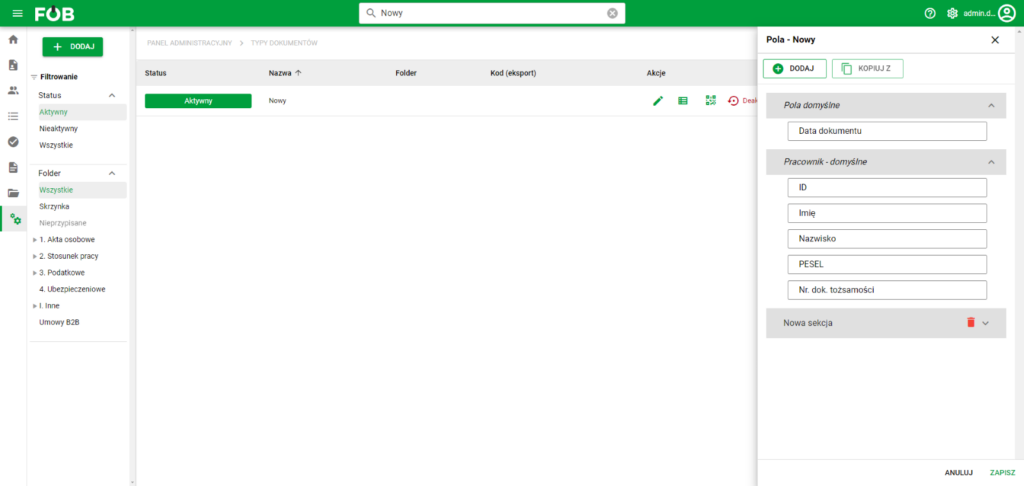
Edit a field
In this panel we have default sections that contain the starting/basic OCR fields:
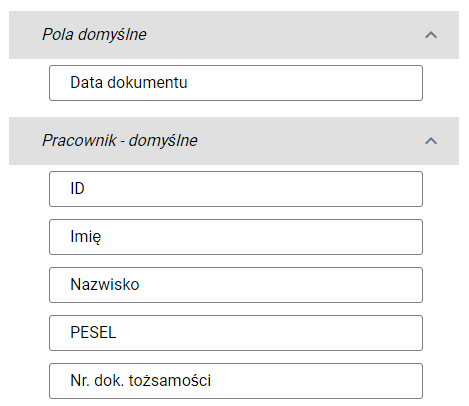
Sample fields
Edit
To edit any field, hover your mouse over it and then click on the appearing button SPROCKET WHEELS:

Gear button
This will open the FIELD PROPERTIES edit form
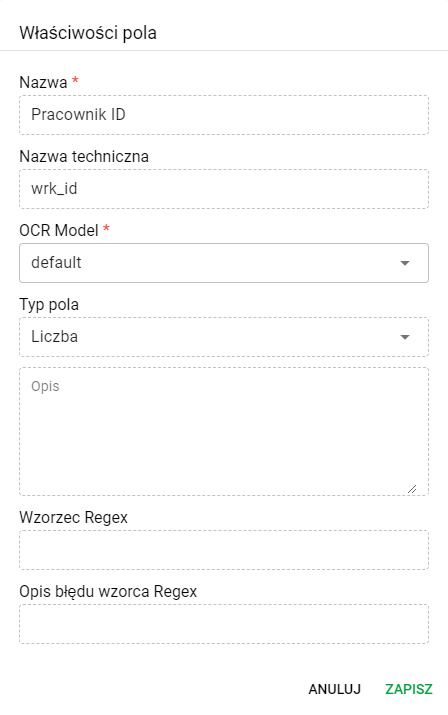
Field Properties
Adding
To add a new field, section or group, click the ADD button marked below:
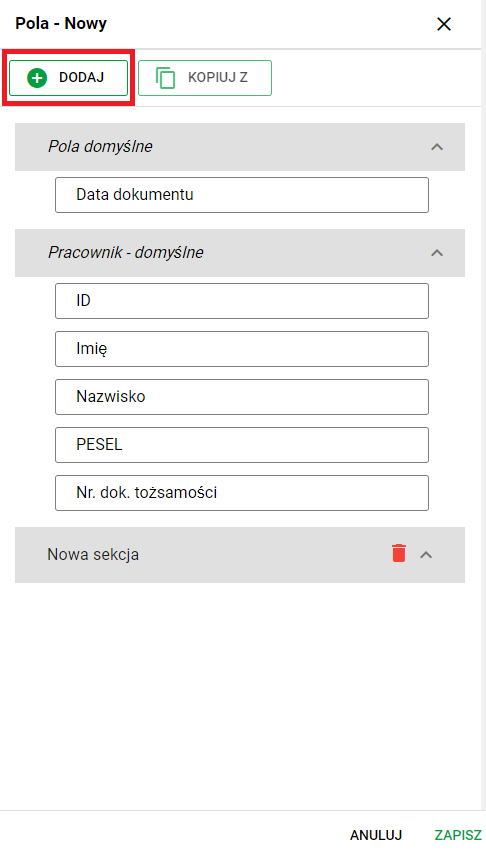
Adding
It opens the adding window:
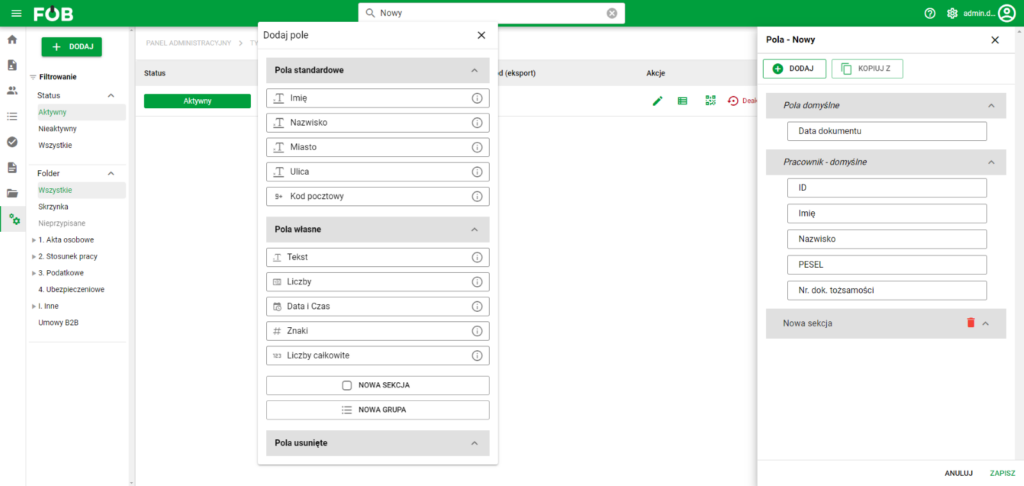
Add window
To assign a field, section or group, hover the mouse over the element you are interested in and then drag it to the right panel under the item NEW SECTION:
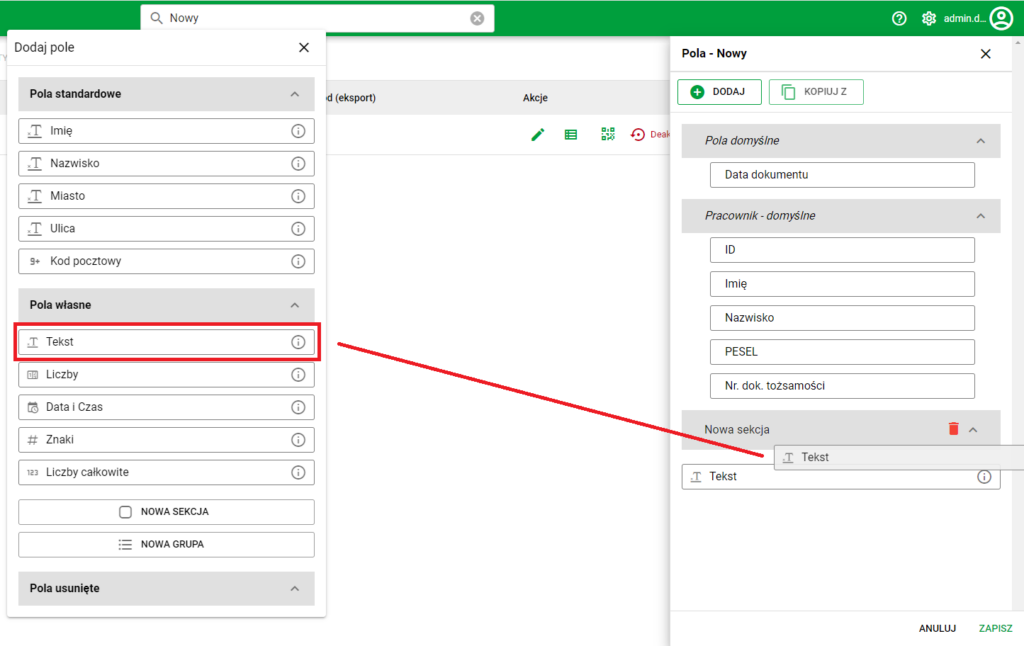
Drag
Fields can be grouped freely by dragging the fields to the center of the created group.
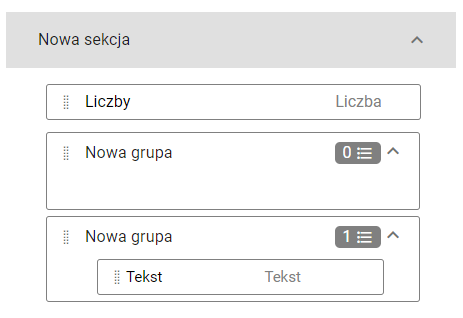
Grouping
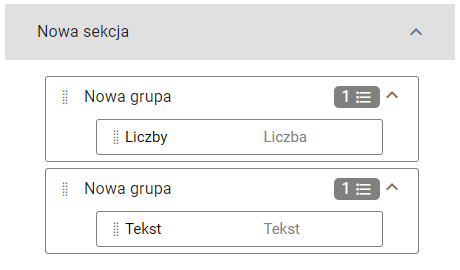
Grouping