Document types
The structure of documents in eFOB is divided into:
- folders (in the default configuration these are: 1. Personal files, 2. Employment relationship, 3. Tax, 4. Insurance, 9. Other) and
- document types (e.g. Employment certificate, Employment contracts, Referral for tests) – assigned to specific folders by default.
Manage document types
The document type management module is available in the administration panel of the eFOB application. From here you can add and edit document types.
In the desktop view, in the left window, filters are available that allow you to limit the list of document types by a specific status or folder. The folder filter also includes the Unassigned item, which lets you quickly display only those document types that have no folder assigned.
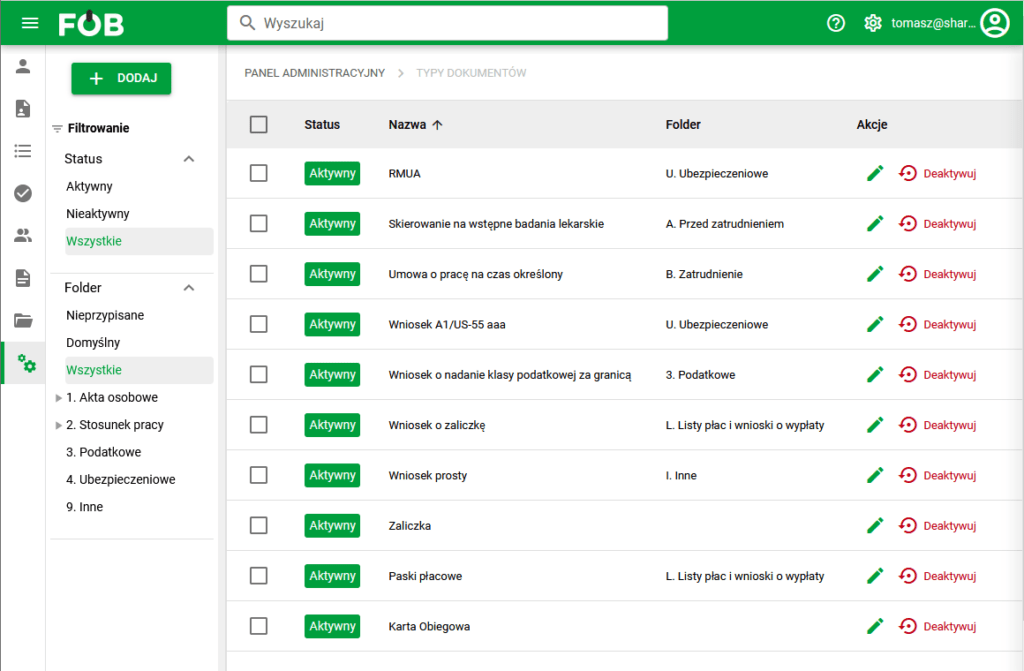
Fig 1. List of document types
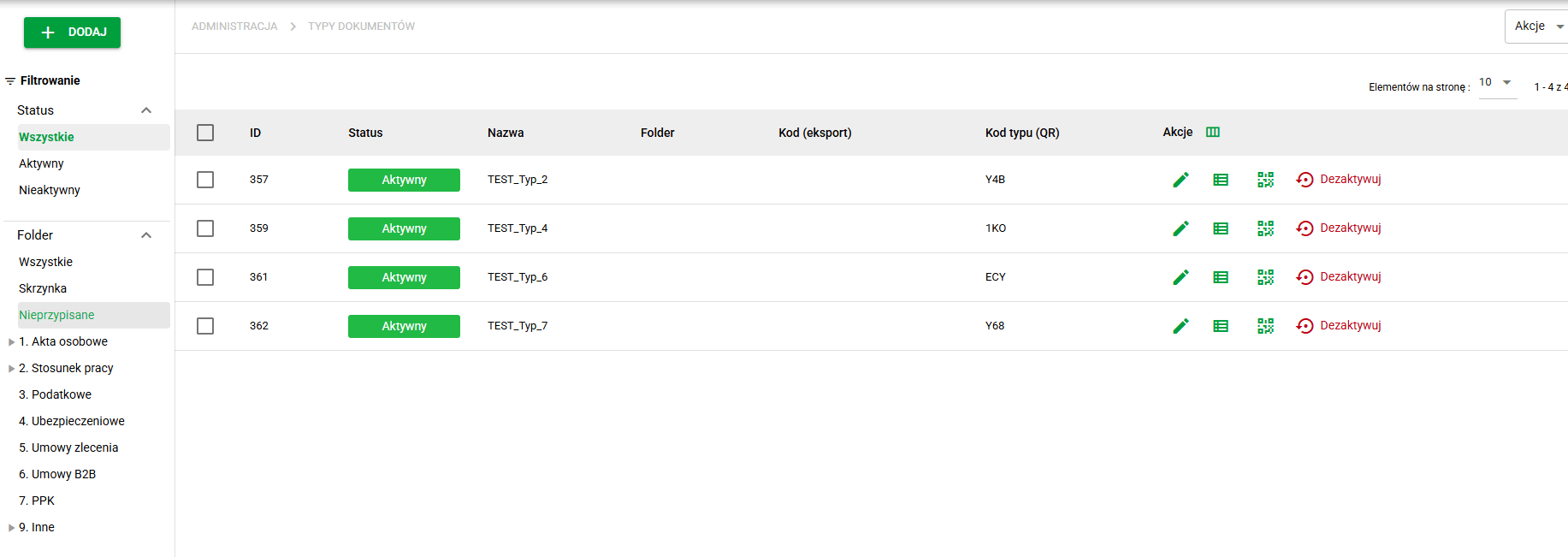
Fig 1a. Folder filter with the Unassigned item
Adding document types
The application allows you to create your own document type or use the built-in list of over 200 ready-made document types.
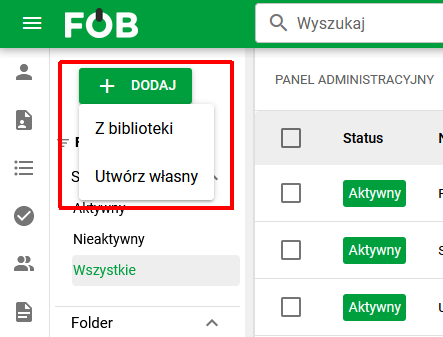
Fig 2. Adding options
Adding document types from the library
After selecting the ADD -> FROM LIBRARY option, a list of ready-made document types will be displayed. The displayed list can be sorted by name, filtered by folders or search for a specific type using the search engine available on the top bar of the application.
Document types that have already been added to your own list are marked with the CHECK icon in the IS ADDED column.
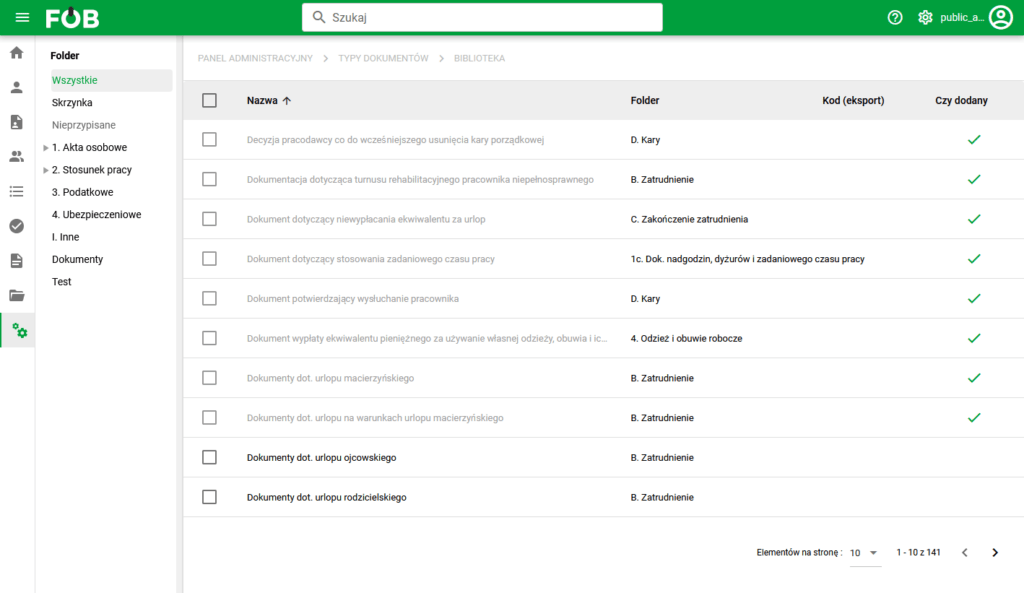
Figure 3. Document type library
To add selected types, select them and then select the ADD button available above the list of document types.
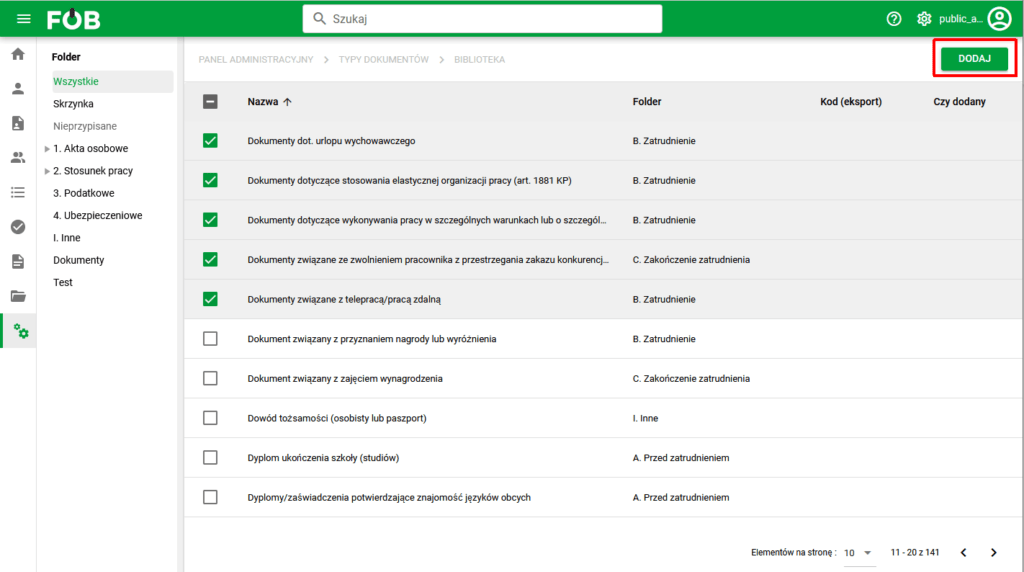
Figure 4. Adding document types from the library
Recommended folders missing from the configuration
Each document type in the library has a recommended folder based on the application's default folder structure. If such a folder does not exist in the current configuration (e.g. the default folder structure has been changed), its name on the list is displayed in italics together with a warning icon. Hovering over the icon shows a tooltip explaining that this is a recommended folder that does not exist in the current configuration.
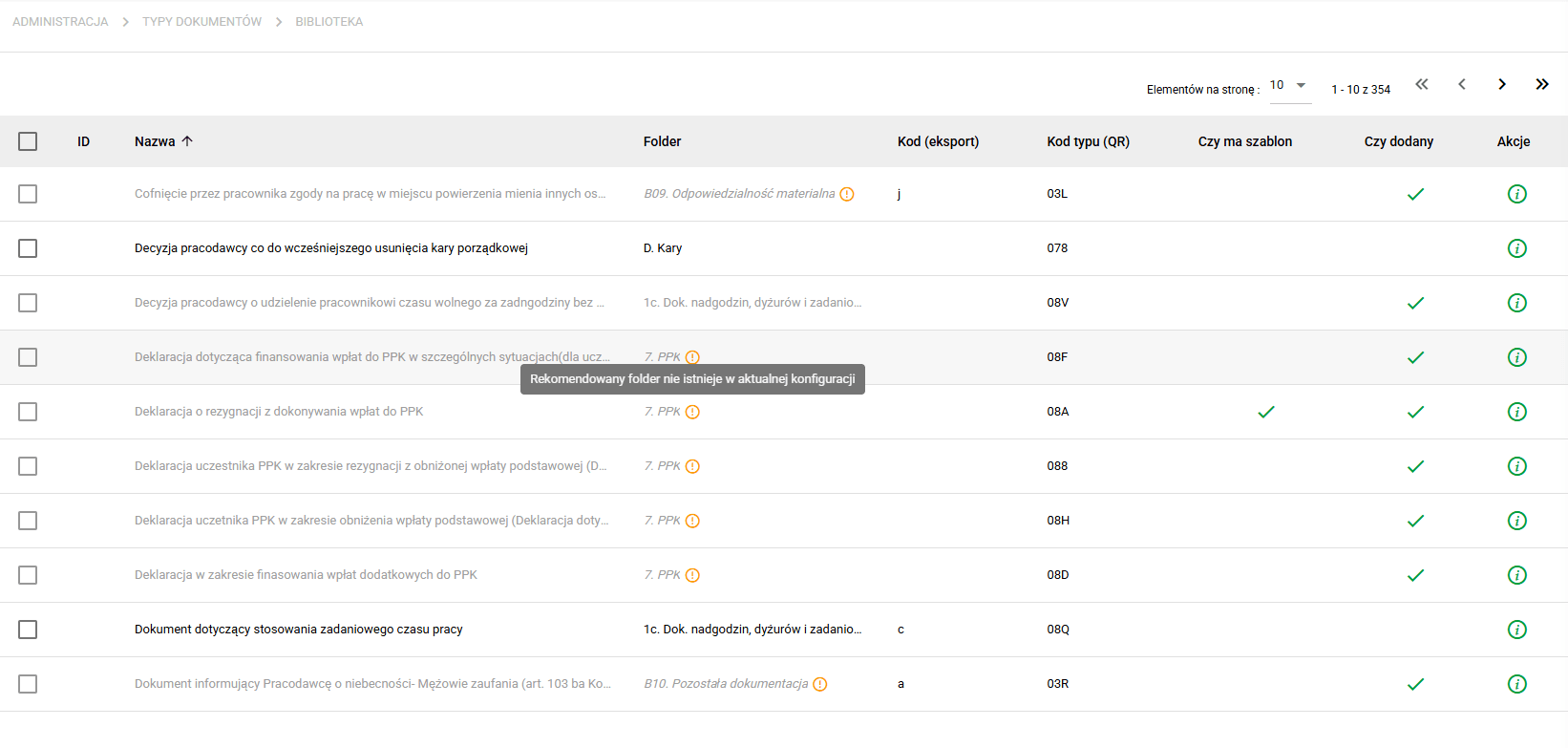
Fig 4a. Marking of recommended folders missing from the configuration
Adding types with missing folders
If the selected types include ones whose recommended folder does not exist in the current configuration, after selecting the ADD button the application will display a dialog summarizing the missing folders. The document types being added are grouped by recommended folder, and for each group you can:
- select an existing target folder to which the added types will be assigned, or
- keep the default Unassigned option – the types will be added without a folder assignment.
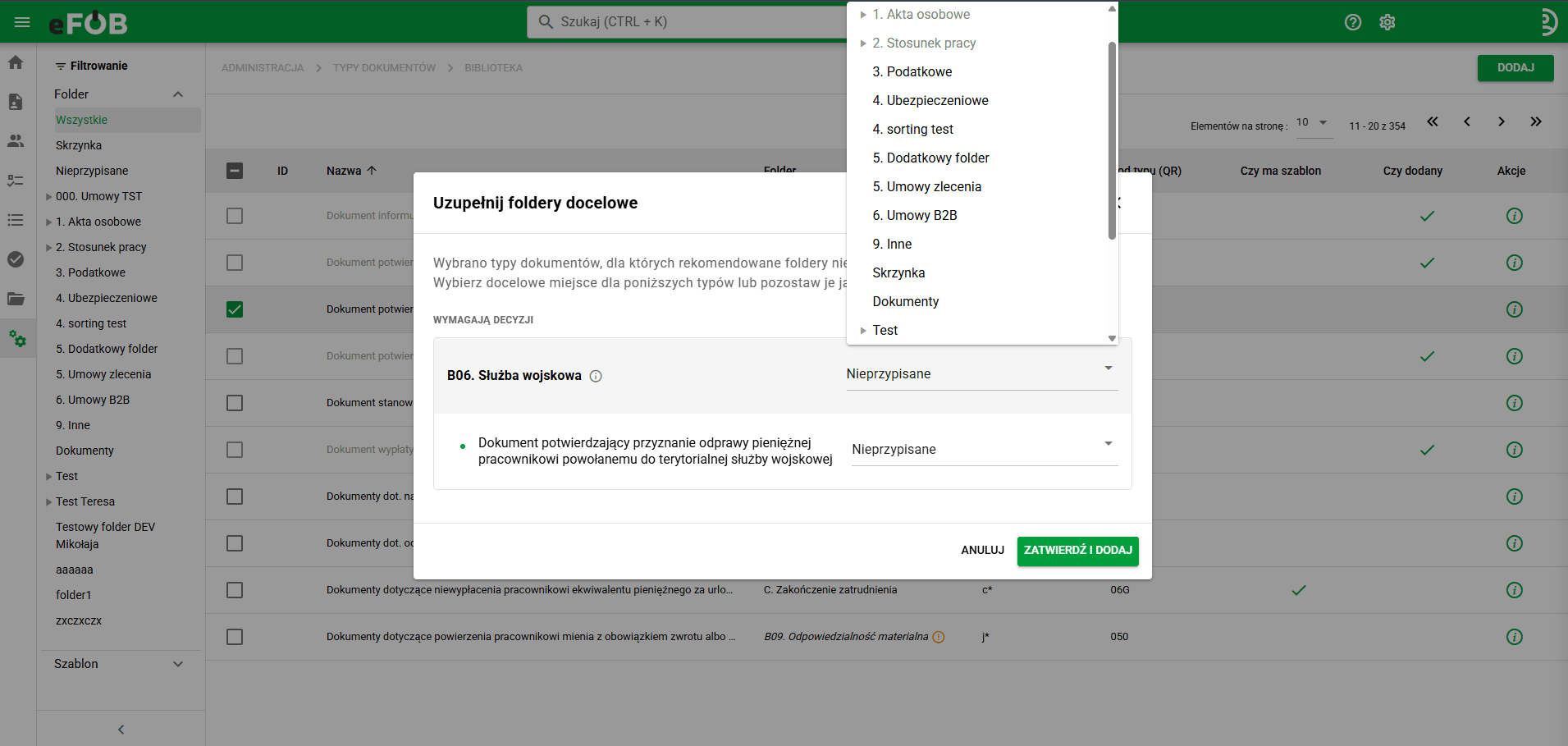
Fig 4b. Dialog for completing target folders for types with missing folders
This way, already when adding types you can see which of them have no existing folder and immediately choose the right place for them in the structure. Types added as Unassigned can later be found on the document types list using the folder filter and the Unassigned item.
Creating new document types
Using the ADD -> CREATE YOUR OWN option, you can create your own document type by adding its name, folder (optional) and status.
For the type being created, the system allows you to enter your own translations for the name (currently in three languages).
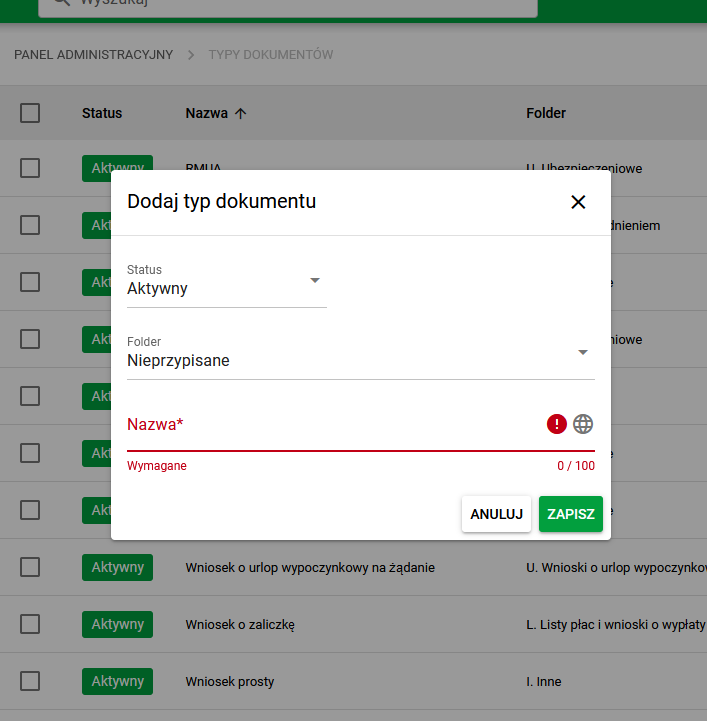
Figure 5. Creating new document types
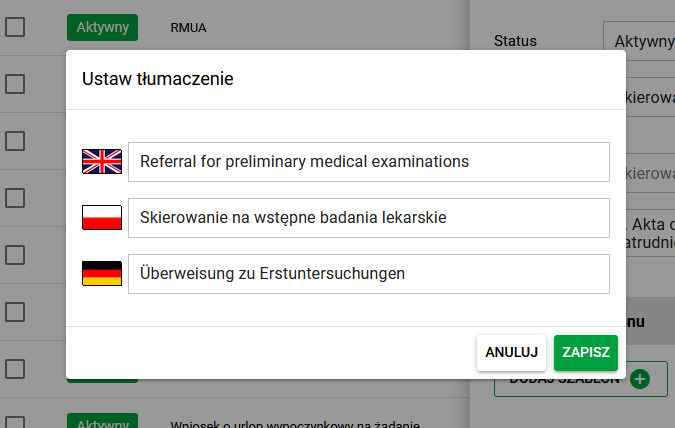
Figure 6. Name translations
Editing document types
The following options are available in the document type editing window:
Document type details- Status – Active / Inactive
- Name – in Polish, and after pressing the globe in the following languages: English / German / Ukrainian
- Name (short) – field used by
- by the document generator, including when creating case file names
- when creating QR codes (basic) - see also the description below
- Type code (export) – description of how the field works below
- Type code (QR) – automatically generated three-character Base36 code used to generate a QR code (full)
- Type pattern – system field specifying what the default document type was
- Default folder – a field that suggests its folder by default when adding a document of a given type
- Unassigned OR
- Specific folder
- Destiny
- Employee (Optional) – selected type by default, which allows you to create documents with and without assigning an Employee to it
- Employee – type that forces the assignment of an employee when creating or editing a document
- Not for employee - a type that forces no employee assignment when creating or editing a document (option to be used in the future for general documents for all employees, e.g. work regulations, etc.)
- Checkbox 'E-mail notification about a new document' - selecting it causes employees to be notified by e-mail about new documents of a given type via the notification function
- note - the functionality requires configuration of access to a given type for the Employee in the My Document module, otherwise he will receive a notification about a new document and will not have access to its preview
Template details
- Add template – field for adding a type template for the document generator
Document retention
The configuration is used to calculate retention dates for documents of a given type. The functionality is visible and described in more detail in the Administration / Retention module:
- Checkbox 'Retention settings from folder' – applies retention rules to the document type from the parent folder level, and if none, from its further hierarchy
- Calculation by date – checkbox. When selecting the NO RETENTION option, the remaining section fields will be automatically deactivated
- Date rounding – checkbox for date rounding described in the above-mentioned help article
- Retention period – checkbox regarding the storage period described in the above-mentioned help article
- Delete deadline – time for deletion after the retention period has expired
Signature groups
- Signature groups – options available for a given document type in Cases
- Default signature group – options suggested by default for a given document type in Cases
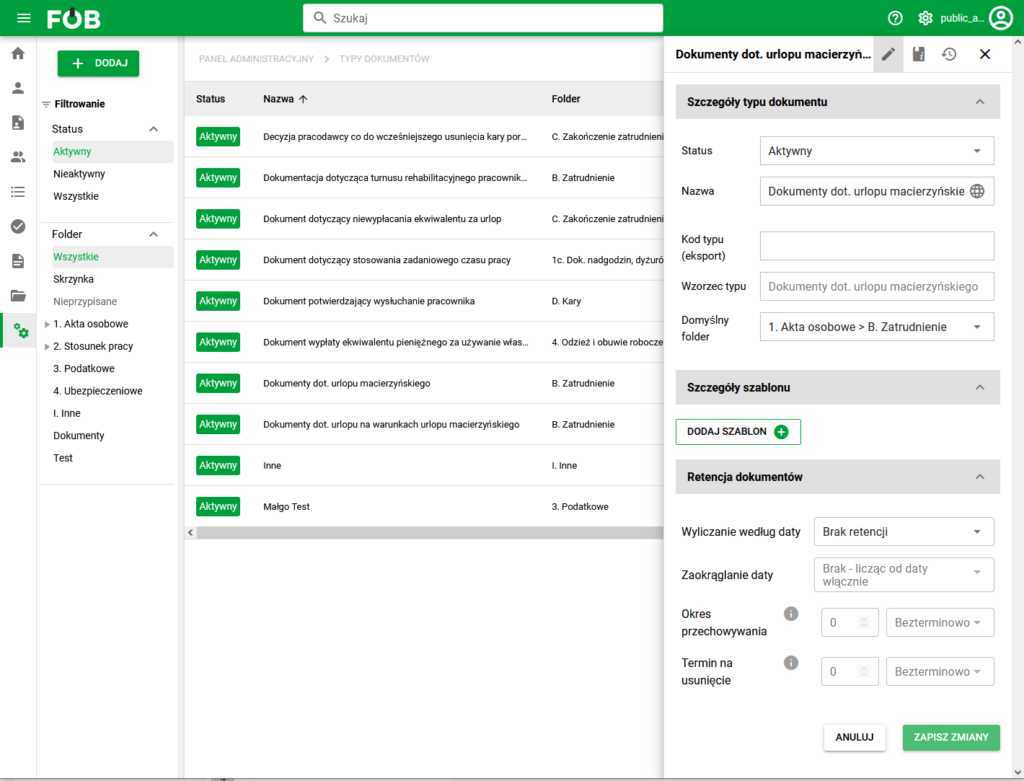
Figure 7. Editing the document type
The following tabs of the editing window contain information about:
– created versions of templates
– history of changes: in document type and template versions
'Type code (export)' option
In accordance with the regulation on employee documentation and technical specification referred to in § 13 section 4 of the Regulation of the Ministry of Labor and Social Policy of December 10, 2018 on employee documentation, the employee-records export format must be compliant with the XSD specified in the technical specification (Employee files 31/07/2023 -> aktaPracownicze(10).xsd 0.01MB).
In the XML file itself, information about:
-
1. Personal files: its classification in the document structure, i.e. in the export to an XML file - there is information:
- is it a document from parts A, B, C, D, E of the personal file,
- is it a document from the area of other documentation described in the technical specification as a basic employment relationship (for documents from paragraph 6 of the Regulation, points 2, 3 and 4)
- whether a document from the area of other documentation, described in the technical specification as an extended employment relationship (for documents from paragraph 6 of the Regulation, point 1).
-
1. Personal files: within parts B, C and E - additional information about assignment to the subset resulting from regulation described in letters a) to z),
-
2. Employment relationship: within the documents, employment relationship extended for paragraph 6 of the Regulation, point 1 - assignment to the subset described in letters a) to d).
To implement the configurability of the above-mentioned requirements in the context of Export and Import:
A. In the Document types dictionary – the 'Type code (export)' field has the following values:
- one character, e.g. 'a' - to meet the export requirement regarding, among others, part B
- a string of characters, e.g. 'b*' for the type "Employee's application regarding working time recording (import)" - to implement the option of indicating the main import type in a given folder, if in the export the same letter, e.g. 'b', is assigned many times to different types
- empty – to meet the requirement to export in parts without characters, e.g. parts A
B. In the Folders dictionary – the 'Folder code (export)' field has the following values:
- Characters specifying the main part of the export code for a given type
- Examples:
- B1. Employment of an employee -> “B1”
- 1a. Working time records -> “6 points 1a”
- D. Penalties -> “D”
Thanks to this, even in the event of an extension/change in the export rules in the regulation/technical specification or the creation of a new type of document, it will be possible to change it quite flexibly, corresponding to actual business and legal needs.
NOTE: In standard parts (1. Personal files and 2. Employment relationship), mappings are a mandatory element of creating metadata consistent with the previously mentioned XSD schema. It is recommended when configuring this field:
- before full document export (Documents -> Actions -> Export documents)
- selecting the option available there: 'Export only data to Excel (without documents)
Thanks to this, Excel itself will be quickly generated, which will contain all validation errors with the XSD schema, which will enable its quick correction in the configuration of the Document Types actually used. In case of doubt, we recommend that a technical person analyzes the content of the XSD file itself.
Short name of the document (document and QR code generator)
The short name is a field limited to 32 characters in length. It is used for:- automatic creation of a document name in the document generator
- generation of QR codes that can be placed on the first page of the document to automatically identify the document type (without further data)
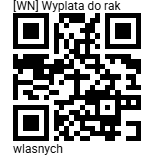
Consistent naming of short document names is recommended. The eFOB document type library uses the following naming conventions:
- “[prefix] Remaining name” – up to 32 characters, without dots and Polish characters
- Examples
- File name: [DOK] Flexible Labor Org.pdf
- Value in the QR code: F|[DOK] Flexible Labor Organization
- List of suggested short name prefixes for groups of typical documents found in HR:
- [DOK] Documents
- [IN] Other
- [DIP] Diplomas
- [FV] Invoices
- [INF] Information
- [EW] Records
- [SZK] Training
- [KOP] Copies
- [LP] Payrolls
- [REP] Replies
- [ORZ] Judgment
- [OSW] Statements
- [PIS] Scriptures
- [ENG] Commands
- [POR] Agreement
- [POT] Confirmations
- [U] Agreements
- [SK] Referrals
- [SW] Testimonies
- [UP] Authorizations
- [WN] Conclusions
- [ZAS] Certificates
- [ZAW] Notices
- [ZEZ] Permission
- [ZG] Consent
- [ZW] Layoffs
Import document types
The fastest way to add new document types to the eFOB system is to use a ready-made list of document types created in an Excel file. To do this, follow the steps below:
In the Administration menu, find and click the DOCUMENT TYPES section
In this section, click the ADD button or the PLUS(+) icon to open options for adding new document types:

From the available options, select IMPORT FROM EXCEL:
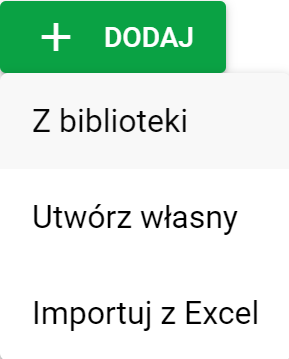
This option allows you to add document types en masse, which will significantly speed up the entire process.
This will open a new window in which we can drag a given file or search for and add it using the system window:
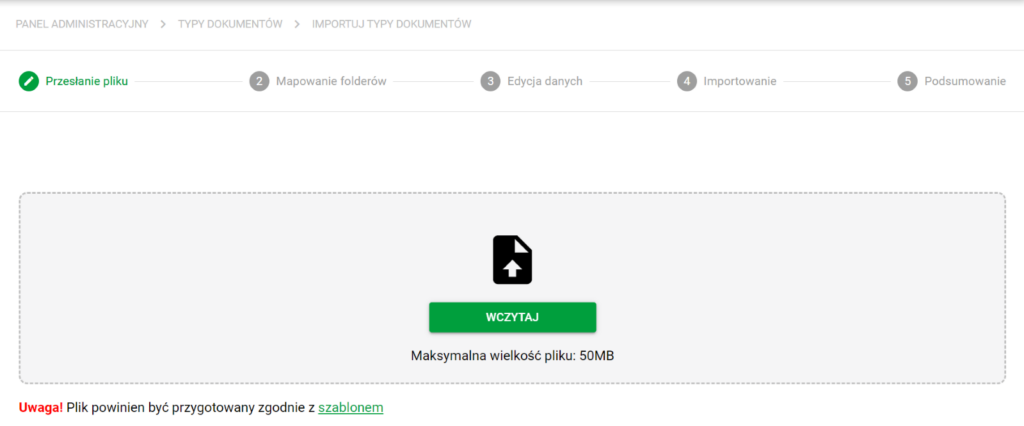
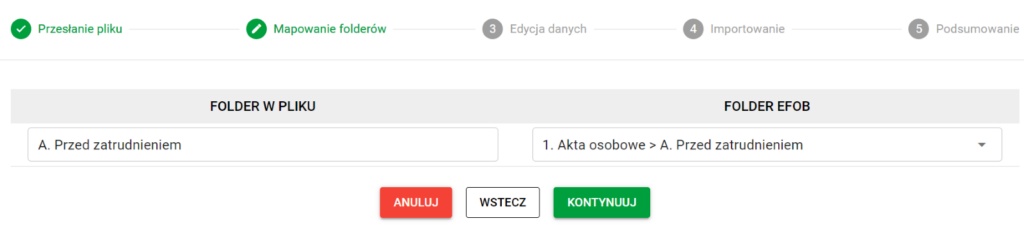
After selecting the file, click CONTINUE to upload the documents to the system:
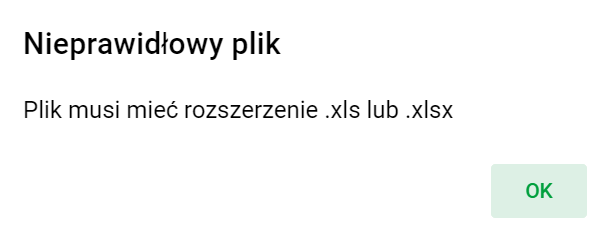
If the file is incorrect, an appropriate message will be displayed in the form of a dialog box:
In the next step, a summary and the ability to edit the uploaded documents appear:
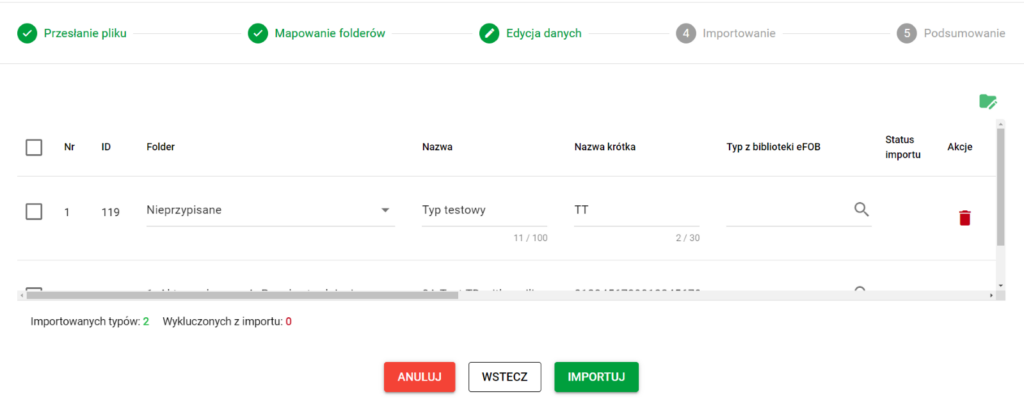
Using the button below we can exclude a given item from import:
When everything is ready, click the green IMPORT button
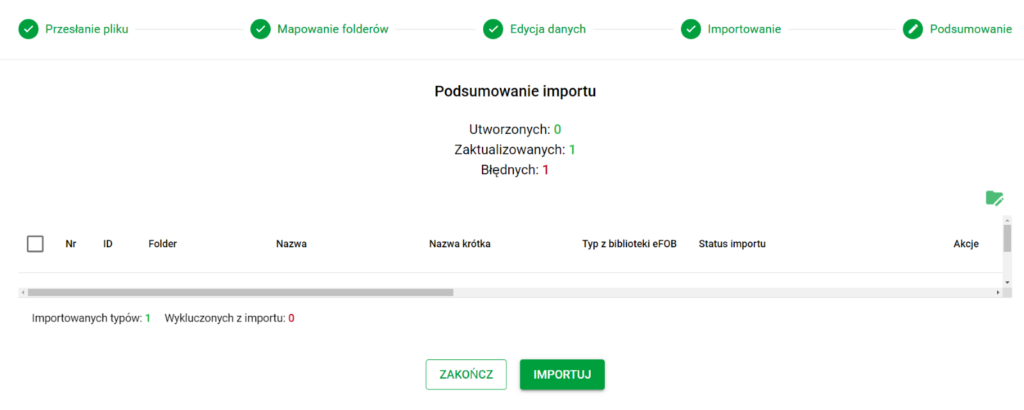
At the end, the SUMMARY window will be displayed, where we have information about the import process and where we can edit incorrectly set files:
Export document types
In the eFOB application it is possible to export some or all existing document types to an Excel file. It can be later used, for example, for import in the client system or for mass updating of settings using the import function.
In the Administration menu, find and click the DOCUMENT TYPES section
In this section, click the action drop-down button and select EXPORT DOCUMENT TYPES:
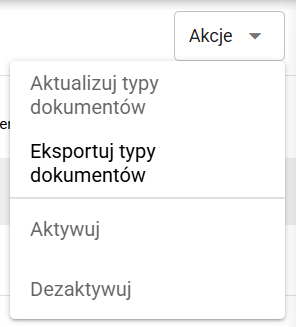
This will open a window where we can choose the export option:
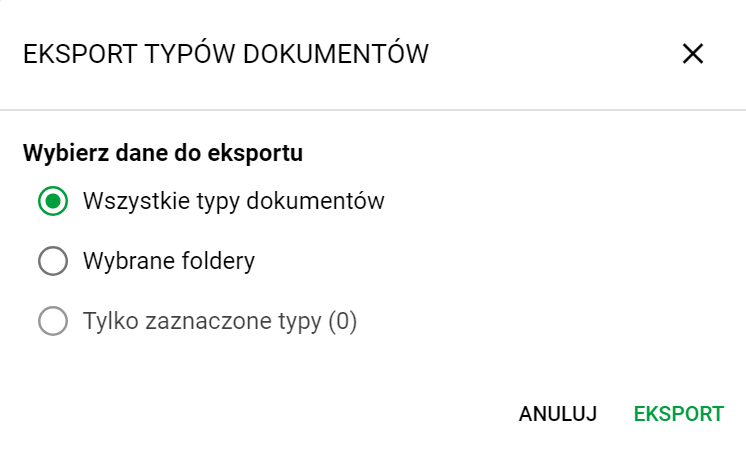
To unlock the third option, before clicking ACTIONS, select the records you are interested in:


Thanks to these steps, you will quickly and easily add or export document types in the eFOB system, which will allow for efficient documentation management in your organization.
Bulk Editing of Document Types
To easily edit a large number of document types, the user can use the bulk editing option. This is a function that allows you to select records and modify them.
The first step is to go to the DOCUMENT TYPES section
In this section, check the checkboxes of the records you are interested in:

Then click the action drop-down button and select UPDATE DOCUMENT TYPES.
This will open the bulk editing window, where you will be able to set new values for selected fields, such as PURPOSE, FOLDER or RETENTION SETTINGS:
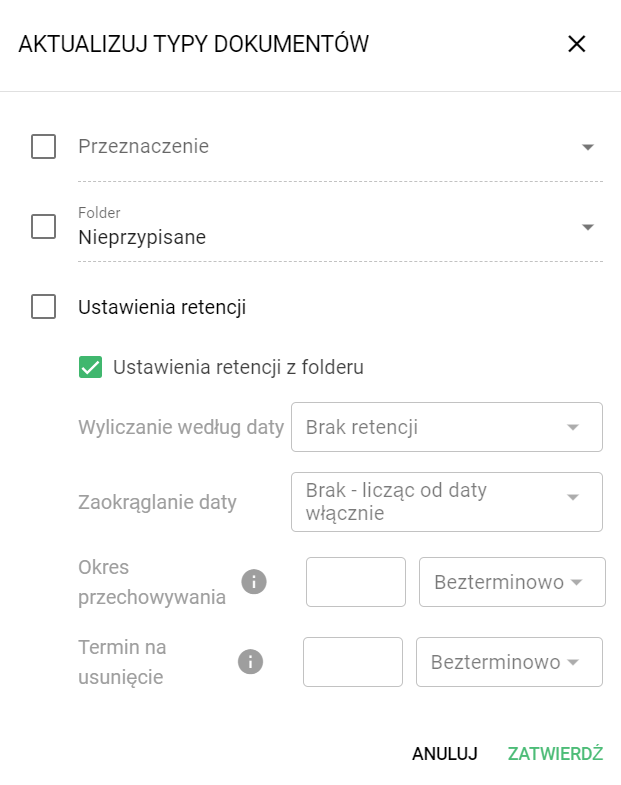
After selecting the appropriate values for individual fields, click the CONFIRM button.
It will cause a massive change of the records selected and marked by us earlier.
The file type of the document generator templates
In the DOCUMENT GENERATOR, the administrator can add templates in the *.docx and *.html formats, which allows the creation of documents based on predefined templates.
In the case of the *.docx format, the generator uses LibreOffice software to convert documents to PDF format. the generator uses the free Libre Office software (Home page | LibreOffice Polska – Free and free office suite) to print *.docx documents to PDF. Therefore, for more complex multi-page templates with advanced formatting, it is recommended to edit templates using this software. This will facilitate greater control, among others: on more correct page breaking, which is often done in a different way using e.g. MS Office.
Document type templates
The eFOB application allows you to generate documents based on templates and add them to document types. The user can create his own templates:
- for *.docx templates – using MS Word applications using fields with specific names for “Mail Merge”;
- for *.html templates – by preparing the appropriate HTML code with fields marked in the
{{nazwa_pola}}syntax.When generating documents, eFOB application will automatically fill in the document fields defined in this way with data from the program. Additionally, for templates in the *.html format, it is possible to edit them using tools built into the system.
The process of creating and editing templates is described in the article Document generator templates.
Library – Personal files
The document type library contains document types resulting from the Regulation of the Minister of Family, Labor and Social Policy of December 10, 2018 on employee documentation (as amended until May 17, 2023).
This part presents the types of documents regarding Personal Files, parts A-E (§ 3 and § 4 of the Regulation).
| Document type name | Folder |
|---|---|
| School (study) graduation diploma | A. Before employment |
| Diplomas/certificates confirming knowledge of foreign languages | A. Before employment |
| Certificate confirming the ability to work | A. Before employment |
| Personal questionnaire for the candidate | A. Before employment |
| Referral for initial medical examination | A. Before employment |
| Work certificates from previous jobs | A. Before employment |
| Preliminary contract | A. Before employment |
| Certificates/documents confirming professional qualifications | A. Before employment |
| Certificates of completed courses/training | A. Before employment |
| Statement regarding the employee's personal data (employee personal questionnaire) | B. Employment |
| Employee's responsibilities | B. Employment |
| Job description | B. Employment |
| Information on basic conditions of employment (Article 29 § 3 of the Labor Code) | B. Employment |
| Information obligation for the employee | B. Employment |
| Authorization to process personal data | B. Employment |
| Employee's consent to the processing of additional personal data | B. Employment |
| Statement regarding the use of monitoring | B. Employment |
| Confidentiality obligations | B. Employment |
| Declaration of reading the work regulations | B. Employment |
| Declaration of reading other regulations, orders, internal policies or codes, e.g. ethics | B. Employment |
| Agreement amending working conditions (Annex to the employment contract | B. Employment |
| Amending notice | B. Employment |
| Entrusting other work pursuant to Art. 42 § 4 of the Labor Code, provided that it is prepared in writing or electronically B. Employment | |
| Consultations with trade unions regarding amending notice | B. Employment |
| Referral for periodic examinations | B. Employment |
| Medical certificates from periodic examinations | B. Employment |
| Referral for check-ups | B. Employment |
| Certificate of inspection | B. Employment |
| Referral for preliminary examination when changing position | B. Employment |
| Certificate of preliminary examination upon change of position | B. Employment |
| Confirmation of familiarity with occupational health and safety and fire protection regulations | B. Employment |
| Initial occupational health and safety training card | B. Employment |
| Periodic occupational health and safety training card | B. Employment |
| Confirmation that the employee is familiar with occupational risk | B. Employment |
| Documents relating to the performance of work in special conditions or of a special nature | B. Employment |
| Medical certificate confirming pregnancy | B. Employment |
| Application for leave from work in connection with pregnancy-related tests | B. Employment |
| Application for breastfeeding breaks | B. Employment |
| Documents regarding maternity leave | B. Employment |
| Documents regarding leave under the terms of maternity leave | B. Employment |
| Documents regarding paternity leave | B. Employment |
| Documents regarding parental leave | B. Employment |
| Documents regarding parental leave | B. Employment |
| Declaration on the use of care for a child up to 14 years of age | B. Employment |
| Application for combining parental leave with work | B. Employment |
| Application to reduce the working time of an employee entitled to parental leave | B. Employment |
| Disability certificate | B. Employment |
| Medical certificate consenting to overtime or night work for a disabled employee | B. Employment |
| Application by a disabled employee for leave for examination during working hours | B. Employment |
| Documentation regarding a rehabilitation stay for a disabled employee | B. Employment |
| Certificates/documents confirming professional qualifications | B. Employment |
| Applications by parents of disabled children for an individual schedule, flexible or intermittent working time (Article 1421 of the Labor Code) | B. Employment |
| Application for unpaid leave | B. Employment |
| Application for training leave | B. Employment |
| Application for special leave | B. Employment |
| Documents related to financial liability | B. Employment |
| Agreement on joint financial liability | B. Employment |
| Agreement on improving professional qualifications | B. Employment |
| Non-competition agreement during employment | B. Employment |
| Documents related to telework/remote work | B. Employment |
| Document related to the awarding of an award or distinction | B. Employment |
| Consent to voluntary deductions from remuneration | B. Employment |
| Consent to deductions of union dues | B. Employment |
| Bailiff's seizures and correspondence with bailiffs | B. Employment |
| Copies of employment or earnings certificates issued to employees | B. Employment |
| Information about changing the bank account | B. Employment |
| Request to change personal data | B. Employment |
| Application for a copy of an employee's employment documentation | B. Employment |
| Declaration of the employee's criminal record, provided that the employer has a statutory basis for processing such data | B. Employment |
| Certificate from the National Criminal Register confirming the employee's criminal record (if the employer has a statutory basis for processing such data) | B. Employment |
| Employee's application to change the type of employment contract to an employment contract for an indefinite period | B. Employment |
| Employment contract for a trial period | B. Employment |
| Request for more predictable and safe working conditions, including a change in type of work or full-time employment | B. Employment |
| Employer's response to an employee's request regarding a change to the contract or working conditions (Article 293 § 1 and 3 of the Labor Code) | B. Employment |
| Request by an employee to indicate the reason justifying the termination of an employment contract for a trial period with notice or the use of an action having an effect equivalent to the termination of an employment contract | B. Employment |
| The employer's response to the employee's request regarding the reasons for terminating the contract (Article 294 § 3 and 4 of the Labor Code) | B. Employment |
| Documents regarding the application of flexible work organization (Article 1881 of the Labor Code) | B. Employment |
| Employment contract for a fixed period | B. Employment |
| Employment contract for an indefinite period | B. Employment |
| Termination of the contract by mutual consent of the parties C. Termination of employment | |
| Employment certificate | C. Termination of employment |
| Confirmation of receipt of employment certificate (verse) | C. Termination of employment |
| Copy of information on the storage period and the right to collect employee documentation | C. Termination of employment |
| Document regarding non-payment of leave allowance | C. Termination of employment |
| Document related to the seizure of rentfencing | C. Termination of employment |
| Applications regarding the issuance/correction of employment certificates | C. Termination of employment |
| The employer's position regarding the correction of an employment certificate | C. Termination of employment |
| Copy of the court judgment regarding the correction of an employment certificate | C. Termination of employment |
| Non-competition agreement after termination of the employment relationship | C. Termination of employment |
| Documents related to the employee's release from compliance with the non-competition clause after termination of the employment relationship | C. Termination of employment |
| Termination of an employment contract – employee | C. Termination of employment |
| Application for a copy of employee documentation by a former employee | C. Termination of employment |
| Confirmation of receipt of a copy of employee documentation by a former employee | C. Termination of employment |
| Termination of an employment contract - employer | C. Termination of employment |
| Termination of the contract without notice – art. 52 KP | C. Termination of employment |
| Termination of the contract without notice – art. 53 KP | C. Termination of employment |
| Termination of the contract without notice – art. 55 KP | C. Termination of employment |
| Circulation card | C. Termination of employment |
| Employee requests for days to look for a job during the notice period | C. Termination of employment |
| Letters regarding dismissal from the obligation to work | C. Termination of employment |
| Application for imposing a disciplinary penalty | D. Penalties |
| Employer's decision regarding early removal of a disciplinary penalty | D. Penalties |
| Document confirming that the employee was heard | D. Penalties |
| Copy of the notice of imposing a disciplinary penalty on the employee | D. Penalties |
| Objection to a disciplinary penalty | D. Penalties |
| Request to the company's trade union to take a position on the employee's objection | D. Penalties |
| The position of the company's trade union regarding the employee's objection | D. Penalties |
| The employer's position in relation to the employee's objection | D. Penalties |
| Copy of the court judgment regarding an appeal against a disciplinary penalty | D. Penalties |
| Motion by trade unions to remove the disciplinary penalty | D. Penalties |
| Sobriety check by the employer (Article 221c § 6 of the Labor Code) | E. Sobriety tests and similar |
| Sobriety check by an authorized body (Article 221d § 10 of the Labor Code) | E. Sobriety tests and similar |
| Inspection for the presence of substances having a similar effect to alcohol - by the employer (Article 221c § 6 and Art. 221e § 2 of the Labor Code) | E. Sobriety tests and similar |
| Inspection for the presence of substances having a similar effect to alcohol - by an authorized body (Article 221d § 10 and Art. 221f § 2 of the Labor Code) | E. Sobriety tests and similar |
Library – Employment relationship
The document type library contains document types resulting from the Regulation of the Minister of Family, Labor and Social Policy of December 10, 2018 on employee documentation (as amended until May 17, 2023).
This part presents the types of documents regarding the employment relationship, parts 1-4 (§ 6 in the Regulation).
| Document type name | Folder |
|---|---|
| Working time record card | 1a. Working time records |
| Private exit (Article 151 § 21 of the Labor Code) | 1b. Applications regarding working time |
| Leave from work for raising a child up to 14 years old (Article 188 of the Labor Code) | 1b. Applications regarding working time |
| Establishing an individual working time schedule within the working time system (Article 142 of the Labor Code) | 1b. Applications regarding working time |
| Application of the shortened working week system (Article 143 of the Labor Code) | 1b. Applications regarding working time |
| Application of the working time system only on Fridays, Saturdays, Sundays and holidays (Article 144 of the Labor Code) | 1b. Applications regarding working time |
| Applying a working time schedule providing for different starting times (Article 140/1 § 1 of the Labor Code) | 1b. Applications regarding working time |
| Applying the working time schedule providing for the starting time of work (Article 140/1 § 2 of the Labor Code) | 1b. Applications regarding working time |
| Applying for and taking leave from work due to force majeure (Article 148/1 of the Labor Code) | 1b. Applications regarding working time |
| Applying for and using carer's leave (Article 173/1 of the Labor Code) | 1b. Applications regarding working time |
| Document on the use of task-based working time | 1c. Dock. overtime, on-call and task-based working time |
| Agreeing on another day off from work in exchange for working on the day off | 1c. Dock. overtime, on-call and task-based working time |
| Overtime work order | 1c. Dock. overtime, on-call and task-based working time |
| Application for collection of time off for overtime | 1c. Dock. overtime, on-call and task-based working time |
| Order to be on duty | 1c. Dock. overtime, on-call and task-based working time |
| Consent of an employee caring for a child up to 4 years of age to perform work under systems providing for the extension of daily working time (Article 148(3) of the Labor Code) | 1d. Consent regarding child care and delegation during pregnancy |
| Consent to delegation outside the permanent workplace and employment under the intermittent working time system (Article 178 § 1 of the Labor Code) | 1d. Consent regarding child care and delegation during pregnancy |
| Consent of an employee raising a child up to 8 years of age to be employed overtime, at night, in the intermittent working time system and to be delegated outside the permanent place of work (Article 178 § 2 of the Labor Code) | 1d. Consent regarding child care and delegation during pregnancy |
| Application for annual leave | 2. Applications for annual leave |
| Application for annual leave on request | 2. Applications for annual leave |
| Payroll regarding paid remuneration and other benefits | 3. Payrolls and payment applications |
| Application for personal payment of remuneration (Article 86 § 3 of the Labor Code) | 3. Payrolls and payment applications |
| Record card for the allocation of work clothes, footwear and personal protective equipment | 4. Work clothes and footwear |
| Document of payment of the cash equivalent for the use of one's own clothes, shoes, their washing and maintenance | 4. Work clothes and footwear |
Library – Other types
The Other document types library contains additional sections recommended by HR practitioners for use in eFOB.

Note: The special category of Document Type is ZUS RIA REPORT. Assigning a document of this type to a specific employee's eFolder shortens the retention period of his or her documents to 10 years.
| Document type name | Folder |
|---|---|
| PIT-11 | 3. Tax |
| Application for assigning a tax class abroad | 3. Tax |
| RMUA | 4. Insurance |
| Authorization for EHIC application | 4. Insurance |
| Application A1/US-55 | 4. Insurance |
| Declaration regarding insurance abroad | 4. Insurance |
ZUS RIA report  | 4. Insurance |
| Other | 9. Other |
| Imported | 9. Other |