Types of case documents
Description
Document types are documents that will be available for download by the user at various stages of the Case. It is possible to generate new documents based on data from forms.
Administration access path
Go to the administration panel case types, and then select the following items:
- Administration Panel -> Cases -> Specific case type -> DOCUMENT TYPES
DOCUMENT TYPES tab
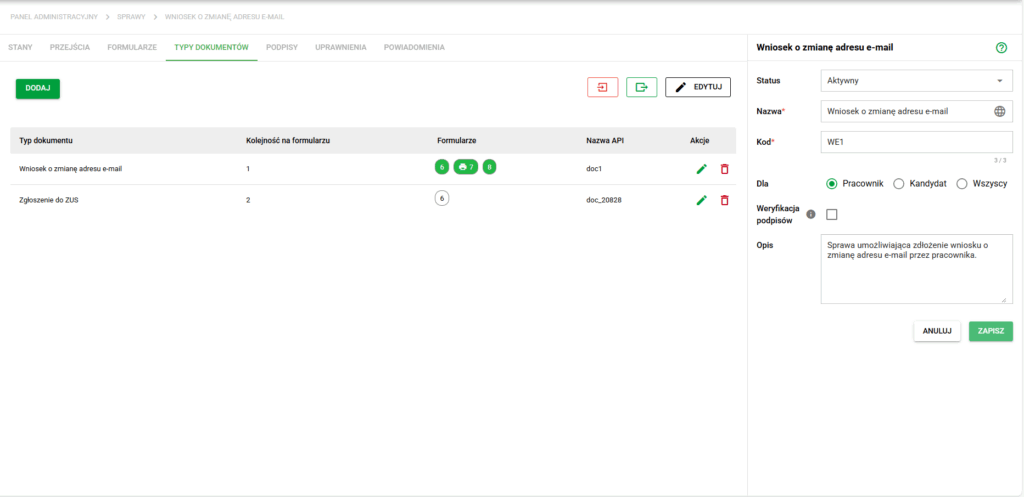
Details of the case. Document Types View
The document types view consists of the list visible above in the table:
- name of the Document Type
- Order on the form(s).
- Forms – what they are on (their ID)
- API name (for internal references)
The use of documents in the form is indicated by a set of symbols and colors. Each type of document has a specific degree of maturity assigned to it, associated with a different color; these degrees are:
- Required (green) – visible and mandatory field;
- Read only (white) – not editable;
- Optional (white) – optional field visible;
- Hidden (white) – optional field, initially hidden;
- No access (red) – the user does not see this field.
Additionally, if a given type has been assigned to a form that is currently inactive, the color will be gray. Additionally, if the document has Automatic generation selected, a printer symbol will appear next to the form number on which it is used.
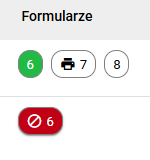
Example of assigning document types to forms.
In the example above, the first type is assigned to three forms and the second type to one. The first type is mandatory in the form with id 6, optional, hidden or read-only in forms 7 and 8, and is generated automatically in form 7. The second type is assigned only to form 6 and there is no access to it.
Editing document types
After selecting an item from the list or using the Edit action, an extended document type configuration window opens. The form is divided into two parts.
The top part contains the general settings of the document type:
- Display name - the name shown to users in the case,
- API name - the technical name used in configuration and internal references,
- Hint - additional text displayed next to the document field,
- Template - selection of the active template assigned to this document type,
- Folder - the target folder for the document after the case is completed,
- Forms - the list of forms on which the document type should be available.
After selecting forms, a table appears below with settings configured separately for each form. In this table you can define:
- Required field - whether the document should be required, optional, hidden, read-only, or unavailable,
- Automatic document generation - whether the document should be generated automatically for the selected form,
- Fields affecting document - a shortcut to configure fields that affect the content of the generated document,
- Template visibility - whether the template should be hidden, visible, or available only for download,
- Logical Conditions - opening an additional dialog for rules that show or hide the document.
If the document type has no available template, or if Template visibility is set to Download only, the Automatic document generation option remains disabled.
After saving the per-form configuration, select Save in the lower-right corner of the window.
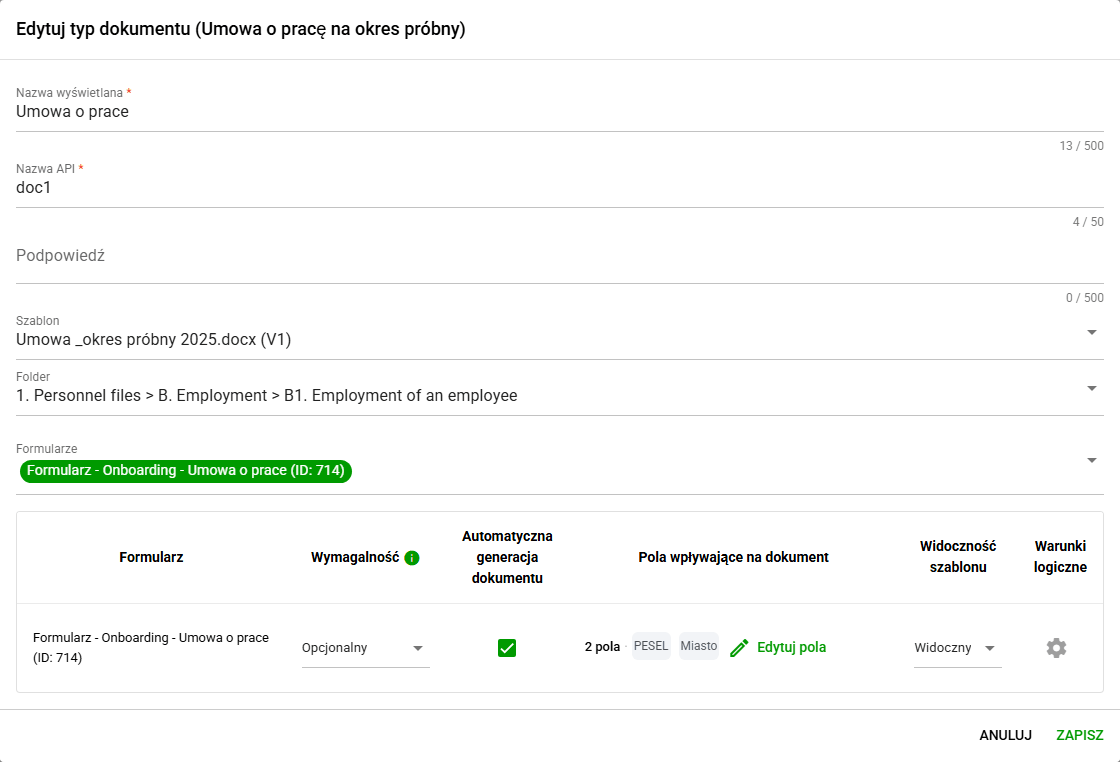
Document type editing
It is also possible to change the order of document types on the form. To modify it, select Edit in the upper right corner and then use the arrows to set the desired order.
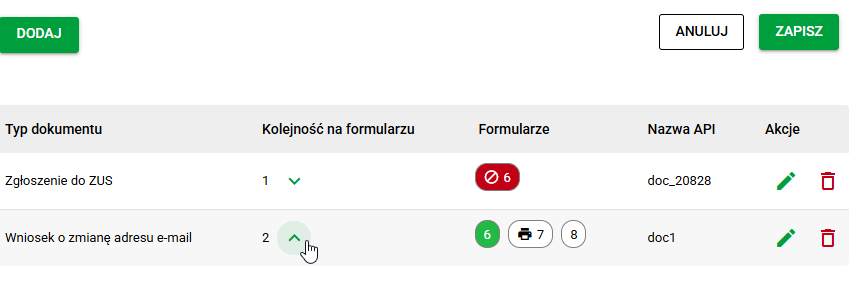
Editing the order on the form
Field-dependent document types
If a document is generated based on form data, you can indicate which fields affect its content. This allows the system to recognize that a previously generated document may need to be updated when selected data changes.
This configuration is set separately for each form in the Fields affecting document column. If no fields have been added yet for a form, select Configure fields. Once the configuration exists, the button changes to Edit fields, and the table displays the number of selected fields together with their names.
In the Fields affecting document content dialog you can:
- select a subform and a specific field,
- add multiple fields from different subforms using Add field,
- define what should happen after one of these fields changes:
- Remove previously generated document - the system removes the outdated document and a new one must be generated,
- Do not perform any action - the existing document remains unchanged,
- define what should happen if the document has already been signed or attached:
- Block field change - the user cannot change the selected field while the document exists,
- Allow change after confirmation and remove document - after confirmation, the signed or attached document is removed.
This configuration is especially useful for automatically generated documents, because it helps keep the document content consistent with the current form data.
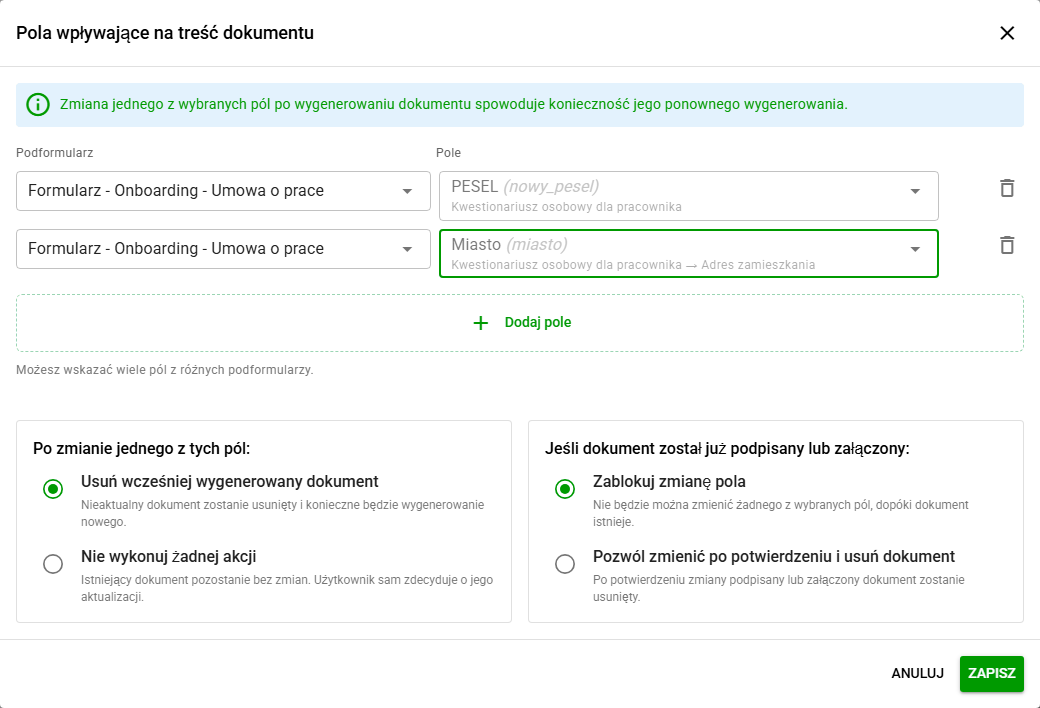
Configuration of fields affecting document content
Adding and removing document types
To add a new type, first select Add. A new window will appear in which you will be able to use the search engine to find the type you are looking for (1) and then select one of the templates assigned to it (2). It will then be possible to assign a folder to which the documents will be sent after the Case is completed (3). Finally, we can immediately assign the type to existing forms(4).
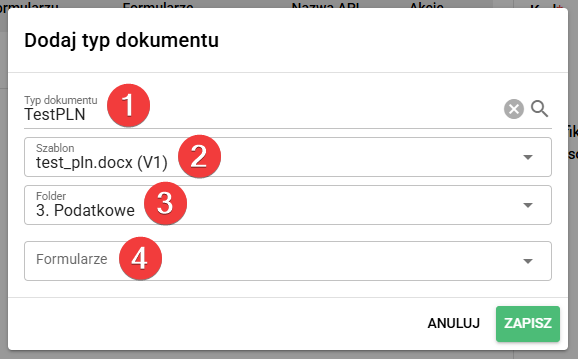
Add document type screen
To remove a given type, simply click on the red trash can icon in the Actions column. A window will appear asking for confirmation, after which the type will disappear from our Case.
Import and export of document types
If necessary, our settings can be easily exported and saved locally using the Export button (1). A new file in .JSON format will then be created and saved on our computer. If necessary, this file can be easily uploaded using the Import button (2).
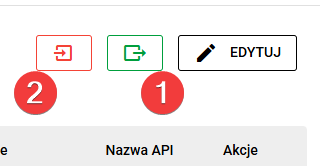
Export and import document type settings
Note: The import works on an incremental basis, i.e. if the imported file does not contain any types that are currently assigned to the Case, these types will not be removed, and only previously absent types will appear.