Status of affairs
Description
Forms are sets of fields that the user moves between at various stages of the case.
Administration access path
Go to the administration panel case types, and then select the following items:
- Administration Panel -> Cases -> Specific case type -> STATES
STATES tab
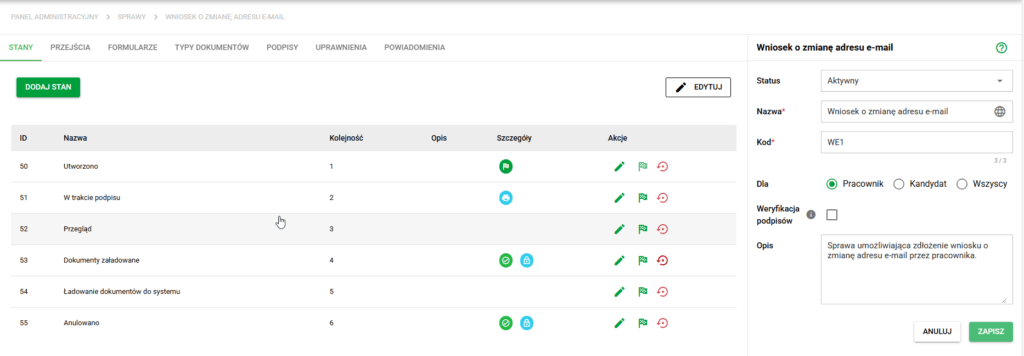
Details of the case. State view
The States view consists primarily of the list visible above, which contains the following table:
- ID (state)
- Name (of state)
- Order
- Description (optional)
- Details
- Actions (editing state metadata, final fields and de/activating state)
Adding a status
To create a new state, click the "Add state" button located in the upper left corner of the tab.
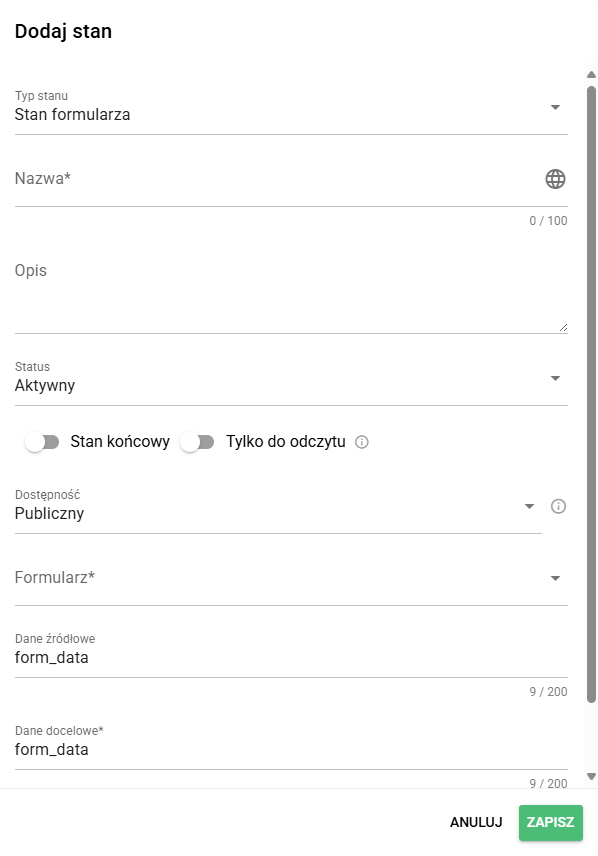
Then a configuration window will open, in which you should:
- select mandatory status type
- by default this is the standard 'form status'
- alternatively, select 'loading documents' for the status of filing case documents into eFile
- Note: the 'loading documents' state is not available in case types marked as Without candidate or worker. Such a case does not indicate any person, so the system has no employee or candidate eFolder to move the documents to. More about this setting in the article Case types
- enter state name - this field is required, language translations are additionally available under the gear
- complete condition description – optional field
- select status – default: 'Active'
- select options
- end state – there can be one or many end states, it is recommended to set at least one, because without it the case will never be marked as completed
- read only – an option that overwrites all settings, making it completely impossible to change data within a given state (recommended, among others, for 'final state')
- select availability – default: 'Public'
- Public
- Public, read-only – setting currently for possible configuration/use by HRobots
- Private – setting currently for possible configuration/use by HRobots
- select status form – mandatory field
- complete source data and target data – mandatory field, it is recommended to enter the same value in both fields, e.g. 'form_data'. These fields can be used by HRobots to support non-standard document workflows
- select document generation - an option that triggers the generation of document types that have the 'Automatic document generation' setting when entering the state
After saving, the status will be added to the list and will be available for further configuration.
Edit status
After pressing an item on the list or selecting edit from action, a simple status editing screen will open. It will be possible to change all the fields described above in the section on creating a state.
De/Activate state
Once a state is created, it cannot be deleted. It can be deactivated at the general form level.
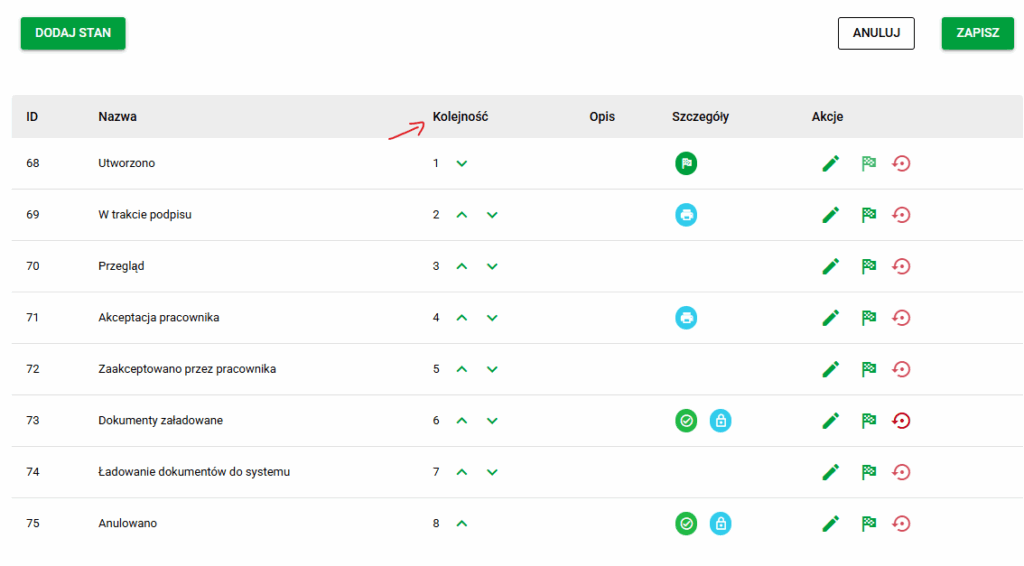
Change the order of status
The change in status order is visible on subsequent administrative forms. It is possible at the general form level after pressing the 'Edit' button. The form will be switched to the mode of changing the order of states using the up/down arrows. After completing editing, select the 'Save' button.