Process library and transfer of case configurations
Introduction
The functionality of the process library and import and export of case types allows you to more quickly create, transfer and reuse process configurations in eFOB Matters.
With these features, the administrator can:
- use the ready-made process available in the library,
- import the case type from a JSON file,
- export an existing case type to a file,
- transfer configuration between environments, e.g. test → PROD,
- check missing dependencies before import,
- version process configurations outside the system, e.g. in the Git repository.
The solution is particularly useful when similar processes are to be run in multiple environments or when the organization wants to start with a ready-made template and then adapt it to its own needs.
What does a case type configuration include?
The exported case type is saved to a JSON file. The file may contain process configuration, including:
- forms and fields,
- process phases,
- states,
- actions and transitions,
- permissions,
- notifications,
- signature groups,
- translations,
- document field configurations.
This allows the configuration to be recreated in another environment without having to manually build the process from scratch.
Export case type configuration
Export allows you to download the configuration of an existing case type to a JSON file. The file can later be imported in another environment or stored as a process configuration version.
To export a case type:
- Go to the administration panel.
- Select the Cases module.
- In the list of case types, find the process you want to export.
- In the action column, select the export icon.
- The system will download a JSON file with the case type configuration.
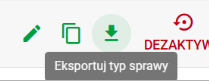
The exported file can be used, for example, to transfer a process from a test environment to a production environment or to save a copy of the configuration before major changes.
Import case type configuration from a JSON file
Import allows you to create a new case type based on a previously exported JSON file.
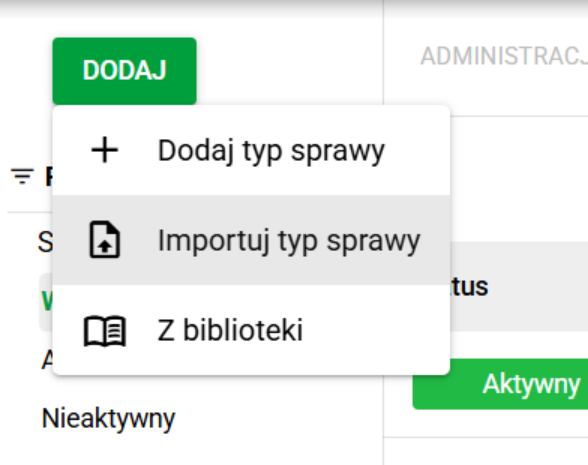
To import a case type:
- Go to the administration panel.
- Select the Cases module.
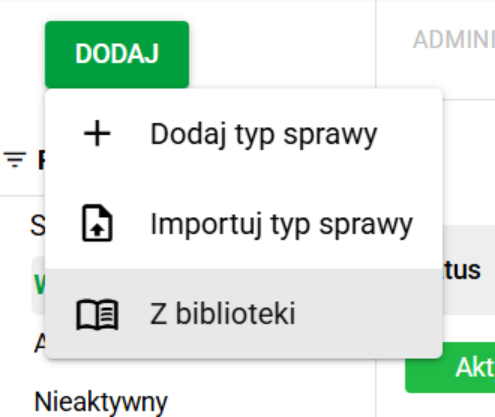
- Click Add.
- Select Import Case Type.
- Select the JSON file with the process configuration.
- Check the auto-completed case type name and code.
- Click Import.
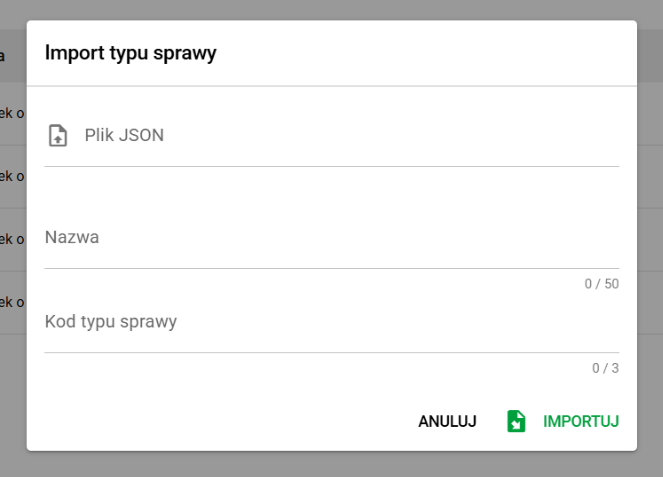
After specifying the file, the system can automatically complete the name and code of the case type based on the data from the JSON file. If the code or name conflicts in the target environment, the system will ask you to change it.
Note on state automations: importing from a JSON file transfers the general automation configuration for the document-loading state, including document-loading rules and the setting for automatic transition to the next state. However, the import does not transfer signing configurations used inside that automation. After import, the signing part is disabled and must be configured again in the target environment.
Dependency validation on import
During import, the system checks whether the elements required by the imported process exist in the target environment.
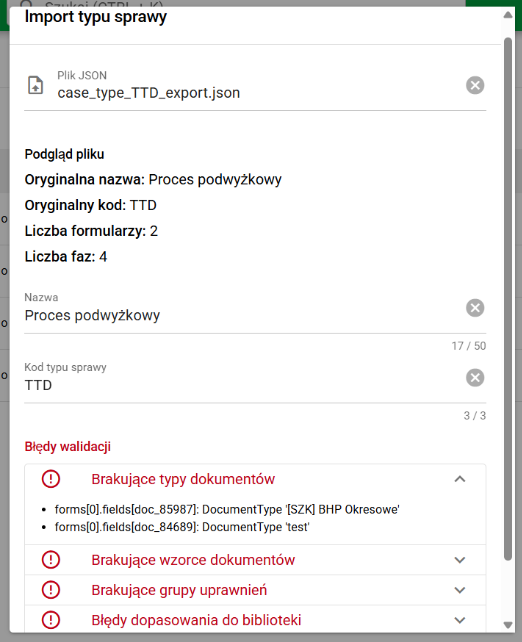
These may include:
- document types,
- templates,
- folders,
- user groups,
- signature groups,
- permission configurations.If any of the required elements are missing, the import will be blocked and the system will show a list of missing dependencies. This allows the administrator to complete the environment configuration before attempting the import again.
This prevents a process from being created but not working properly due to missing document types, forms, signature groups, or permissions.
Versioning of process configurations
A JSON file with case type configuration can be treated as a versionable artifact. This means that subsequent versions of the configuration can be stored outside the system, e.g. in a Git repository.
This allows:
- track the history of changes in the process configuration,
- compare versions,
- check who changed the configuration and when,
- recreate an earlier version of the process,
- easier to control changes between environments.
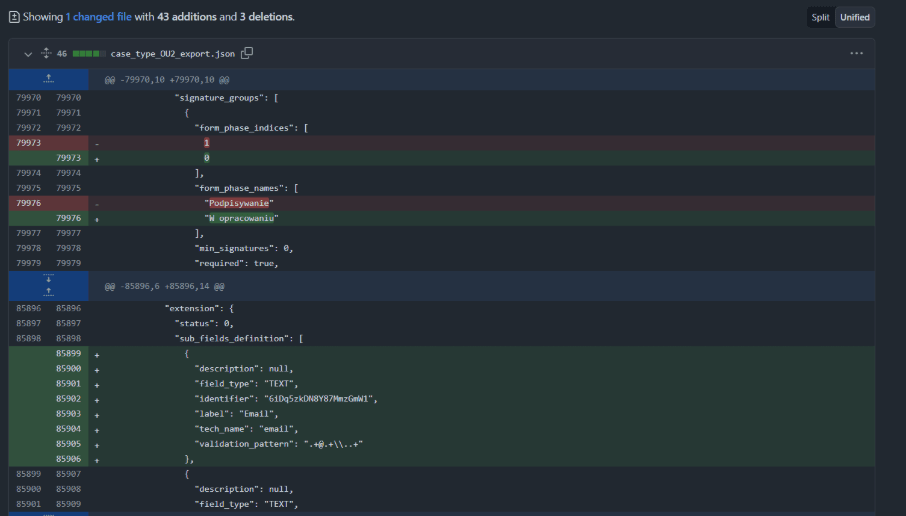
For example, in a version control system you can compare whether a new form field has been added, a state transition has changed, or permissions have been modified in a given version of a process.
Process library
Process library allows you to install ready-made case types prepared as business process patterns.
Thanks to the library you can:
- view available processes,
- filter the list of processes,
- check the description, area and version of the process,
- preview the full configuration before installation,
- quickly install the process in the environment,
- after installation, adapt the process to the needs of the organization.
The library is useful when an administrator wants to start configuration from a ready-made process, instead of creating all states, transitions, forms, documents, signatures, permissions and notifications from scratch.
The same rule applies to state automations when installing a process from the library. The system transfers document-loading settings and transition-to-next-state settings, but it does not recreate the signing configuration used in the automation. This part should be completed manually after the process is installed.
Adding a process from the library
To add a process from the library:
- Go to the administration panel.
- Select the Cases module.
- Click Add.
- Select From Library.
- In the process list, find the process you want to add.
- Optionally, open the process preview.
- Click the action to add a process.
- After installation, proceed to the configuration of the created case type.
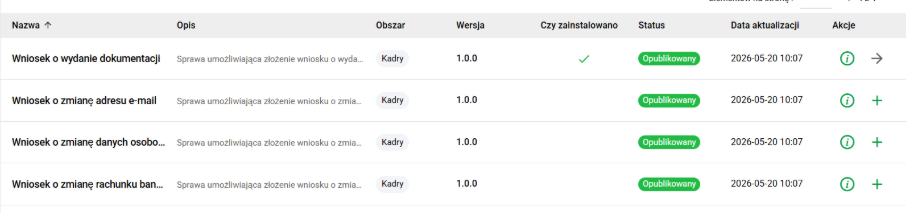
The list of processes in the library includes, among others: process name, description, area, version, information whether the process is already installed, status, update date and available actions.
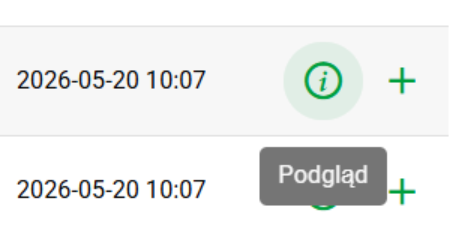
Preview the process before installation
Before installing the process, you can open its preview. It allows you to check the process configuration before adding it to the environment.
In the preview you can verify, among others:
- process states,
- transitions,
- forms,
- document types,
- signatures,
- permissions,
- notifications.
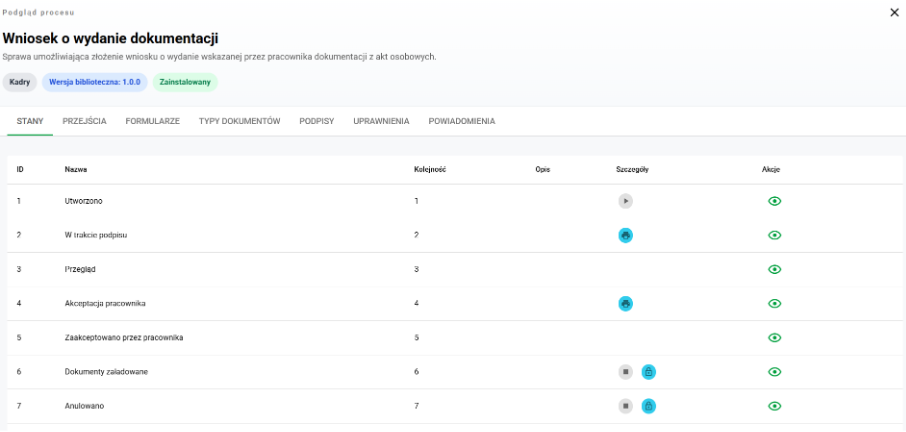
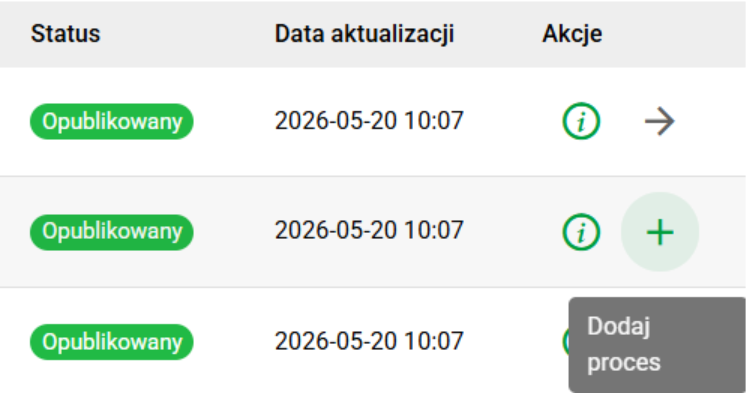
Thanks to this, the administrator can check whether the finished process meets the needs of the organization and whether it requires subsequent adaptation.
Process already installed from the library
If a process from the library has already been installed, the action to go directly to its configuration is available on the list.
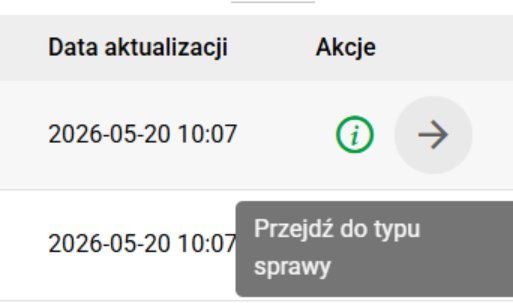
Processes installed from the library can be marked with information about the source, version and operating mode. This makes it easier to recognize which case types were created manually and which came from the library.

Read-only mode
Issue types installed from the library may run in read-only mode by default. This means that the process configuration is protected against accidental editing.
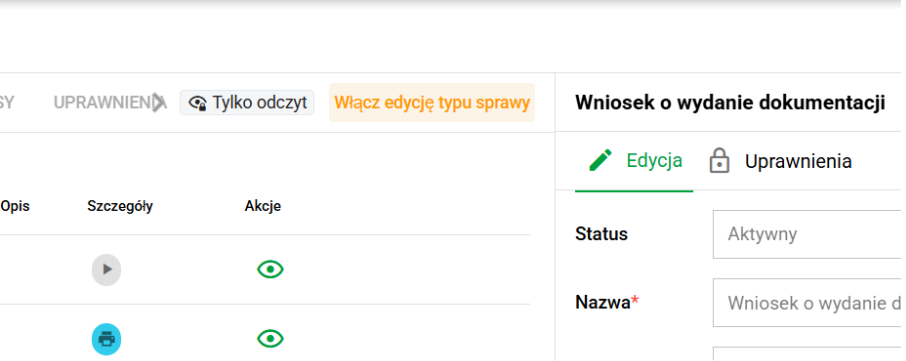
If the administrator wants to adapt the process to the needs of the organization, he or she can disable read-only mode and enable case type editing.
After turning off this mode, you can modify the process configuration, e.g.:
- change states,
- customize transitions,
- edit forms,
- change document types,
- configure signatures,
- update permissions,
- customize notifications.
It is worth remembering that once you start editing, the process may differ from the template available in the library.
When to use import and when to use process libraries?
Use case type import from JSON when:
- you have a ready file with the process configuration,
- you move the process between environments,
- you want to recreate a previously prepared version of the process,
- you work with configurations saved in the repository,
- you implement the configuration previously prepared in a test environment.
Use the process library when:
- you want to start working with a ready-made template,
- you don't want to build a process from scratch,
- you want to check an example process configuration,
- you need to quickly launch a standard business process,
- you plan to later adapt the process to the needs of the organization.
Good practices
Before importing or installing a process from the library and then actually running it, it's a good idea to:
- check whether the required document types, folders and document templates exist in the environment,
- verify the identity of permission configuration (mainly module access roles),
- check whether the process is not using missing signature groups or templates,
- make sure that the new case type code is unique,
- test the process before making it available to users,
- save the exported configuration as a backup copy.
When transferring configurations between environments, it is worth following the following order:
- dependency verification (document types, folders, document templates, signature configuration),
- case type import,
- configuration verification,
- test the operation of transitions and forms on various roles,
- test of document generation, signatures, authorizations and operation of notifications,
- making the process available to users.