Form fields
Edit a form field
Each field can be further modified by pressing the gear symbol (1), which appears when you hover over the desired field. After selecting it, it will be possible to enter, among others, a new name, technical name, description and many other parameters (2).
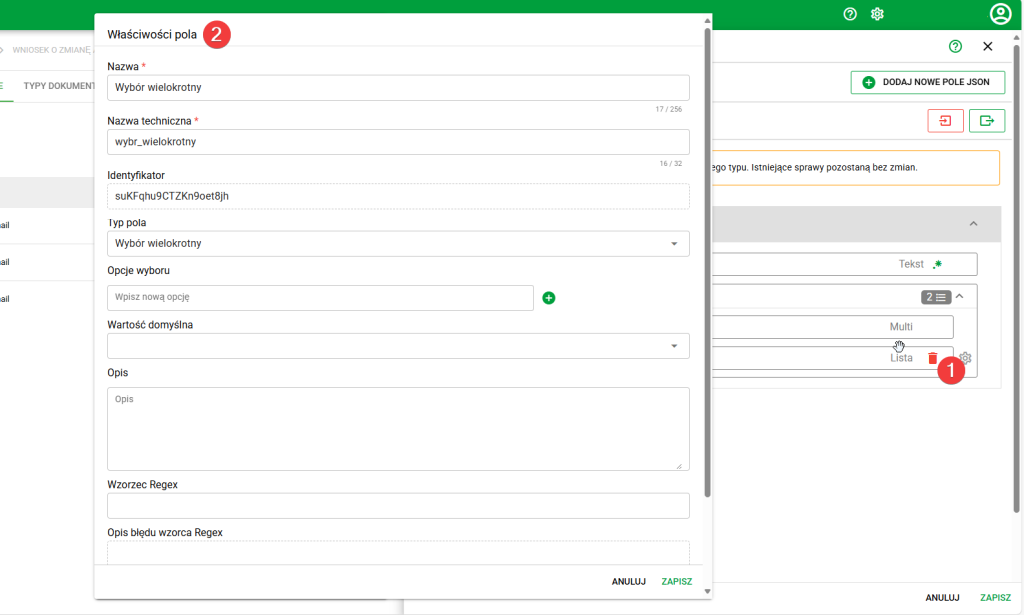
Modification of form fields
Field properties
When editing a field, you can set parameters such as:
- Name: Displayed in the system when in use.
- Technical name: Used to implement technical solutions.
- Identifier: Unique ID for a given field.
- Field Type: Described below.
- Default value: The value that will appear in the field initially after creating the case.
- Regex Pattern: Specifies the allowed pattern for the entered data.
- Regex Pattern Error Description: Allows you to define a custom error message displayed to the user when Regex validation conditions are not met. If no custom message is provided, the system uses the default message from the field configuration.
- Validation conditions: Specifies the rules for validating data entered in the field.
- Logical conditions: Specify dependencies between fields in the form.
Default field values
This option allows you to set a value that will be substituted in the case form initially after creating the case.
The value can be defined directly in text (e.g. Warsaw) or using flexible functions, e.g.:1. A simple variable
{{year}} → will insert the current year.
2. {{add }} → Returns the result of adding two numbers
3. {{ceil }} → Rounds a number up
4. {{divide }} → Returns the result of dividing the first number by the second
5. {{floor }} → Rounds a number down
6. {{multiply }} → Returns the result of multiplying the given numbers
7. {{random }} → Returns a random number between the min and max values
8. {{remainder }} → Returns the remainder of dividing the first number by the second
9. {{round }} → Rounds the given number
10. {{subtract }} → Returns the result of subtracting two numbers
11. {{capitalize }} → Changes the first letter of the text to uppercase
12. {{capitalizeAll }} → Capitalizes the first letter of each word
13. {{center }} → Centers the text at the given width, adding spaces on the sides
14. {{chop }} → Removes spaces and special characters from the beginning and end of the text
15. {{ellipsis }} → Shortens the text and adds ... if it exceeds the specified length
16. {{hyphenate }} → Converts spaces to hyphens
17. {{lowercase }} → Returns lowercase text
18. {{remove }} → Removes all occurrences of the specified fragment from the text
19. {{replace }} → Replaces all occurrences of the searched word with a new one in the text
20. {{titleize }} → Changes the text to the title text - every word is capitalized
21. {{trim }} → Removes spaces from the beginning and end of the text
22. {{truncate }} → Shortens the text to the specified length
23. {{uppercase }} → Returns the text in uppercase letters
24. {{append }} → Adds an appendix to the end of the text
25. {{plusify }} → Replaces all spaces in the text with + signs
26. {{prepend }} → Adds an appendix to the beginning of the text
27. {{removeFirst }} → Removes the first occurrence of a fragment from the text
28. {{replaceFirst }} → Replaces the first occurrence of the searched item with a new one
29. {{sentence }} → Converts the text into sentence form - the first word in capital letter, the rest in lower case
30. {{trimLeft }} → Removes spaces from the left side of the text
31. {{trimRight }} → Removes spaces from the right side of the text
32. {{truncateWords }} → Shortens the text to the specified number of words
33. {{addCommas }} → Format a number by adding commas as thousands separators (e.g. 1,000,000)
34. {{toAbbr }} → Abbreviates a large number to unit format (e.g. 1000000 → 1m), with an optional number of decimal places (e.g. 12345, 2 → 12.35k)
35. {{toExponential }} → Returns a number in exponential notation with the specified number of decimal places (e.g. 1.23e+5)
36. {{toFixed }} → Returns a number with the specified number of decimal places
37. {{toPrecision }} → Format a number with the specified total number of digits (significant)
38. {{#if }} … {{/if}} → Displays content only when the condition is true. Other fo may be substituted as a conditionrmules in brackets
39. {{else}} → Alternate block when the if condition is not met. Inserted before {{/if}}
40. {{eq }} → Returns true if a and b are equal
41. {{ne }} → Returns true if a and b are different
42. {{gt }} → Returns true if a is greater than b
43. {{gte }} → Returns true if a is greater than or equal to b
44. {{lt }} → Returns true if a is less than b
45. {{lte }} → Returns true if a is less than or equal to b
46. {{#and …}}…{{/and}} → Displays the contents of the block if all conditions are met
47. {{#or …}}…{{/or}} → Displays the contents of the block if at least one condition is met
48. {{#neither }}…{{/neighter}} → Displays the contents of the block if no condition is met
49. {{not }} → Returns true if the value is false
50. {{#ifEven }}…{{/ifEven}} → Displays the contents of the block if the number is even
51. {{#ifOdd }}…{{/ifOdd}} → Displays the contents of the block if the number is odd
52. {{unlessEq }} → Returns true if a is not equal to b
53. {{unlessGt }} → Returns true if a is not greater than b
54. {{unlessGteq }} → Returns true if a is not greater than or equal to b
55. {{unlessLt }} → Returns true if a is not less than b
56. {{unlessLteq }} → Returns true if a is not less than or equal to b
57. {{toRegex “”}} → Creates a regular expression from the given text (e.g. “^[a-z]+$”). Used together with test.
58. {{test (toRegex “”)}} → Checks whether the text matches a regular expression. Returns true or false.
59. {{ordinalize }} → Returns a number with an English ordinal ending, e.g. 1 → 1st, 2 → 2nd.
60. {{inflect “” “”}} → Returns a number-dependent form.
Thanks to this, you can prepare rules that will automatically substitute appropriate data, even if the user does not enter anything.
Regex Pattern
The Regex Pattern defines the allowed data format for a given form field.
Default validation patterns
For selected field types, the system automatically suggests default validation patterns that are inserted when adding a field to the form. The administrator can then modify them freely.
Default patterns are available, among others, for:
- phone number,
- street,
- PESEL number,
- bank account number.
Important: Default patterns are used only when adding new fields to the form. Changing default patterns in subsequent system versions does not affect the configuration of existing forms.
Validation error messages
For fields using Regex validation, it is possible to define a custom error message displayed to the user after entering an invalid value.
If the administrator does not provide a custom message, the system selects the message in the following order:
- Message defined by the administrator.
- Message assigned to the Regex pattern.
- Message resulting from the field type.
- Default system message.
During field configuration, the default error message is visible in the field as a placeholder, allowing the administrator to quickly use the suggested text or replace it with a custom message.
Field types
- Text
- Number
- Date
- Date and time
- PESEL number
- Postal code
- Just letters
- Selection list
- Multiple selection
- Checkbox
- Integers
- Select button
- Text area
- Text editor