Case types
Introduction
Before learning about the possibilities of configuring case types, we recommend the article: Cases – introduction.
Case elements
The case type workflow is based on the concept of a state machine with one start state and one or more end states.
States have rich configuration options. The key elements of the cases are:
- States: Steps for executing a business process for a given case type
- Transitions (workflow): Defining the possibility of changing the case status and process path
- Forms: Binding a case type to specific data and form layout
- Document types: Assignment and organization of document types logically related to a given case type
- Signatures: Configuration of required electronic signatures for various document types within a case and permissions
- Permissions: Configuration of Data Access Roles permissions within a given case type
- Notifications: Automatic notification of participants and interested parties regarding changes
Quick start using the example of NDA
<script async src="https://js.storylane.io/js/v2/storylane.js"></script>
Administration of case types
Access path
To access the administration of case types, go to the menu/administration panel and select:
This will bring up the Check: screen
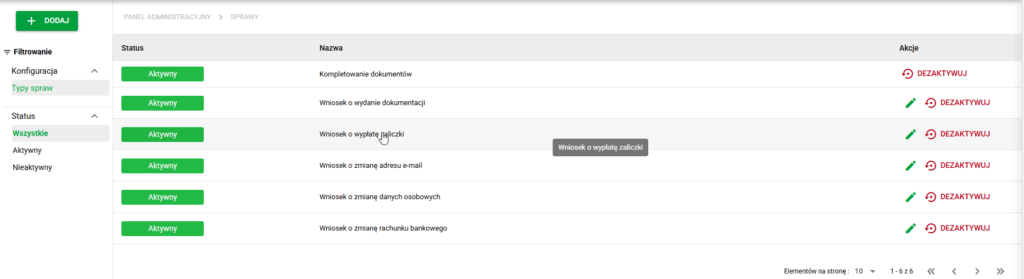
Affairs. General view
After clicking on specific case type, details will be displayed:
- side panel on the right to edit general case settings
- main panel on the left side for editing detailed settings of the case type in individual tabs
By default, the STATES tab opens.
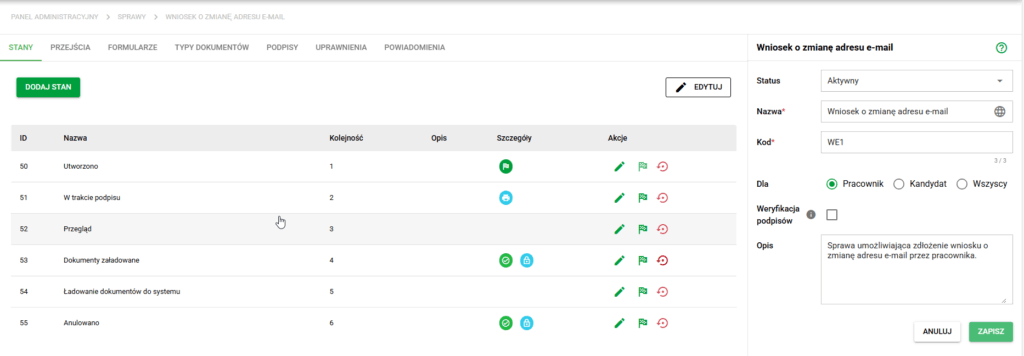
Details of the case. State view
New case types
From the main Cases screen it is possible to create a new case type. After clicking the + ADD button, there are three ways to add a process:- Add case type - creating a new case type from scratch,
- Import case type - recreates the case type configuration from the JSON file,
- From library - installation of a ready-made process from the case library.
This section describes how to manually create a new case type. Importing configurations and adding processes from the library is described in a separate article: Process library and transferring case configurations.
Adding a case type from scratch
- Click on the “+ ADD” button
- Complete the required configuration fields
- Note: The case type code must be unique.
- In the For field you decide who the case concerns: a candidate, a worker, or nobody in particular. All the options are described in the section The “For” field – who the case concerns.
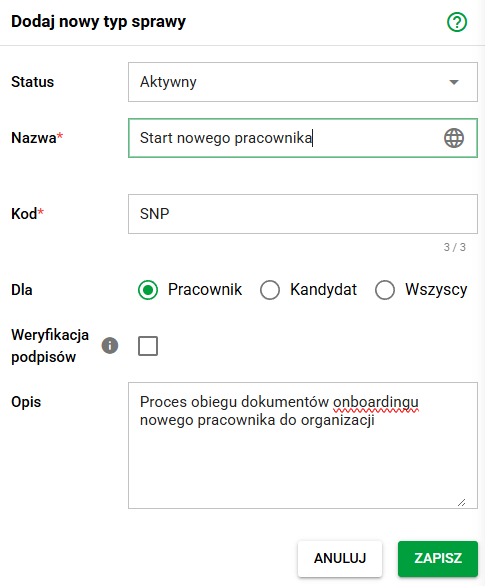
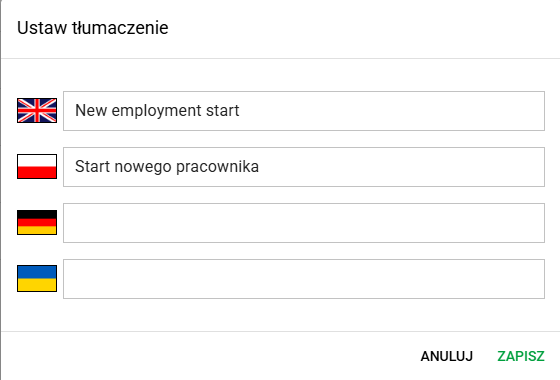
- Optional: Add translations for the case type name (globe button in the Name field)
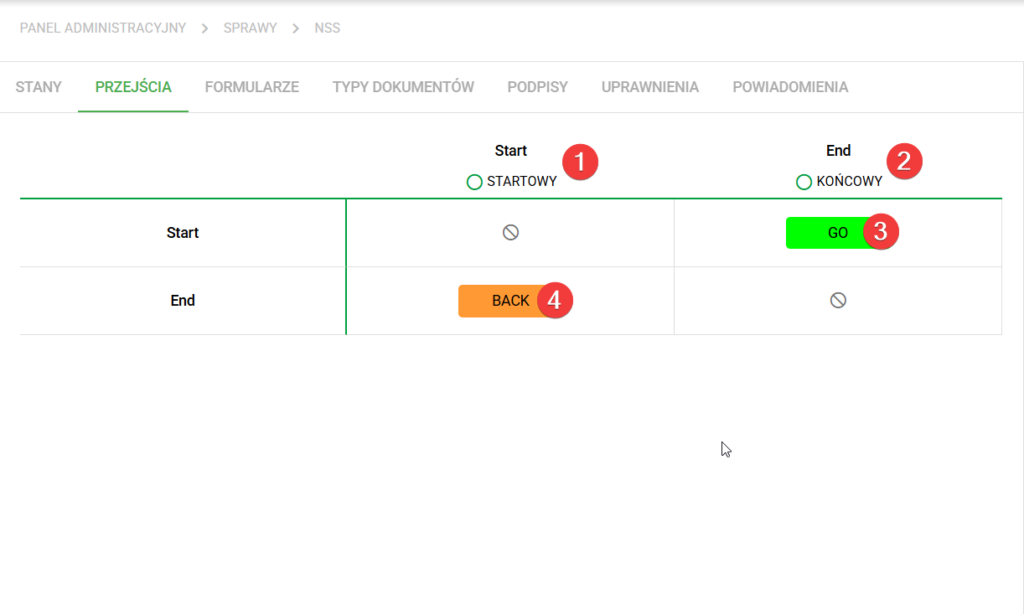
After selecting Save, a new Case Type will be created. By default, it will open in the Transitions tab, where two states will be immediately visible - one starting state Start(1) and one ending state End(2), as well as two transitions between them - Go(3) (from Start to End) and Back(4) (from End to Start). These transitions can be freely modified in this tab after hovering over them and selecting the pencil symbol; more about editing transitions in the article Case transitions – eFOB.
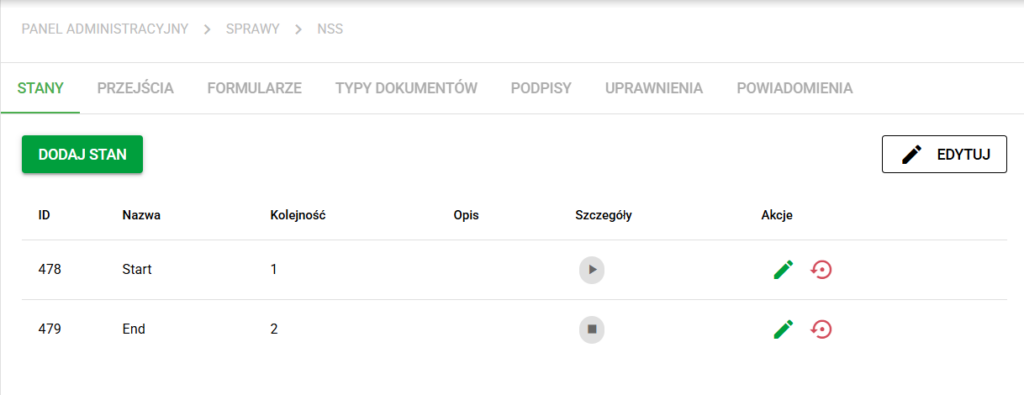
In the Forms tab, one empty form called Form is defined by default, which is set as the default form for the Start and End states. These states can be viewed in the States tab. More information about editing forms and statuses can be found in the articles Case Forms – eFOB, Form Fields – eFOB and Case Statuses – eFOB.
The “For” field – who the case concerns
The For field is part of the general settings of a case type and answers a single question: does a case of this type have to be linked to a specific person – a candidate or a worker? The choice made here decides which fields the person creating the case will see. The field is available both in the window for adding a new case type and in the window for editing it.
Six options are available in the drop-down list:
| Option | What it means in practice |
|---|---|
| All | The case can be created both for a candidate and for a worker. |
| Worker | The case always concerns a specific worker. It cannot be saved without indicating that person. |
| Worker optional | The case usually concerns a worker, but it can also be created without indicating a person. A candidate cannot be assigned to it. |
| Candidate | The case always concerns a specific candidate. It cannot be saved without indicating that person. |
| Candidate optional | The case usually concerns a candidate, but it can also be created without indicating a person. A worker cannot be assigned to it. |
| Without candidate or worker | The case is never linked to a person. The candidate and worker selection fields are not displayed at all. |
Why create a case without a person
Until now every case had to concern a candidate or a worker. The Without candidate or worker option and the optional variants make it possible to run processes in eFOB that do not concern a specific person, or concern one only at a later stage. For example:
- a request to purchase equipment or a service for a team,
- a request submitted to the IT department or to building administration,
- an organisational case run for the whole company, for example an annual review of procedures,
- a request to start a recruitment process, submitted before any candidate exists in the system – Candidate optional works well here, because the person can be added later.
This way you can run employee and recruitment cases as well as company administrative cases in one place.
A case without a person and an eFolder
Note: a case type marked as Without candidate or worker cannot contain a document loading state, that is the state that copies case documents into eFile. Since the case does not indicate any person, the system has no employee or candidate eFolder to move the documents to.
In practice this means that:
- if the case type already has a document loading state, the Without candidate or worker item in the drop-down list will be inactive – hovering over it displays a tooltip with an explanation,
- if the case type is marked as Without candidate or worker, the document loading type cannot be selected when adding a state.
The restriction does not apply to the Worker optional and Candidate optional options – such case types may contain a document loading state.
The same restriction applies when copying a case type and when uploading a configuration from a file – if the copied or imported process contains a document loading state, it will not be saved as a type without a candidate or worker.
Changing the setting in an existing case type
The For field can also be changed later, in the general settings of an existing case type. The change applies when new cases are created – cases that already exist keep their current link to a person.
Actions
The following actions are available: editing the case type, copying and deactivating/activating
Note: Case types marked internally as uneditable only have the Deactivate/Activate option, they do not have the case type editable.
Check a state for different users
Before making a process available, check what participants will see at its stages. In transition configuration, open the selected state's preview, then:
- Check which user the current preview was generated for.
- Select a DS role used in the process and the appropriate user from that role.
- Generate the preview and check fields, documents, and available actions.
- Repeat for other participants, particularly the employee and people handling the case.
This preview uses the selected user's permission context. It differs from Layout preview in the form editor, which checks unsaved appearance without stage permissions. Preview does not replace a final process test using the appropriate account.
Cloning case type
Copying a case type – this function allows you to create a new case type based on an existing configuration. When copying, settings from all case type tabs are transferred, so you do not have to configure the process from scratch.
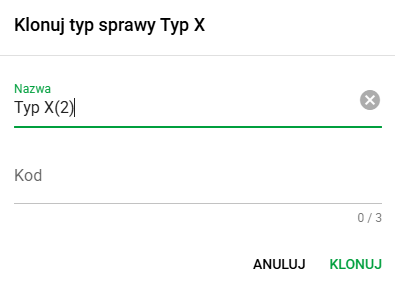
Copying includes the configuration available in the case type tabs, in particular:
- States – definition of process states,
- Transitions – connections and possible transition paths between states,
- Forms – settings of forms used in the case,
- Document types – assigned documents and their configuration,
- Signatures - settings for groups and methods of signing documents,
- Permissions - rules of access and case handling,
- Notifications – configuration of messages and notification events.
The function is useful when a new case type is to be similar to an existing one, and the differences concern only selected elements. Once a copy is created, you can edit its configuration regardless of the source type.
Deactivate a case type
Deactivation will result in inactive status for a given record and will transfer the given type of issues to the second tab INACTIVE, where we can reverse the process in a similar way.
Effects of deactivating a case type:
- a specific case type will not be able to be used when creating new cases
- existing cases of a given type will still be available
- the search engine will have status data in the filters
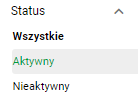
Activation statuses
Edit the case type
Editing is performed using the button:

Edit button
It opens the menu responsible for changing status, name, unique code, description and lets you indicate in the For field who the case concerns – a worker, a candidate, everyone, or nobody in particular (all the options are described in the section The “For” field – who the case concerns):
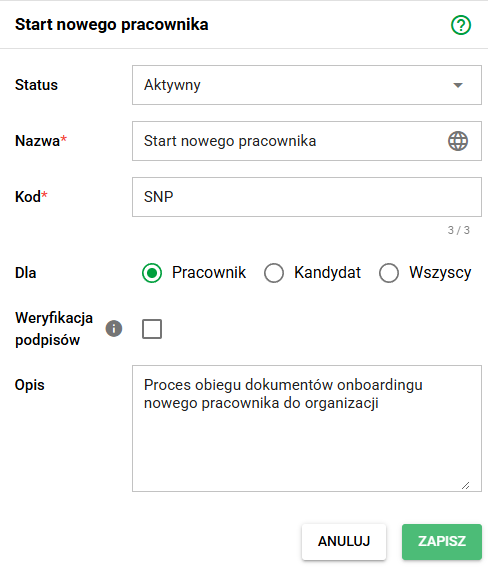
The edit must be confirmed by clicking the green button SAVE