Case transitions
Description
Transitions define the order of moving between subsequent states. They enable navigation from the initial state to the target state using configurable buttons.
Administration access path
Go to the administration panel case types, and then select the following items:
- Administration Panel -> Cases -> Specific type of case -> TRANSITIONS
TRANSITIONS tab
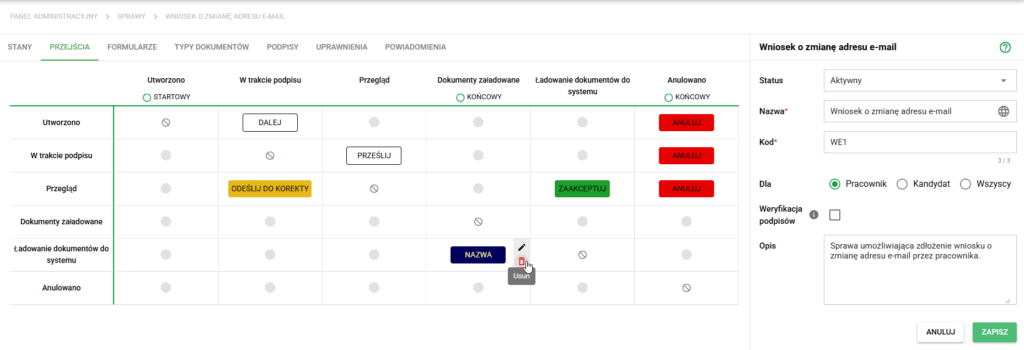
By default, the transition view is displayed in the form of a table, in which the rows indicate the initial states and the columns indicate the final states. If we want to enable the transition from one state to another, it should be marked in the appropriate field in the table. Visually, we create transitions:
- (1) from the LEFT (first column) – initial state
- (2) to the RIGHT side (name in the appropriate column named in the first row) – target state
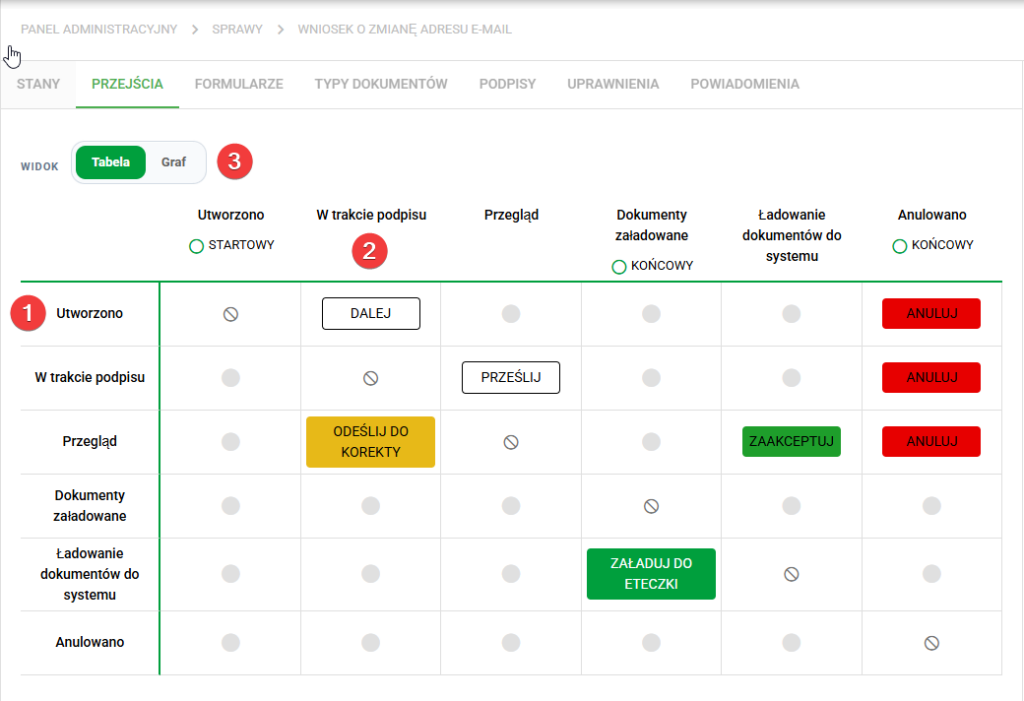
Example: in order for the case type "HR application" to be able to go from the "Created"_ state to "Under signing", check the box at the intersection of the "Created" row and the "Under signing"_ column, and then add a new transition. This transition is visible as a white “NEXT” button on the screen above.
View of the transition graph
The transition view (3) is also available in the form of a visual transition graph.
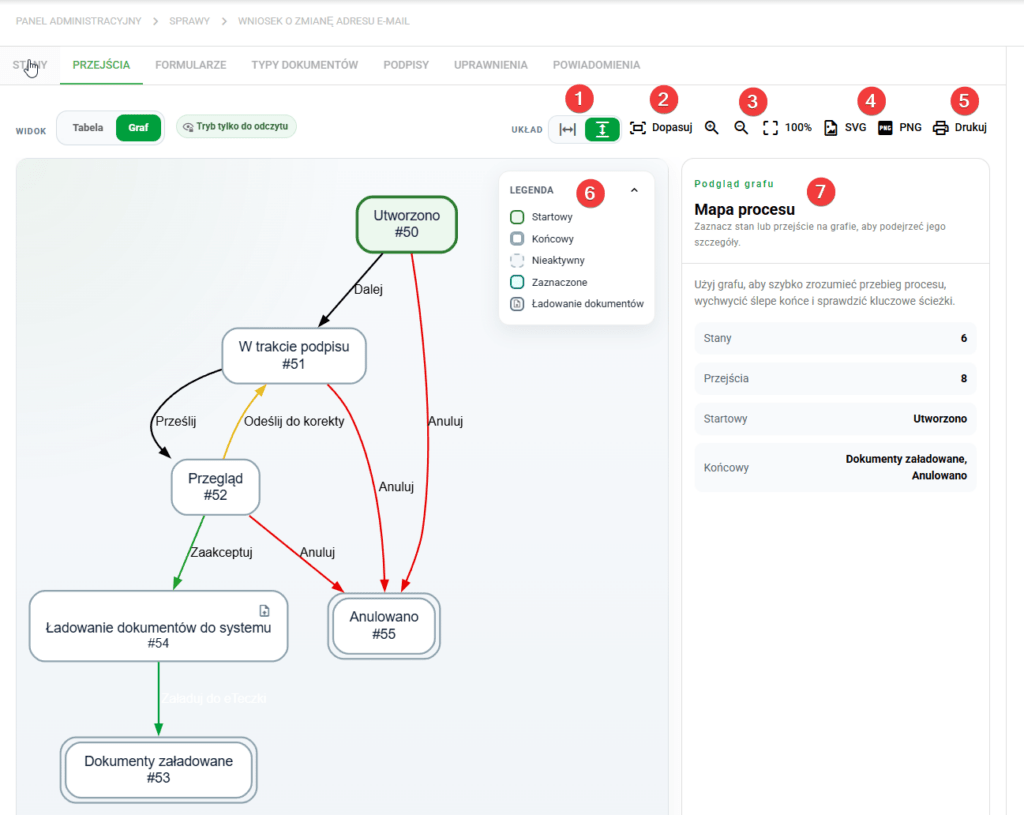
The graph presents the progress of the case in the form of a graphical process map. This view facilitates quick understanding of the process flow, dependencies between states and possible transition paths.
In the Graph view you can:
- see all process states and transitions between them in the form of a diagram in horizontal or vertical layout,
- adjust the graph view to the available workspace,
- zoom in and out of the diagram,
- export the graph to a SVG or PNG file,
- print the process view
- Easily recognize the starting state, ending states, inactive states, and the currently selected item, including clicking on a state or transition to view its details in the preview panel.
The Graph Preview panel (7) is displayed on the right side of the screen, presenting basic information about the process, such as the number of states, the number of transitions, and an indication of the initial and final states.
The Graph view is particularly useful when configuring and verifying the process because it allows you to quickly detect missing transitions, dead ends and key case flow paths.
Adding and removing transitions
When you hover over an empty place in the table, the + button will appear. After pressing it, a new window will open, which will allow you to configure the transition button and the color palette.
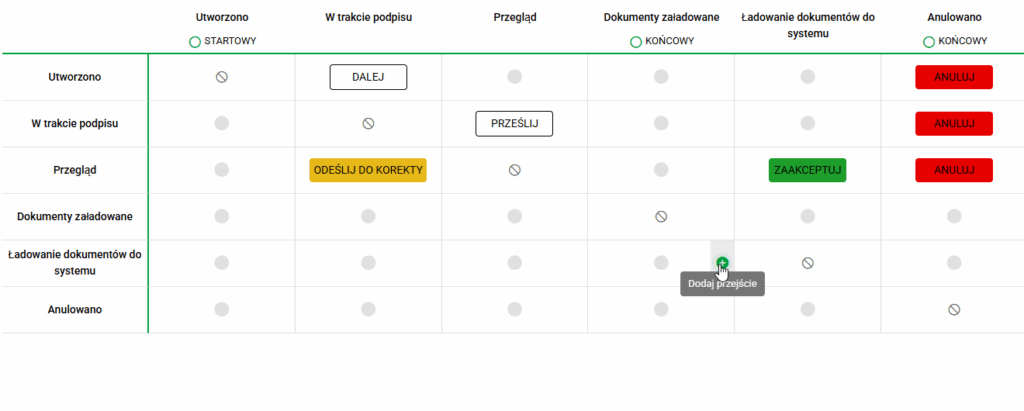
Details of the case. Adding transitions
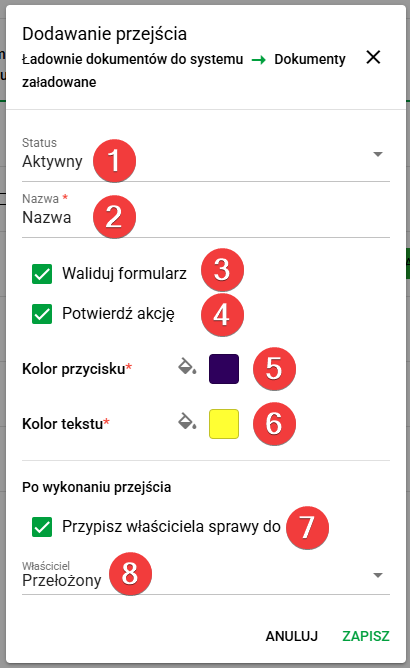
Add transitions window
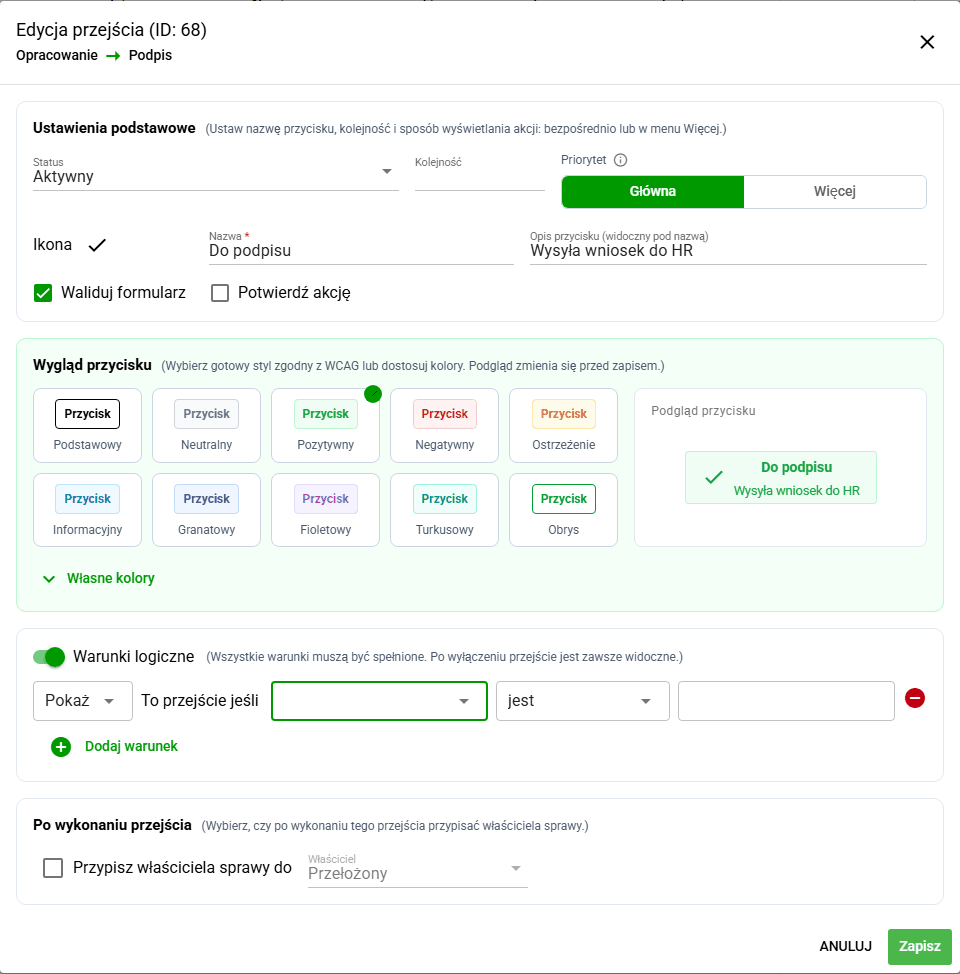
The transition can be configured using many parameters:- Status (1) – allows you to determine whether a given door is currently active.
- Name (2) – text displayed on the transition button.
- Validate form (3) – enabling this option verifies the data entered by the user in the form.
- Confirm action (4) – requires additional action from the user when selecting a transition.
- Button color (5) – allows you to personalize the background color of the button.
- Text color (6) – allows you to adjust the color of the button text.
- Assign case owner to (7) – checking this will ensure that when the case is transferred, User associated with the Manager of the Employee concerned by the case will be assigned as Owner (8). The functionality only works for matters assigned to Employees. If the Employee does not have a defined Supervisor or the Supervisor does not have a User, the Owner field will not be completed.
To remove a transition, hover over the appropriate cell in the table and select the red trash bin icon. We will be asked for confirmation, after which the transition will be removed from the document flow.
After pressing the SAVE button, the configured transition will be added to the indicated location. In this case, a transition was created between the states Loading documents into eFile and Documents loaded.
Details of the case. Deleting transitions
Organize actions for the user
When several transitions are possible, help users recognize the right next step. In the transition editor, set the order, priority, icon, and short button description. Frequently used actions can remain primary, with less common actions in More.
Name the action for its outcome, such as "Send for approval", and use the description to explain when to choose it. Color or an icon should not be the only explanation of an action's meaning.
Make an action available when a condition is met
If a transition should appear only for particular form data, configure its logical conditions. For example, a particular request category may need a different action. Test both a value that meets the condition and a value for which the action should not be available.
Visibility conditions do not replace permissions or form validation. Separately check Validate form, required signatures, and users' access to the stage. Then check the result in Cases and My Cases, including the More menu.
(De)activate the transition state
If there are no transitions for a given state, it is possible to change its status between Active->Inactive. In this case, the inactive status column will be marked gray.