Case signatures
#Case signatures
Description
Digital signatures are similar in meaning to traditional ones - they mean consent to a certain set of arrangements.
In the case of our eFOB, we use three types of digital signatures, in accordance with the EIDAS 2.0 classification:
- electronic using facsimile (SES)
- advanced using an external Signus service (AES)
- qualified using the KIR/Szafir component and e.g. Signius (QES)
All these methods are discussed in more detail in other articles on our website, for example in the article on BLOG: Qualified, trusted or personal - which electronic signature should you choose for HR documents? – eFOB
The configuration options for digital signatures in eFOB are described below.
Administration access path
Go to the administration panel case types, and then select the following items:
- Administration Panel -> Cases -> Specific type of case -> SIGNATURES
SIGNATURES tab
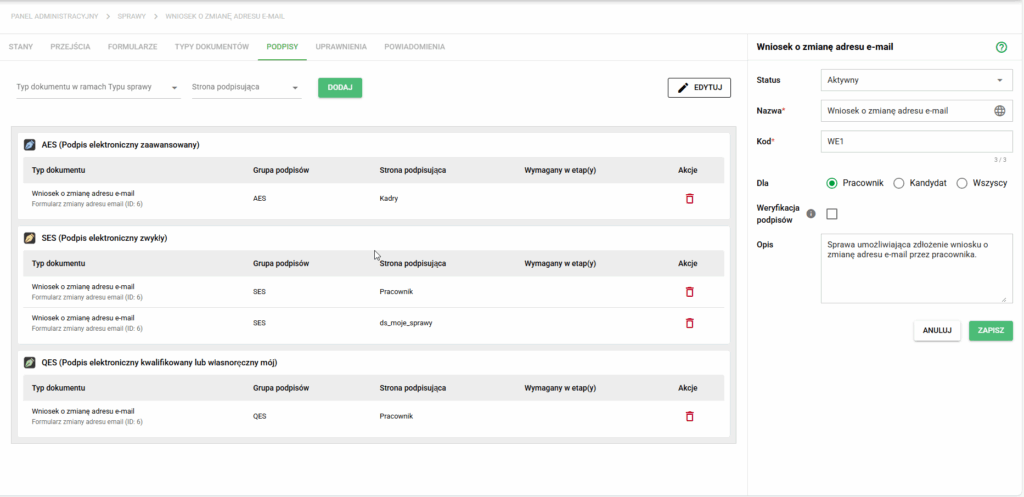
Details of the case. Caption view
The document types view consists primarily of the list of already configured signatures visible above. Each signature is in a group of the same signatures - AES, SES and QES, respectively. Each signature is defined by what type of document it applies to, what form, who signs it and whether it is required at any stage.
Editing captions
After pressing the Edit button in the upper right corner, you will unlock the option to modify at what stage a given signature is required (1).
It is worth noting that the signature may appear only in stages using the forms with which it is associated. To confirm the changes, it is necessary to click Save (2), which appeared in place of the previous Edit.
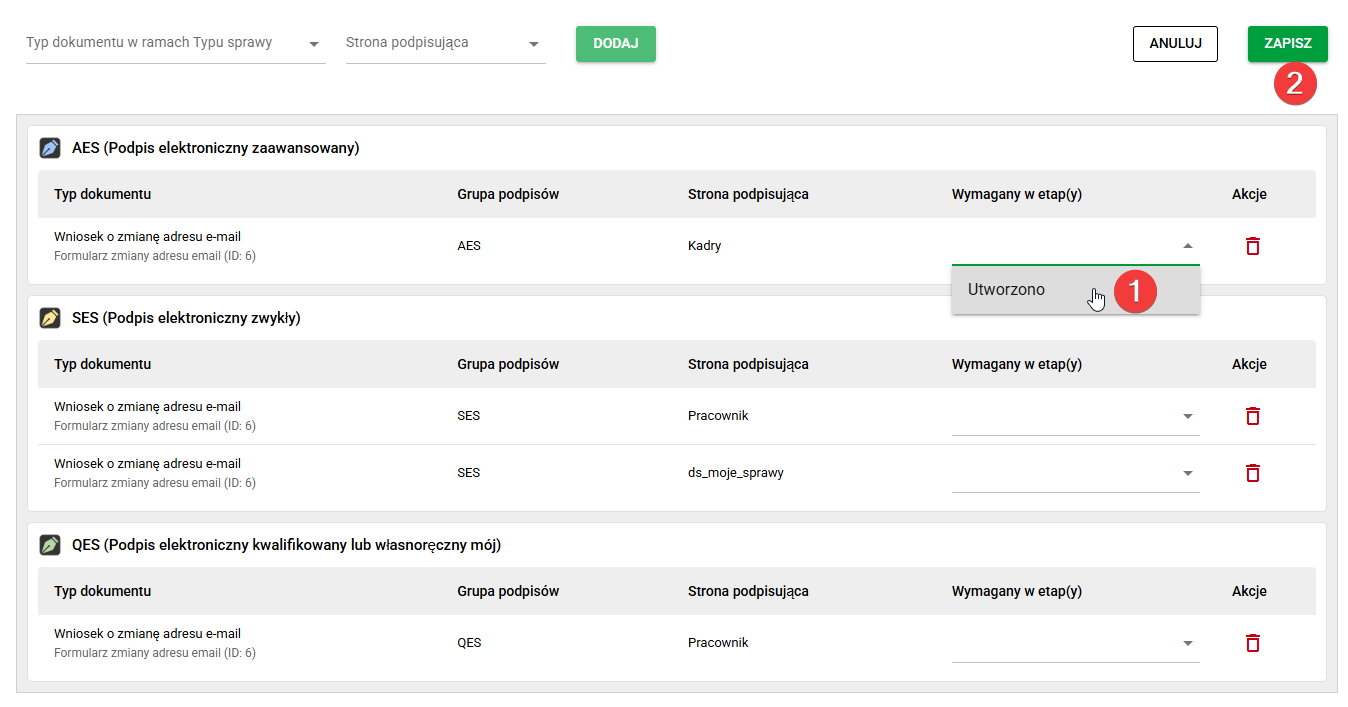
Edit signature
Adding and removing signatures
To add a new signature, you must first select the document type (1), signature type (2) and form (3) that are to be signed. Then, from among the authorized groups, select the one that is to submit the required signature (4). Finally, it is necessary to select the Add button (5).
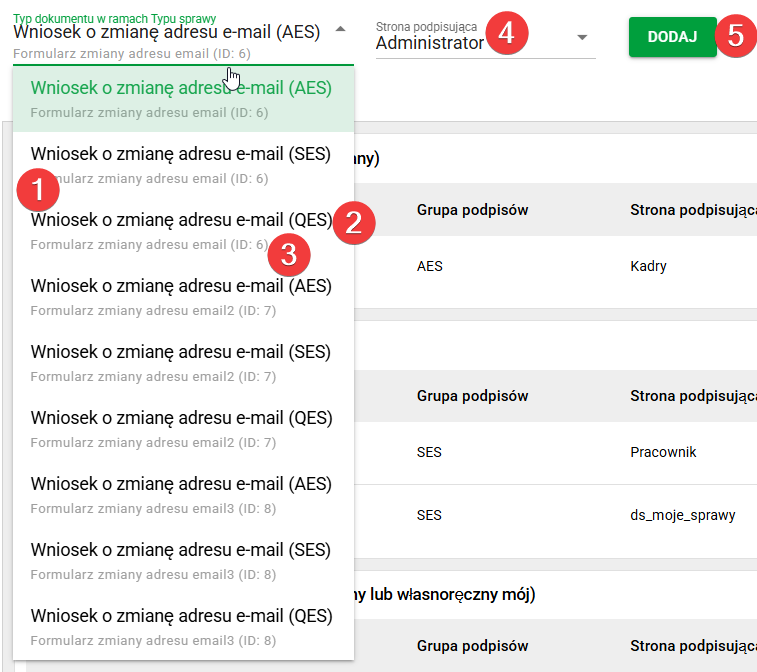
Add document type screen
To remove a given type, simply click on the red trash can icon in the Actions column. A confirmation window will appear, after which the selected signature will disappear.