Case permissions
Description
Permissions define the possibilities of accessing data, performing actions or using system functionalities depending on the granted data access roles.
Administration access path
Go to the administration panel case types, and then select the following items:
- Administration Panel -> Cases -> Specific type of case -> RIGHTS
⚠️Note: To use the functionality fully, it is necessary for the HRobots support department to first configure the main permission roles access to modules and access to data according to the Customer's business specification. Option available ONLY for eFOB Professional and Enterprise packages.
Permissions tab – side panel
In the side panel of a given case type, in the Permissions tab, all configured permissions are visible:
- Access roles to modules (note as above - currently to configure or assign roles - please contact the HRobots support department) - defines the general access for the role to the Matters and My Matters module
- data access roles: more precise configuration of data access for a given role, configurable by the Administrator.
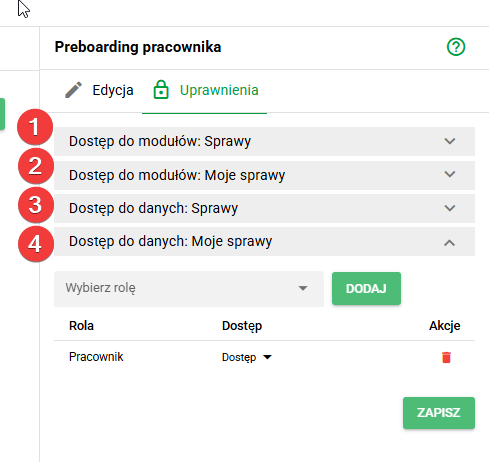
Final permissions for:
- Records visible in the list of Matters or My Matters result from the combination of the Module Access Role + data described in this chapter
- Records available for viewing/editing data contained in the Case or My Case in a given state result from the settings in the AUTHORIZATIONS table described in the next
Therefore, it is possible to configure the visibility of a given Case only on their list, without access to Detailed data or attached case documents.
(1) Access roles to the Cases module - options
When contacting the support department for a given case type and Cases module, you should specify the level of access in terms of:
- Access
- Creation
- Editing
- Removal
- Story voyeur
- Sending an email with access to the task
- Document generation
- Create public notes
- Create private notes
- Export of case details
- Adding tags
- Edit tags
- Removing tags
- Acceptance of dangerous files
(2) Access roles to the My Matters module – options
When contacting the support department for a given case type and My Matters module, you should specify the level of access in terms of:
- Access
- Creation
- Editing
- Removal
- Create public notes
- Document generation
- Create private notes
(3) Data Access Roles Cases - Options
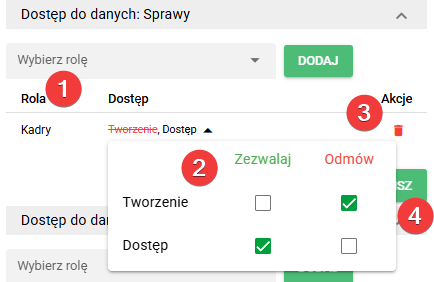
As part of the assigned roles for general permissions for a given module (previous point no. 1), it is possible to:
- Adding a role
- Allow/Deny setting for the action
- Access
- Creation
- Delete a role
- After each of the above modifications (1-3), perform the SAVE action
(4) My Matters data access roles – options
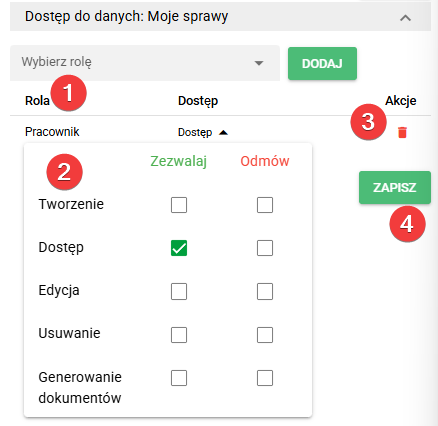
As part of the assigned roles for general permissions for a given module (previous point no. 1), it is possible to:
- Adding a role
- Allow/Deny setting for the action
- Access
- Creation
- Editing
- Removal
- Generate documents
- Delete a role
- After each of the above modifications (1-3), perform the SAVE action
AUTHORITIES tab – configuration table per state
The detailed permissions view is a table in which the rows represent States and the columns represent Data Access Roles.
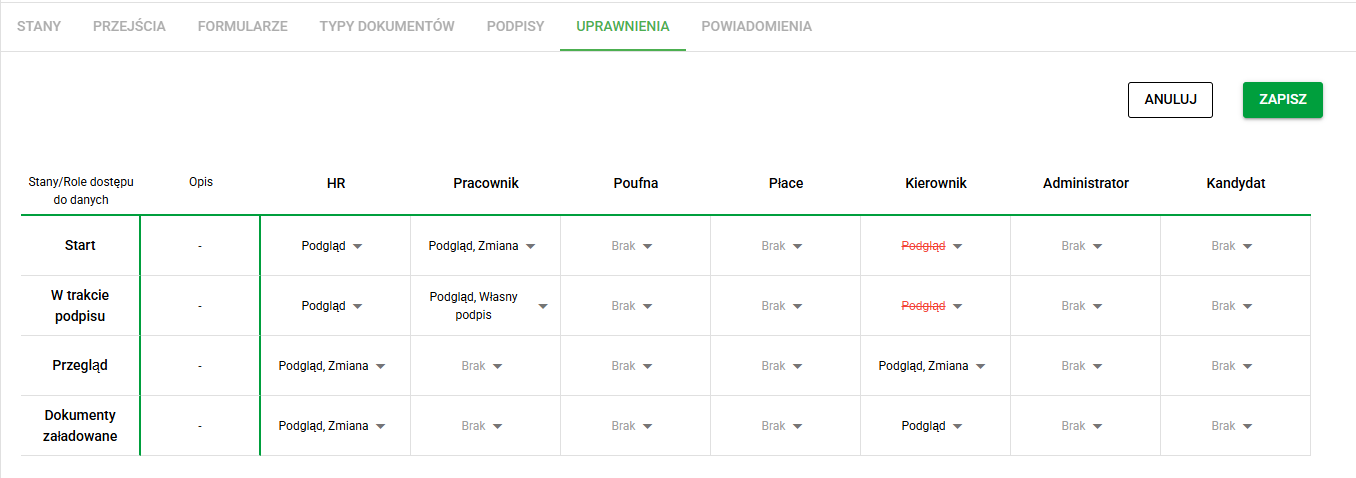
Within each state, for each role - it is possible to define 8 settings (4 Allow and 4 Deny):
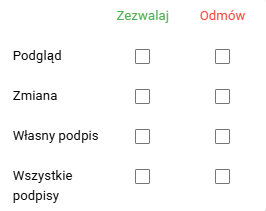
NOTE: Be very careful when granting Deny permissions as they take precedence over other permissions, which may be important for combined roles granted to users.
Discussion of an example of permissions per state
According to the above example configuration:
- The 'Administrator' role has no access to the case of a specific type at all (Request to change e-mail address)
- The 'Employee' role can edit and has access to the case only at the 'Start' and 'During signature' stages and can then sign the attached document - later it loses access to the case
- The 'HR' role has access at the 'Start' and 'During Signature' stages, later it has full Access and Edit
- The 'Manager (case)' role has access to Editing only when the 'Review' and 'Documents loaded' states
Note:
- An employee typically has access to his or her case in the 'My matters' module.
- Other roles have access to the 'Cases' module