Case notifications
Notifications are used to inform individual users or groups of users about changes that have occurred in a Case.
Administration access path
Go to the administration panel case types, and then select the following items:
- Administration Panel -> Cases -> Specific type of case -> NOTIFICATIONS
NOTIFICATIONS tab
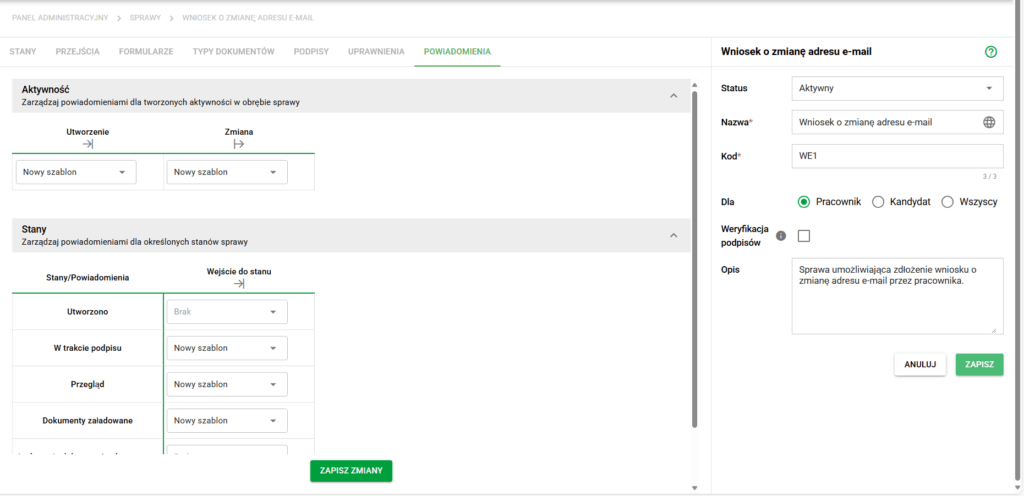
Details of the case. Notification view
The notifications screen consists primarily of the two notification lists visible above - for management in the following areas:
- Activities
- States (Affairs)
There are three cases when notifications will be sent:
- This is when the Activity is created
- Any change in Activity
- When entering a particular state of affairs from any other state
Note: Notification when entering the initial state occurs immediately after the creation and first saving of a new case (i.e. before setting responsible persons). If there is no need for notifications on the initial status of the case, an additional status should be added without notification, e.g. 'Draft' and then 'Created'.
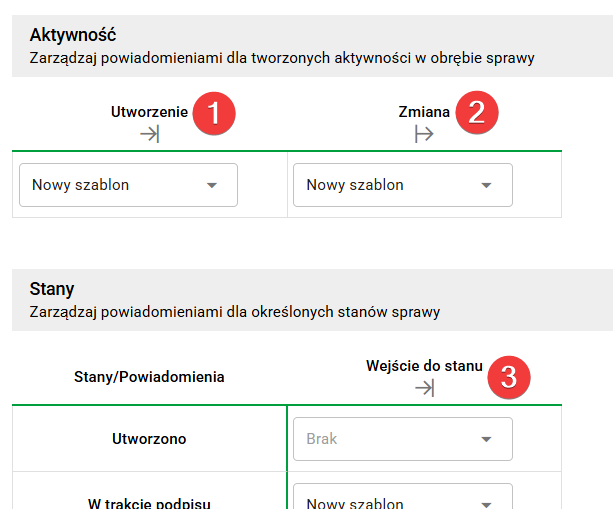
Details of the case. Notification types
Additional messages for inactive users
In the case of case notifications, the system may additionally send a message related to the activation of the user account.
If the notification recipient is an inactive user, in addition to the standard e-mail resulting from the case notification configuration, he or she may also receive an additional activation e-mail.
An additional activation message is only sent when the user:
- is inactive,
- there is currently no valid activation link.
If a valid activation link has already been sent and is still active, the system does not resend another activation message the next time the case is notified.
Create, delete and edit email notification templates
The functioning of notifications is strictly defined by the assigned templates. They determine the subject and content of the notification, as well as who exactly will receive it. To assign a notification, click on the drop-down wheel and select one of the following; If we want to remove the notification from being sent at some stage, just select the None option.
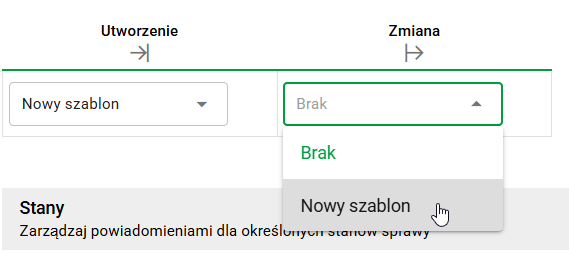
Details of the case. Adding notifications
To modify an already assigned template, simply hover over it, then select the green pencil icon and click on it.
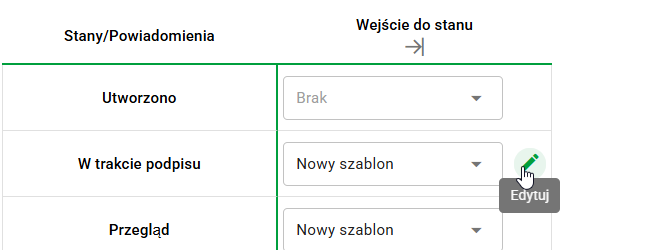
Details of the case. Edit template
If we want to create a completely new template, it is necessary to select the Add option marked with the + icon that appears when you hover over the missing template.
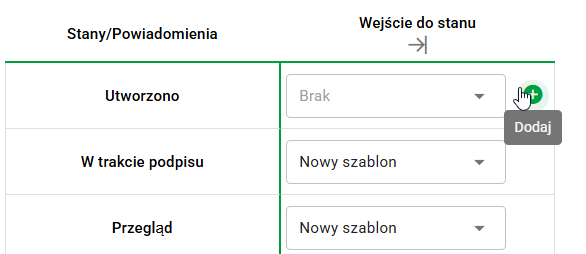
_Details of the case. Adding a template_After selecting one of the two mentioned options, a new window will appear on the right side of the screen, which will allow you to make changes or delete the template. Additionally, via the Save as option it is possible to create a variant of an existing template.
In the window, we can set the name of the template (1), individual recipients who are always to be notified (in which case it is necessary to provide an e-mail address) (2), groups of recipients who are to be notified (specific representatives of each group can be assigned when creating a new Case of a given type) (3), the subject of the notification to be sent (4) and its content (5).
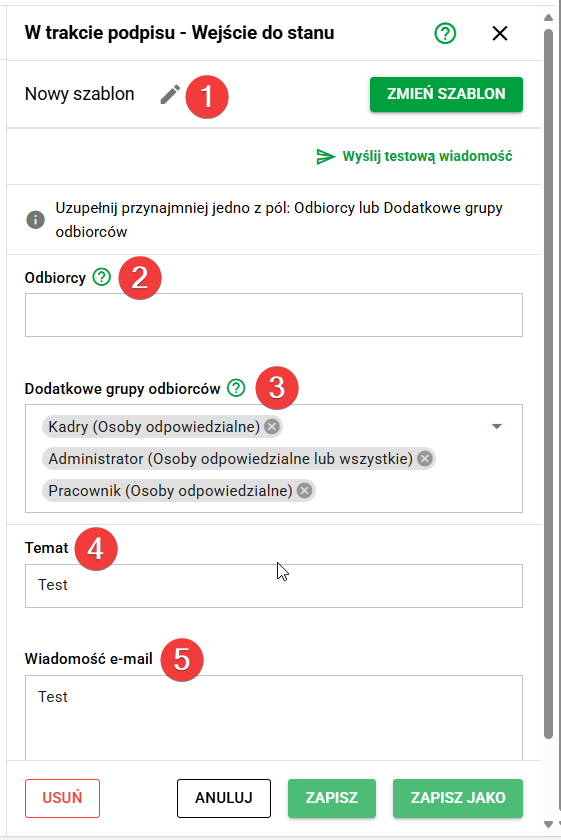
Edit template
Finally, it is necessary to select the Save or Save as option, and in order for all our notification modifications to be saved in memory, it is necessary to select Save changes located at the bottom center of the screen.
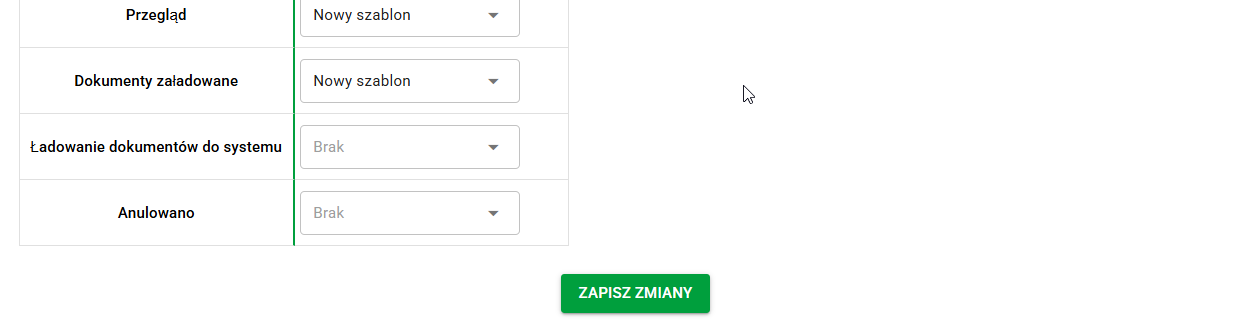
Saving changes made