Case forms
Description
Forms are sets of fields that the user moves between at various stages of the case.
Administration access path
Go to the administration panel case types, and then select the following items:
- Administration Panel -> Cases -> Specific type of case -> FORMS
FORMS tab
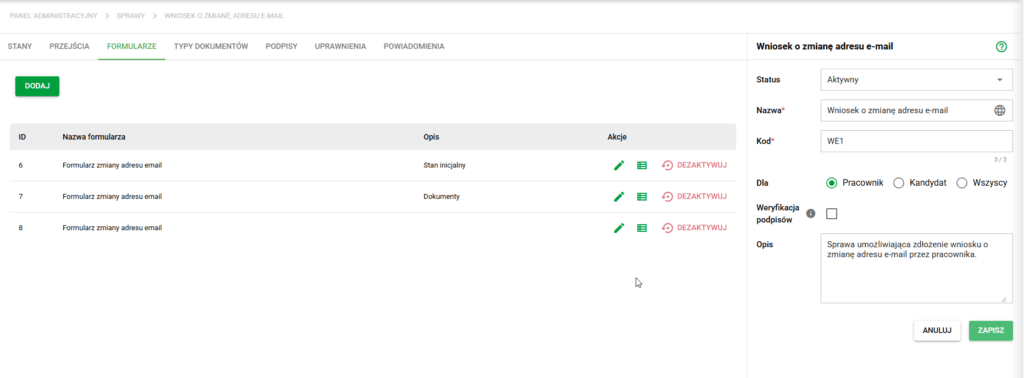
Details of the case. Forms view
The forms view consists primarily of the list visible above, containing in the table:
-ID
- Form name
- Description (optional)
- Actions (editing metadata, fields and de/activation)
Deactivating a form is only possible when the form is not linked to any state.
Adding a form
To create a new form, click the "Add" button located in the upper left corner of the main screen.
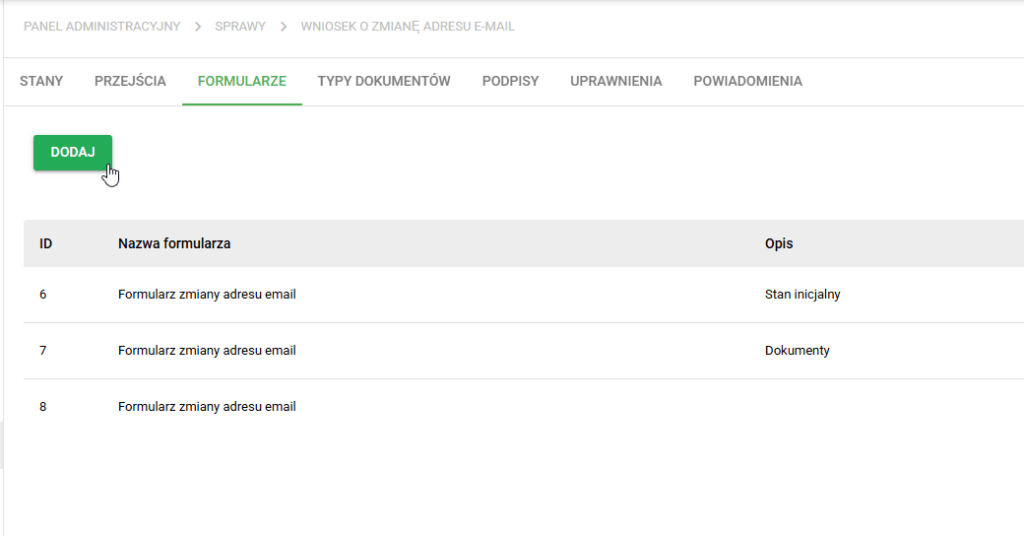
Details of the case. Adding transitions
Then a window will open in which you should:
- enter form name – this field is required,
- complete form description - optional field, helpful for easier identification.
After saving, the form will be added to the list and will be available for further configuration.
Editing the form
After pressing an item on the list or selecting edit from action, a simple form editing screen will open. It will be possible to change the name and description there.
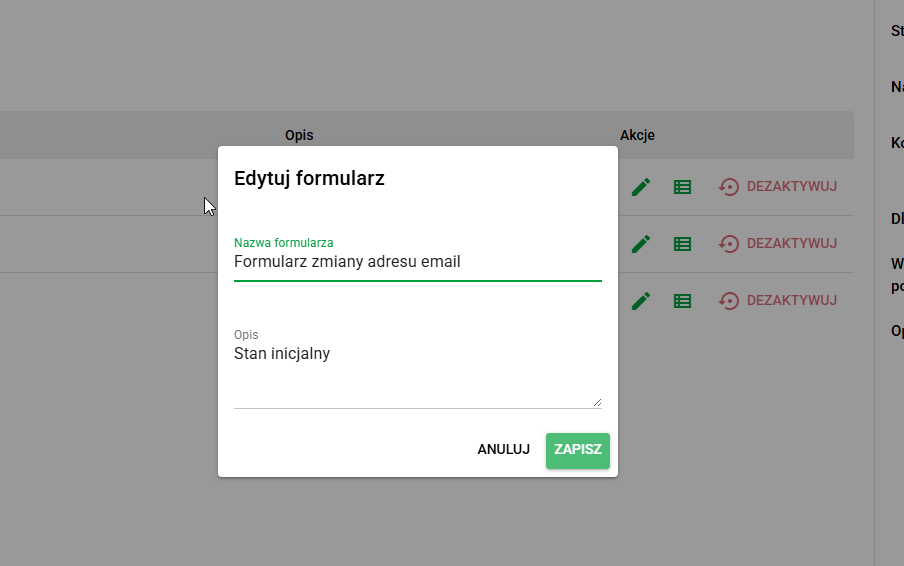
Form editing window
Editing form fields
After selecting the Edit case fields option from Actions, a side window will open where you can reconfigure the current form.
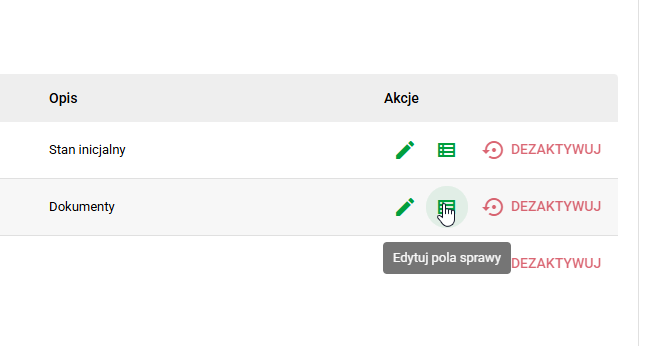
Selection Edit Case Fields
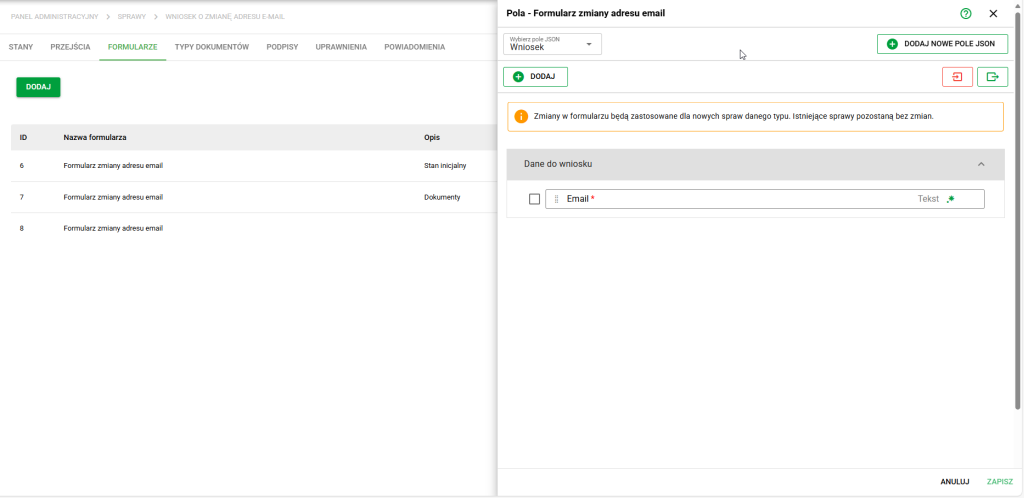
Form field editing window
To save the changes made, it is necessary to press the Save button located in the lower right corner.
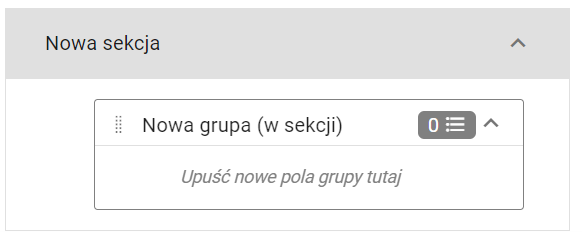
Edit sections and form groups
To change the name of a section or group, simply click on its name. The group allows you to group fields thematically, e.g. address data.
Check the layout before saving the form
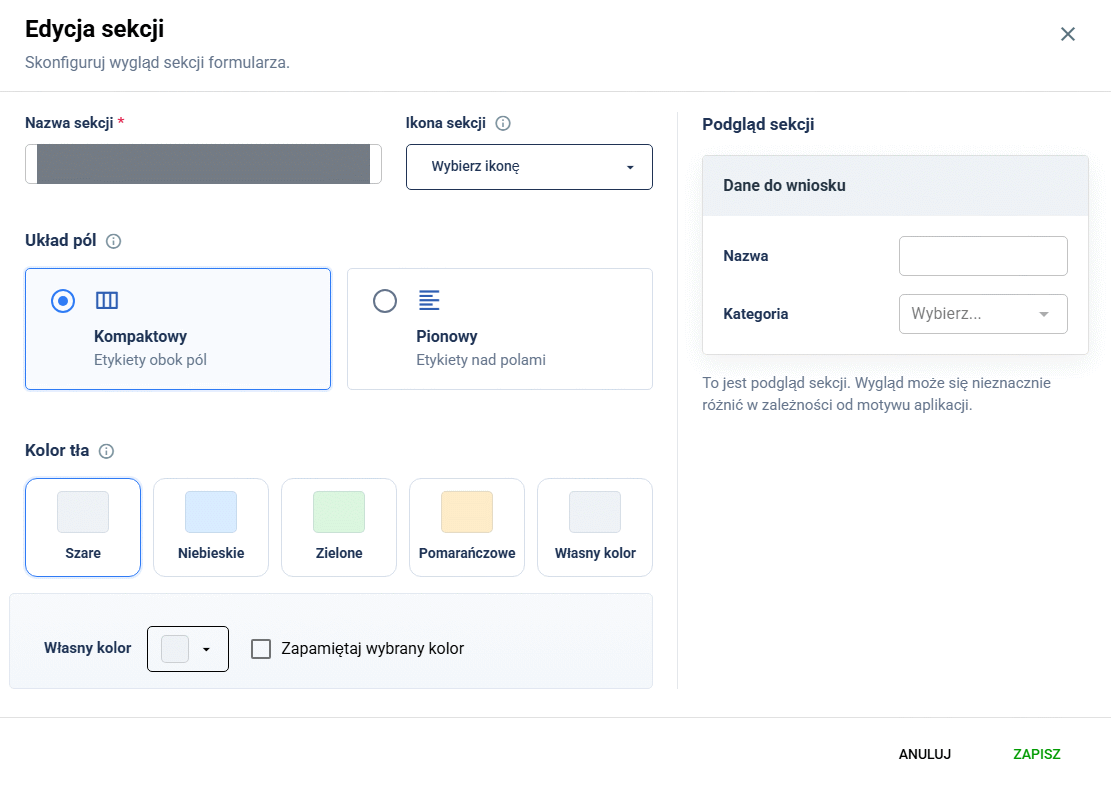
Choose a section layout that suits the data users need to enter. In the section editor, Compact places labels beside fields, while Vertical places them above fields. Sections can use different layouts, so long labels do not have to follow the same arrangement as short fields.
Before saving, check that the form is readable and its fields are easy to follow:
- Select Layout preview in the field editor.
- Choose a subform to check, or preview all subforms.
- Check the sections, labels, and default values. You can enter trial data to see how the fields behave.
- Select Return to editor, adjust the layout if needed, and save the form with Save.
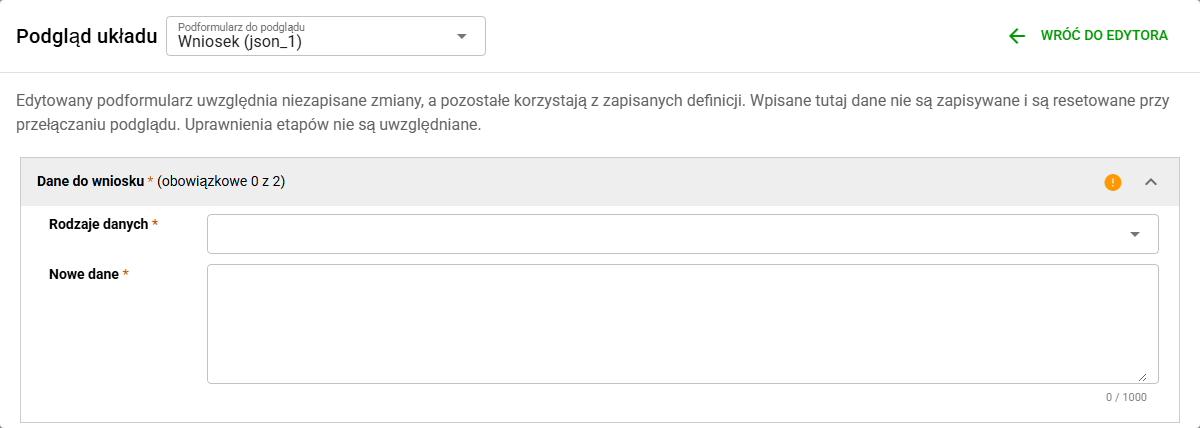
The edited subform preview includes unsaved changes; other subforms use their saved definitions. Trial values are not saved and reset when you switch previews. Opening the preview does not create a case or save the configuration.
Layout preview does not apply stage permissions. Checking the appearance does not replace verifying users' access to fields at each process stage.
Adding form fields
To add new fields to the form, select the button in the upper left corner of the window (1). After selecting it, a new window will appear from which you will be able to select new fields for the form (2).
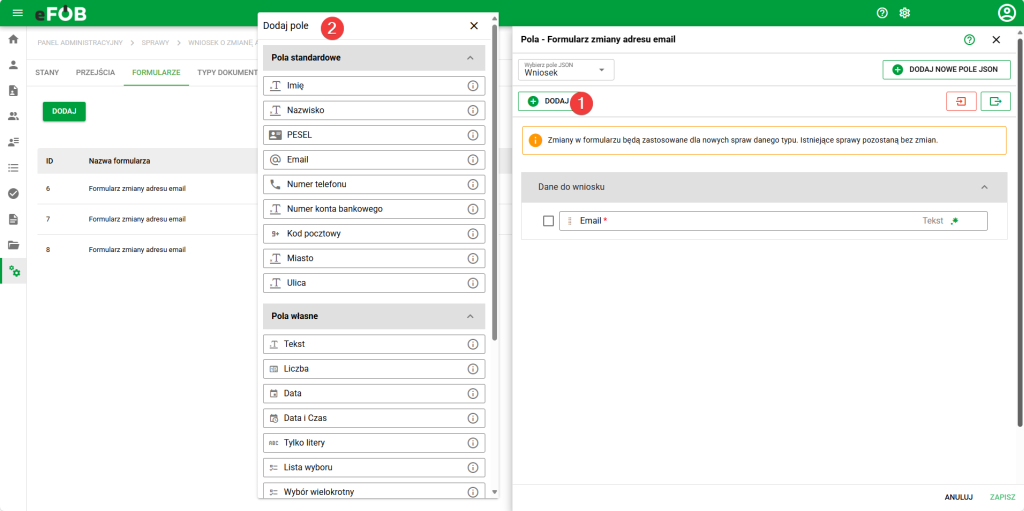
Add form fields window
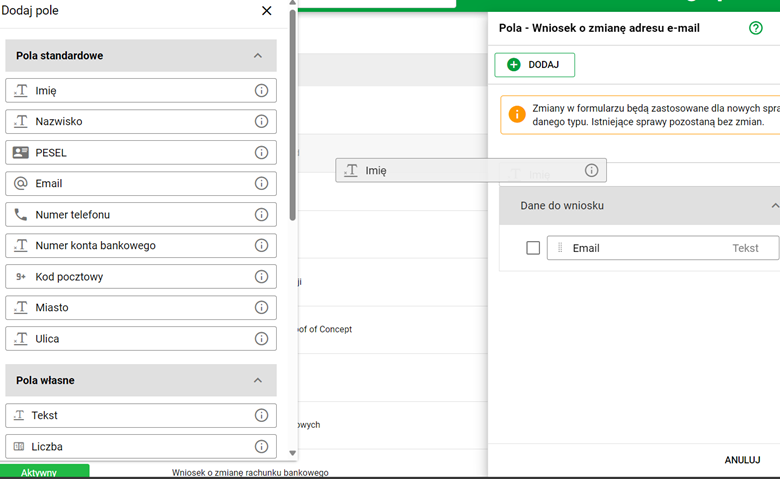
The desired field from the 'Add Field' menu should then be dragged to the right side to the appropriate part of the form.
In order to better organize work, it is possible to add sections (1) and groups (2) to the form, which further organize it. Any deleted fields will appear in the Deleted Fields drop-down section (3) at the end of the add list.
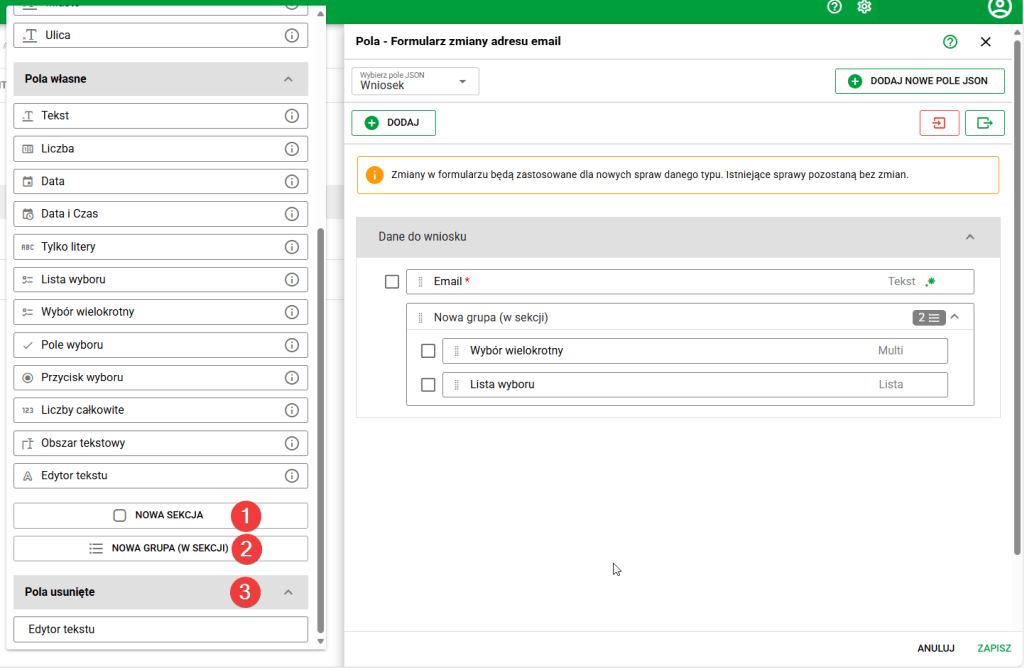
Adding sections and groups
Form field properties
Due to the extensiveness of the topic, descriptions of all types of fields and their properties have been included on a separate page: Form fields - eFOB.
Import / Export of the entire form definition
Forms can be both imported (1) and exported (2) using two buttons in the upper right corner of the window.
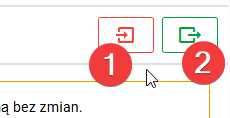
Form import and export buttons
Note: Import overwrites the entire form definition. You cannot restore its previous version. Export the definition before importing and keep a backup copy.