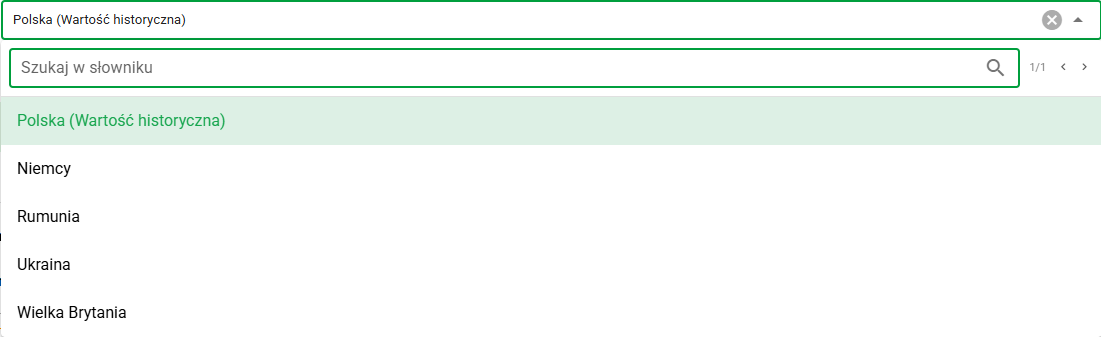
Case dictionaries
Introduction
Case dictionaries allow administrators to prepare centrally managed lists of values that can later be used in case forms. This means the same answers do not have to be configured manually in each field.
The feature includes:
- local dictionaries managed within a given company,
- global dictionaries provided by the platform,
- management of dictionary values,
- import and export of local dictionary values,
- using dictionaries as option sources in case forms.
Access path
To open case dictionaries, go to the administration panel and select:
- Administration -> Cases
Then select Dictionaries from the side filter panel.
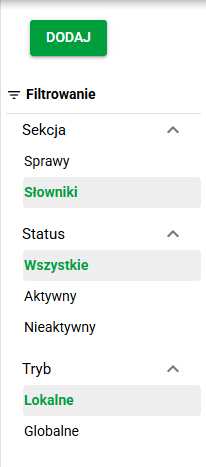
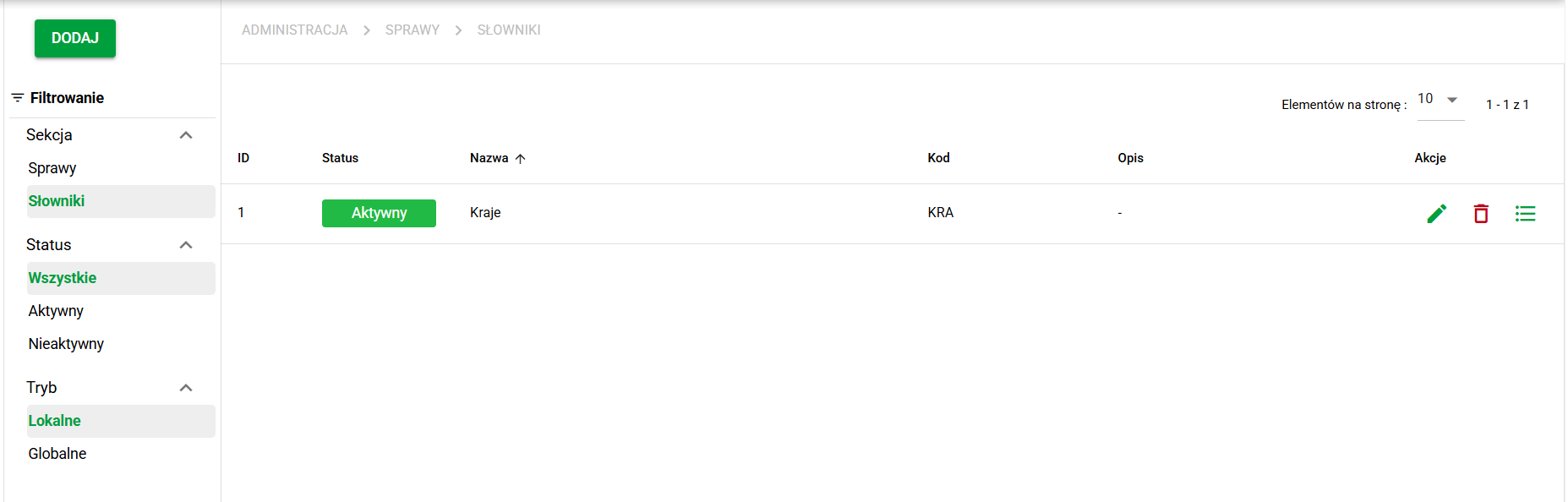
The list screen shows local and global dictionaries together with their basic information and available actions.
Dictionary types
Local dictionaries
Local dictionaries are intended for configuration within a given company. They can be created, edited, deleted and filled with custom values.
Each local dictionary has basic configuration fields:
- Name,
- Code,
- Description,
- Status,
- Dictionary type.
At the moment, the only available dictionary type is List.
Global dictionaries
Global dictionaries are provided by the platform and may include, for example, shared reference sets used across multiple companies.
Global dictionaries:
- are visible on the dictionary list,
- allow their values to be viewed,
- can be used in case forms,
- work in read-only mode.
This means that for global dictionaries, dictionaries and their values cannot be added, edited or deleted.
Creating and editing a local dictionary
To create a new local dictionary, use the Add button in the side panel. The same form is also used later to edit an existing dictionary.
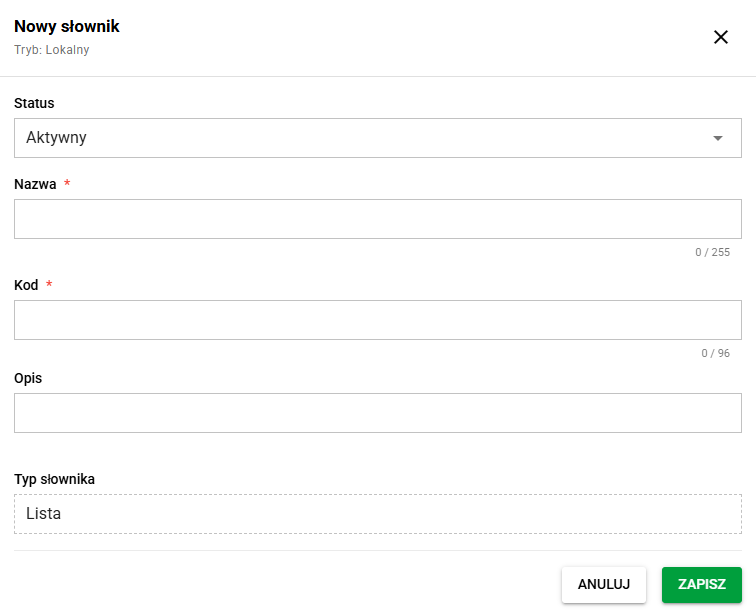
In practice, the administrator defines the dictionary name and code, adds a description and sets its status. After saving, the dictionary appears on the list and can be opened for value management.
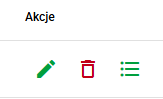
The dictionary can be edited using the button in the actions column. Editing a local dictionary is useful, for example, when the business description needs to be changed, the dictionary should be disabled or its code needs to be changed.
Deleting a local dictionary
A local dictionary can be deleted from the list of actions. Before the operation is executed, the system asks for confirmation.
Before deleting a dictionary, it is worth checking whether it is already used in case forms. If the dictionary has been used before, existing case data may still contain saved historical values.
Dictionary values
After choosing Show values or clicking the row corresponding to the dictionary, the system opens the list of entries belonging to the selected dictionary. The following operations are available for dictionary values:
- Add,
- Edit,
- Delete.
The add button is available in the side panel, while editing and deleting can be performed from the actions column.
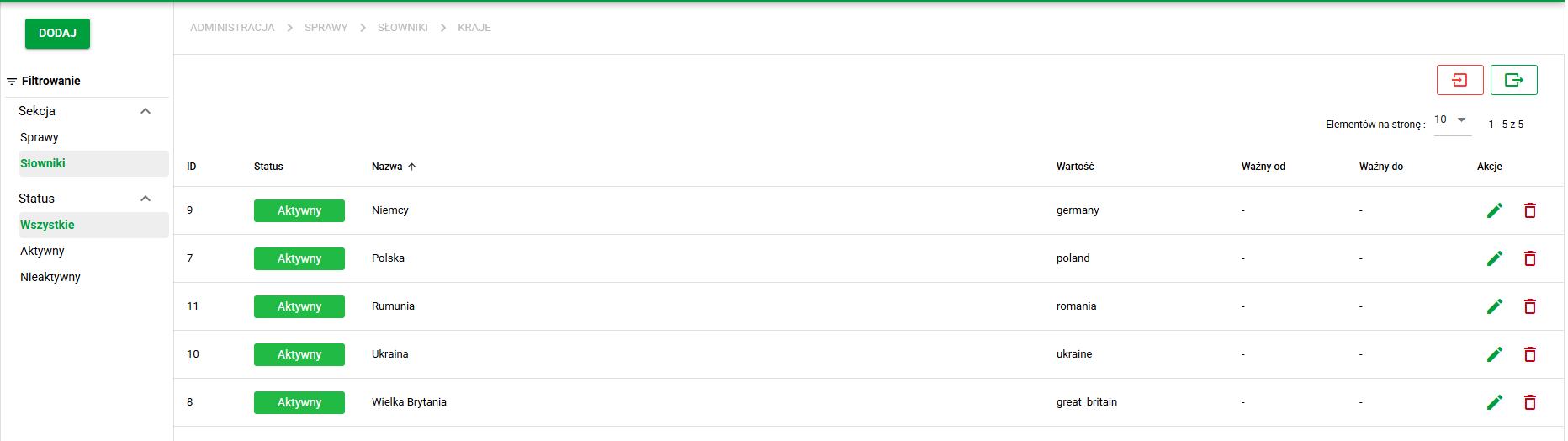
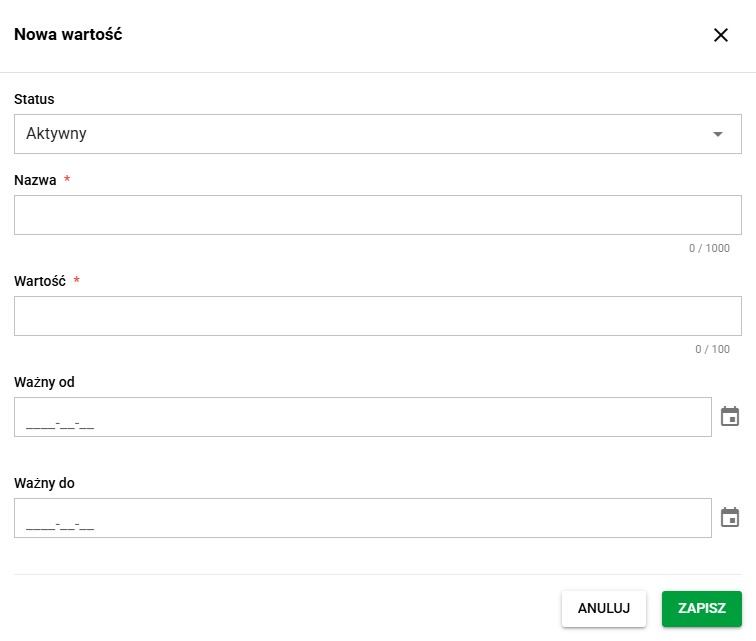
Each entry can contain:
- Name,
- Value,
- Valid from,
- Valid to,
- Status.
The date range allows you to control value validity, and the status makes it easier to manage which values remain active. The system also validates the data, for example by preventing an end date earlier than the start date and by blocking a second entry with the same technical value within one dictionary.
Both dictionaries and their values can be filtered by entering a search phrase in the top search bar.
Import and export of local dictionary values
Import and export apply to local dictionary values, not to the entire dictionary definition.
On the dictionary values screen, the administrator can:
- export active values to a CSV or XLSX file,
- import new or changed values from a file,
Before importing, run the Check import step to verify the uploaded file and display a summary of the changes. Then the import can be completed using the Import values button.
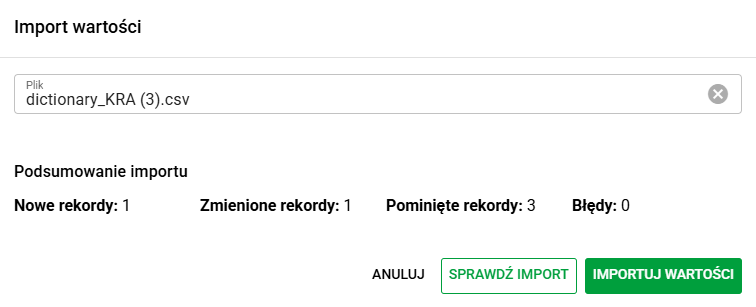
The import works based on the technical value of an entry. Thanks to this, the system can:
- add new records,
- update existing ones,
- skip unchanged rows,
- reactivate values already present in the dictionary.
If the import file contains errors, the system shows their summary before saving the data. This makes it possible to fix the file before performing the final import.
Using dictionaries in case forms
Dictionaries can be used as option sources in case forms. This feature is available for the following field types:
- Choice list,
- Multiple choice list.
In field configuration, the administrator chooses the Options source setting and then selects one of the following options:
- Manual options,
- Local dictionary,
- Global dictionary.
After choosing a dictionary-based source, a specific dictionary must be selected as the source of values for that field.
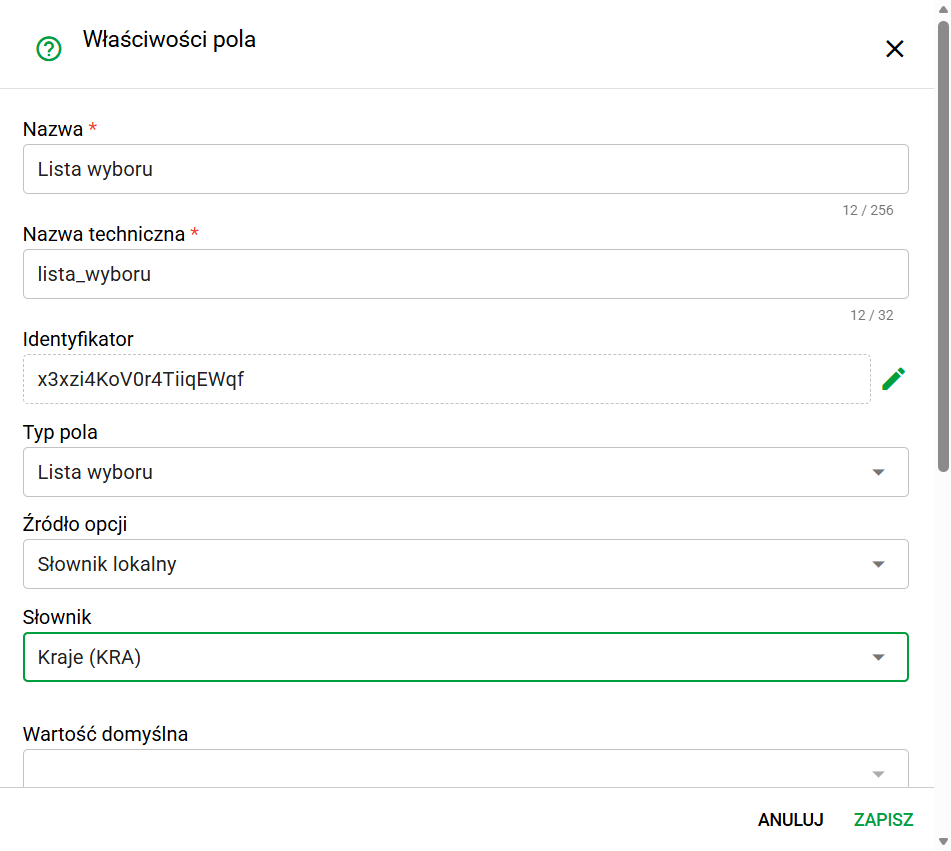
This approach makes it easier to keep data consistent across many forms and case types. Updating the list of values in a local dictionary automatically affects every place where that dictionary is used as an option source.
Historical values in cases
If a user previously saved a value from a dictionary in a case, and that entry was later removed or became unavailable, the system does not remove it from the existing case data.
Instead, such an answer remains visible as a historical value. This preserves case history, but once the field is overwritten, that entry cannot be selected again from the list of active values.