Employer Configuration
⚠️Note: The option of more than one employer is available in the purchased Multi-company option.
The Employers dictionary allows you to define companies or units that can be assigned to documents, cases and employee data.
List of employers
To open the employer dictionary, go to:
- Administration Panel -> Dictionaries -> Employers
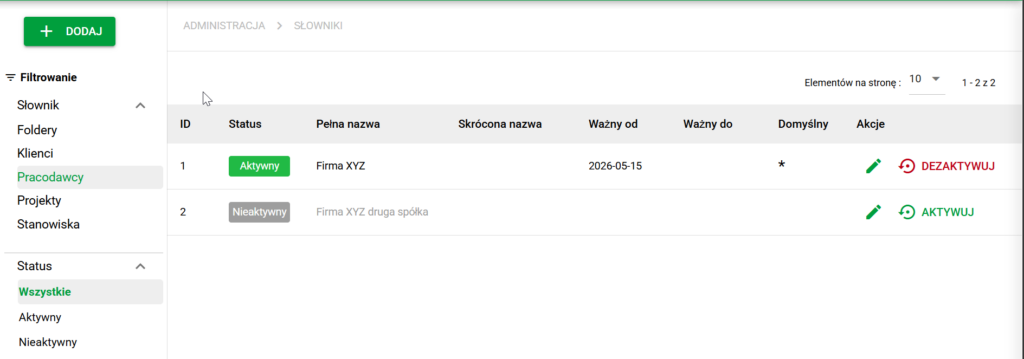
When you open the dictionary, a list of existing employers is displayed, if they have already been added.
There is an Employers filter available in the side menu, which allows you to limit the list view by status.
Sorting and filtering
- Sorting: Click a column header in the employer list to sort entries alphabetically. Sorting is available, among others: after the full and abbreviated name.
- Filtering: The side menu allows you to filter employers by their status, e.g. active or inactive.
Actions
Actions such as editing and changing status are available in the employer list.
- Edit: Click the pen symbol to go to the employer edit view.
Adding an employer
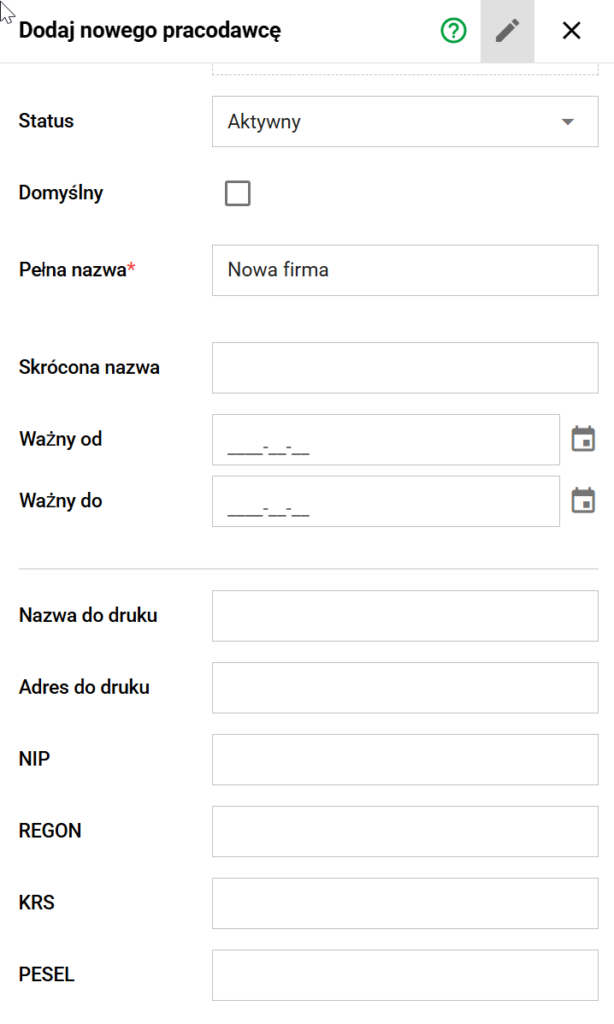
To add an employer, select Add new employer and complete the required data.
Status
Determines whether the employer is available in the system.
- Active - Can be selected in forms and documents.
- Inactive - Remains in the history but should not be used for new data.
Default
Designates an employer that can be automatically suggested in forms.
Full name
Formal name of employer required.
Short name
A short name used in lists, filters, and places with limited space.
Valid from / Valid until
The fields define the employer's validity period.
The system can use these dates to narrow down the list of employers, e.g. by date on the document.
Examples:
Valid from: 2026-01-01
Valid until: 2026-12-31
The employer applies from 1/01/2026 to 31/12/2026 inclusive.
Valid from: 2026-05-14
Valid until: 2026-05-14
The employer is valid for one day only.
If the Valid until field is empty, the employer is valid without an indicated end date.
Print data
The section contains data used on documents and printouts:
- Print name
- Address for printing
- Tax Identification Number
- REGON
- KRS
- PESEL
Complete only the data appropriate for a given employer.
Good practices
Do not delete employers previously used in documents. For historical entries, set Valid until or change the status to Inactive.