Employee attributes dictionary
The Attributes dictionary in the administration panel lets you configure attribute definitions used in the Employees module.
Access path
Administration -> Dictionaries -> Attributes
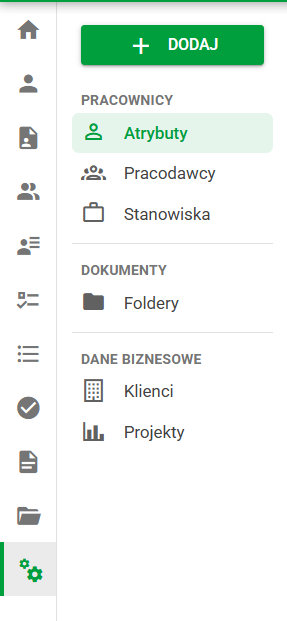
Dictionaries panel with the Attributes section in the Employees area
Attributes list
The attributes list helps you quickly verify which definitions are active and which ones already have historical usage. From this view, you can open a definition directly for editing.
The list includes columns such as:
- status,
- name (the technical code is shown under the name),
- category,
- type,
- number of entries.
Selecting a row opens the attribute-definition editor.
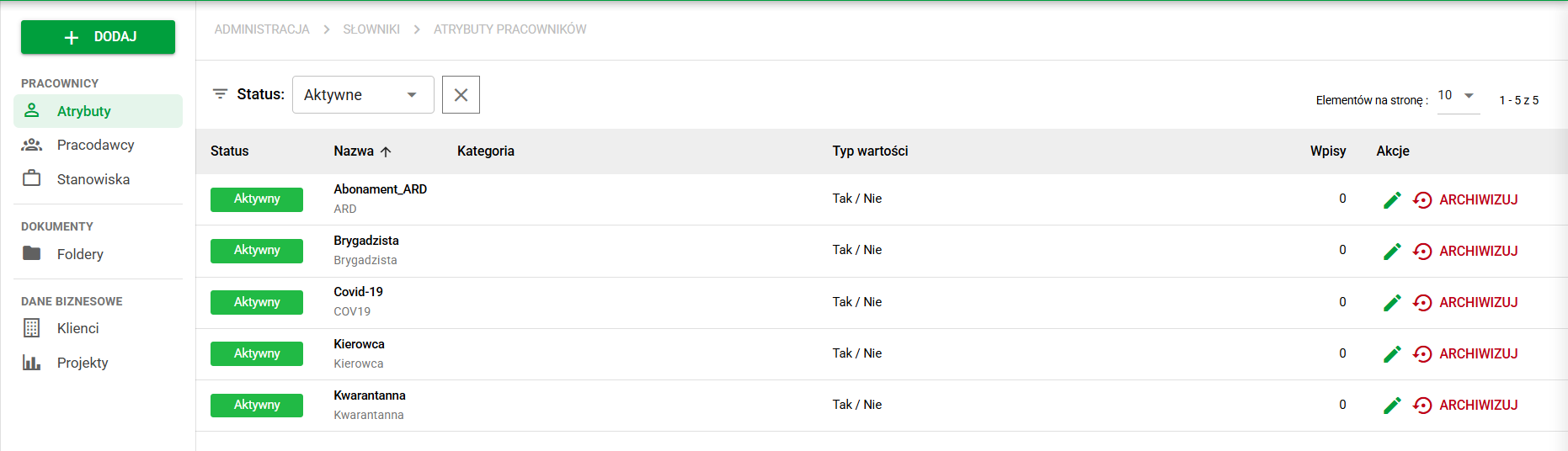
List of configured employee attributes
Adding and editing definitions
When creating a definition, keep the business name clear for end users and keep the technical code stable for imports and integrations.
The add/edit panel includes:
- name,
- technical code,
- category,
- value type: Yes/No, Text, Integer, Decimal, Date, Selection list,
- description.
Value types and additional configuration fields
After selecting a value type, the form shows additional fields specific to that type:
- Yes/No — no additional fields. The attribute accepts one of two values: Yes or No.
- Text — additional fields: maximum length and regular expression. These let you limit the length of the entry and enforce a specific data format.
- Integer — additional fields: minimum value and maximum value. These define the allowed range for whole numbers.
- Decimal — additional fields: minimum value and maximum value. These define the allowed range for decimal numbers.
- Date — no additional fields. The attribute accepts a date in the standard calendar format.
- Selection list — additional field: options. You define the available variants from which the user selects one value in the employee record.
Regardless of type, a good description and correct category assignment make filtering and long-term maintenance easier when the number of attributes grows.
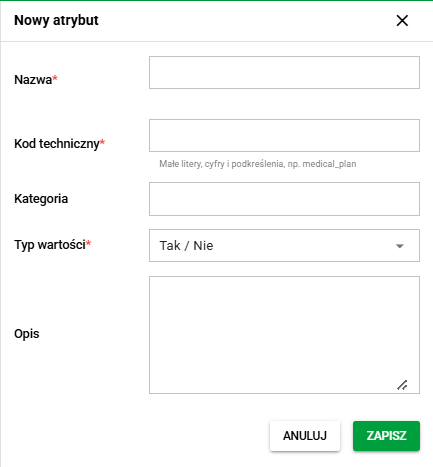
Form for adding a new attribute definition
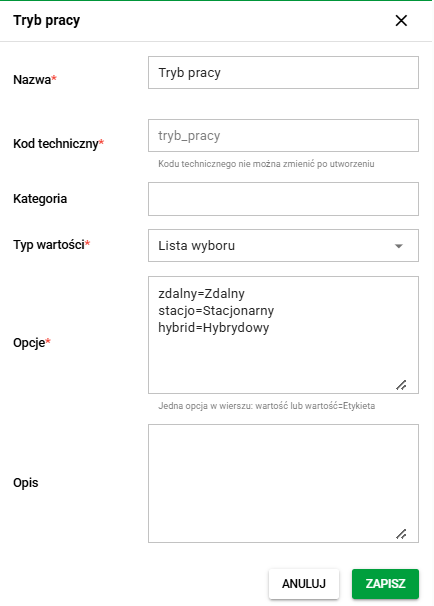
Form for editing an existing attribute definition
Archive and restore
An attribute can be archived and restored.
Archiving is intended for withdrawing an attribute from ongoing use without losing historical data. It is safer than removing a definition that has already been used in employee records.
Archiving does not remove history:
- an attribute with existing values remains visible (read-only, with marker),
- an attribute with no values is removed from selection lists and operational configuration.
Permissions
The dictionary is visible to users whose module access role (MDL) has the View permission in the Admin: Employee attributes section. The other permissions in that section allow managing definitions. In data access roles (DS), definitions are covered by the entry for all employee attributes.
For permissions to attribute values on the list and in the employee record, see Employee attributes.