Document Retention and Legal Basis
Retention Mechanism Settings
The retention mechanism settings in the eFOB system are consistent with:
- Regulation of the Minister of Family, Labor and Social Policy of December 10, 2018 on employee documentation (Journal of Laws of 2018, item 2369, as amended).
- Act of June 26, 1974 - Labor Code (Journal of Laws of 2022, item 1510, as amended).
Examples of retention settings
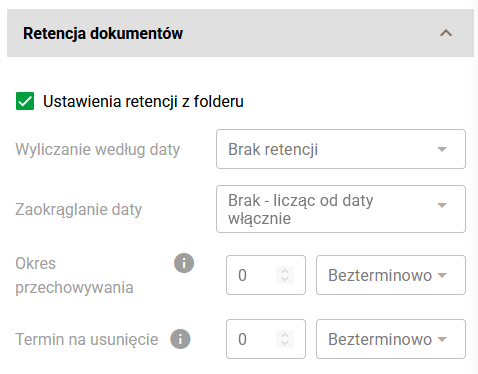
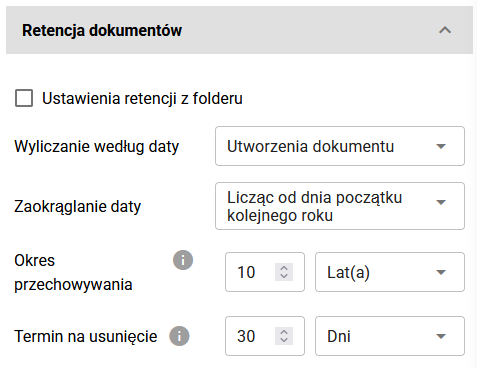
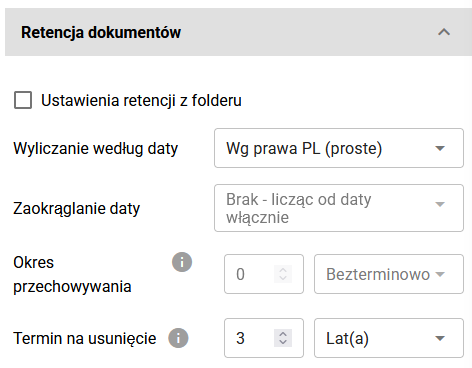
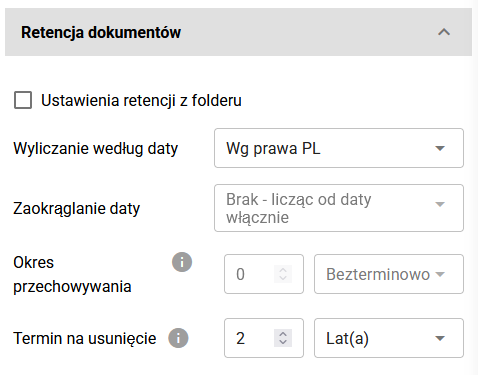
Retention Configuration – Examples for Document Type
Retention Calculation Methods in eFOB
Retention settings are available in the ADMINISTRATION module for:
- Employee documents at the level of folder and document type management.
- Personal data of employees and their documents at the Retention module level.
- Documents and personal data of candidates at the Retention module level.
Note: A shorter retention period set for an employee than on their documents may result in records being proposed to be deleted earlier than required by the document retention period.
'Retention Date' Calculation Settings
- Calculation by date: According to PL law - option to automatically calculate the storage period based on applicable legal provisions, depending on the specific case. The calculation is based on the employee's employment data defined in the application in the Boarding module.
- Calculation by date: According to PL law (simple) – simplified option for automatic calculation of the storage period based on legal provisions, depending on the case. The calculation is based directly on the employment dates recorded in the employee's record, i.e. in the fields Contract start date and Contract end date.
- Calculation by date: Document/employee/candidate creation + 'Storage period' field
'Date Rounding'
- Counting from the beginning of the next year - rounding is calculated from January 1 of the following year,
- In the case of the options "Calculation by date: According to PL law and According to PL law (simple)" – rounding is calculated from December 31
'Retention period'
- In the case of the option "Calculation by date: Document/employee/candidate creation" - storage period to be configured by the user
- In the case of the options "Calculation by date: According to PL law and According to PL law (simple)" - the system will automatically assign the storage period
'Delete deadline'
It allows you to specify an additional deadline for deletion after the storage period has expired. The data set in this field is responsible for the retention status in the “Planned activities” tab.
Records after exceeding the 'Delete Deadline' will be highlighted in red and will be located in the Retention module, on the 'Scheduled Actions' tab, under the 'To be deleted' filter.
Algorithm for calculating the 'Retention Date' for the 'According to PL law' option
The calculation is based on the employee's employment data defined in the application in the Boarding module.According to current legislation (https://www.gov.pl/web/rodzina/akta-osobowe), the retention periods for employee documentation are as follows:
-
throughout the employee's entire employment period (no retention period)
-
for employment from 2019-01-01 (calculated according to the contract start date):
- 10 years counted from the end of the calendar year in which the employee's employment relationship ended
-
employment from 1999-01-01 to the end of 2018-12-31 and submission of the declaration ZUS RIA
- 10 years counted from the end of the calendar year in which the information report was submitted ZUS RIA
-
employment before 1999 (up to 1998-12-31 inclusive)
- 50 years counted from the date of termination of the employment relationship
Algorithm for calculating the 'Retention Date' for the 'According to PL law (simple)' option
The calculation is based directly on the employment dates recorded in the employee's record, i.e. in the fields Contract start date and Contract end date.
According to current legislation (https://www.gov.pl/web/rodzina/akta-osobowe), the retention periods for employee documentation are as follows:
-
throughout the employee's entire employment period (no retention period)
-
for employment from 2019-01-01 (calculated according to the contract start date):
- 10 years counted from the end of the calendar year in which the employee's employment relationship ended
-
employment before 2019 (up to 2018-12-31 inclusive)
- 50 years counted from the date of termination of employment
-
The simplified version does not include ZUS RIA declarations
Document Retention Importance Hierarchy
Note: Document retention support works in a hierarchy of importance File Type -> Folder -> Parent Folders
-
- By default, the retention setting is taken from File Type
-
- If none is taken from Folder
-
- If none, it is taken from the Parent Folders settings going to the very top of the hierarchy
Retention Settings for Folders
Folder document retention settings are located in the detail edit window and include the following options:
-
Enable retention – checking this option means that retention is taken from folder settings, and if none, then from general settings.
-
Calculation by date – checkbox with options:
– No retention – default field. When setting this option, the remaining section fields will be automatically deactivated. – Document creation – to calculate the deletion period, the system will take the value from the “Created” field available on the document. – According to PL law – selecting this option automatically sets the storage period. – According to PL law (simple) – selecting this option automatically sets the storage period.
- Date rounding – checkbox with options:
– None – counting from the date inclusive – for the calculation option according to document creation, retention will be calculated according to the "created" field, for the options "According to PL" and "According to PL law (simple)" retention is calculated from December 31. – Counting from the beginning of the next year – option available when setting the calculation according to the date of document creation (counts from January 1 of the following year).
- Storage period
– In the case of the option „Calculation by date: Document creation” – storage period to be configured by the user
– In the case of the options "Calculation by date: According to PL law and According to PL law (simple)" – the system will automatically assign the storage period- Delete deadline – time for deletion after the retention period has expired
Document retention rules
For basic document folders in eFOB, document retention options in the folder have been set automatically according to the following principle:
| Folders | Retention settings |
|---|---|
| 1. Personal files 2. Employment relationship And all sub-folders | Calculation by date: According to PL Date rounding: None - counting from the date inclusive Retention period: 10 Years Delete deadline: 12 Months |
| D. Penalties E. Sobriety checks and similar And all sub-folders | Calculation by date: According to PL Date rounding: None - counting from the date inclusive Storage period: 12 Months Delete deadline: 1 Month |
| 3. Tax | Calculation by date: Document creation Date rounding: Counting from the beginning of the next year Storage period: 5 years Deadline: 12 Months |
| 4. Insurance | Calculation by date: Document creation Date rounding: Counting from the beginning of the next year Storage period: 5 years Deadline: 12 Months |
| 9. Other All other default or currently existing folders except the above | Calculate by date: No retention |
Retention Settings for Document Types
Setting the document retention rules depending on the document type is located in the document type details edit window and includes the following options:
-
Retention settings from folder – when this option is enabled, retention on the document type is taken from the folder settings, and options on the document type are not taken into account.
-
Calculation by date – checkbox with options:
– No retention – default field. When setting this option, the remaining section fields will be automatically deactivated. – Document creation – to calculate the deletion period, the system will take the value from the “Created” field available on the document. – According to PL law – selecting this option automatically sets the storage period. – According to PL law (simple) – selecting this option automatically sets the storage period.
- Date rounding – checkbox with options:
– None – counting from the date inclusive – for the calculation option according to document creation, retention will be calculated according to the "created" field, for the options "According to PL law" and "According to PL law (simple)" retention is calculated from December 31 – Counting from the beginning of the next year – option available when setting the calculation according to the date of document creation (retention is calculated from January 1 of the following year).
- Storage period
– In the case of the option „Calculation by date: Document creation” – storage period to be configured by the user
– In the case of the options "Calculation by date: According to PL law and According to PL law (simple)" – the system will automatically assign the storage period
- Delete deadline – time for deletion after the retention period has expired
Data Anonymization
Setting the period for deleting employee's personal data can be found in the Administration -> Retention -> Settings moduleThe following fields are available for data anonymization settings:
- Calculation by date – checkbox with options:
– No retention – default field. When setting this option, the remaining section fields will be automatically deactivated. – Creation of an employee – to calculate the deletion period, the system will take the value from the “Created” field saved on the employee's card in the “Record information” section. – According to PL law – selecting this option automatically sets the storage period – According to PL law (simple) – selecting this option automatically sets the storage period
- Storage period
– In the case of the option „Calculation by date: Document creation” – storage period to be configured by the user
– In the case of the options "Calculation by date: According to PL law and According to PL law (simple)" – the system will automatically assign the storage period
- Delete deadline – time for deletion after the retention period has expired
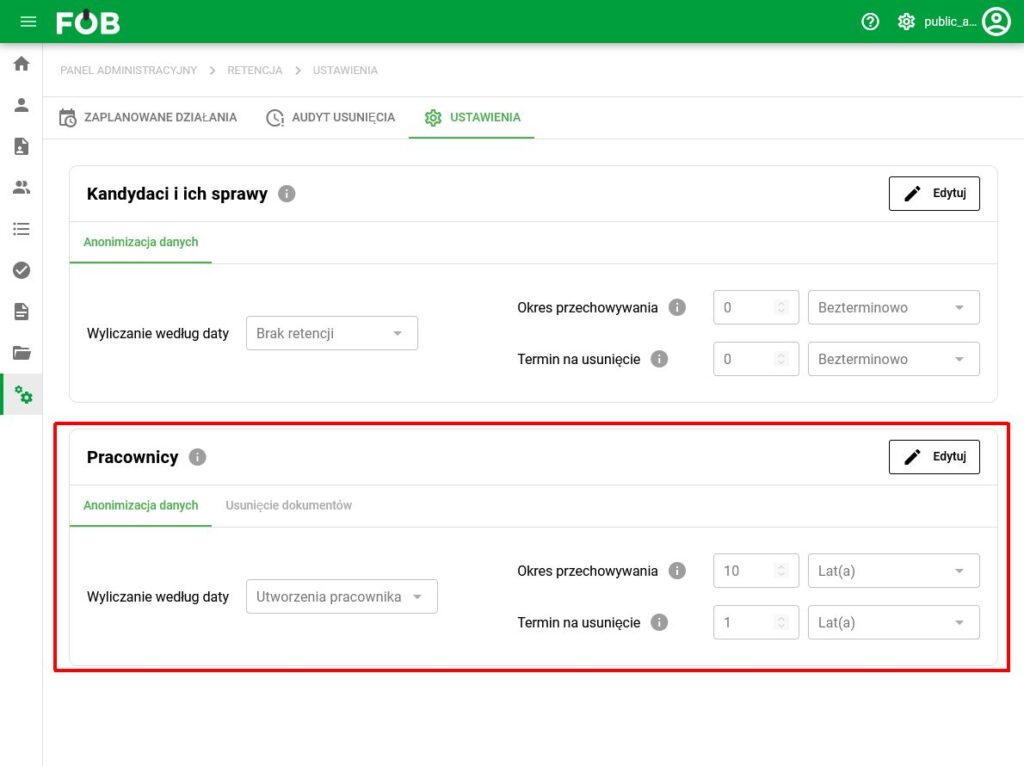
Employee data anonymization window
Scheduled Actions
The planned activities view contains a list of records with filters and calculated retention dates (for Candidates / Employees / Documents separately).
- Note: Due to the complexity of the calculations, changes to any retention settings may require recalculation, which may take up to 24 hours.
A message about the status of calculations is displayed above the list of records in the 'Scheduled activities' view.
The 'Status' column contains information about the retention status:
- Current – means that the retention date is current and no action is required.
- To be deleted – means that the record is eligible for deletion, but the deadline for deletion has not yet passed.
- Exceeded date – means that the record has exceeded the deadline for deletion.
- To be recalculated – record while calculating retention.
- Calculation error.
- No retention settings.
The 'Retention Date' column contains the end date of the retention period
The 'Recommended removal date' column contains the retention date calculated taking into account the added 'Delete deadline', if one has been set.
The menu on the left side of the window allows you to set filters: data range, retention status and recommended deletion dates.
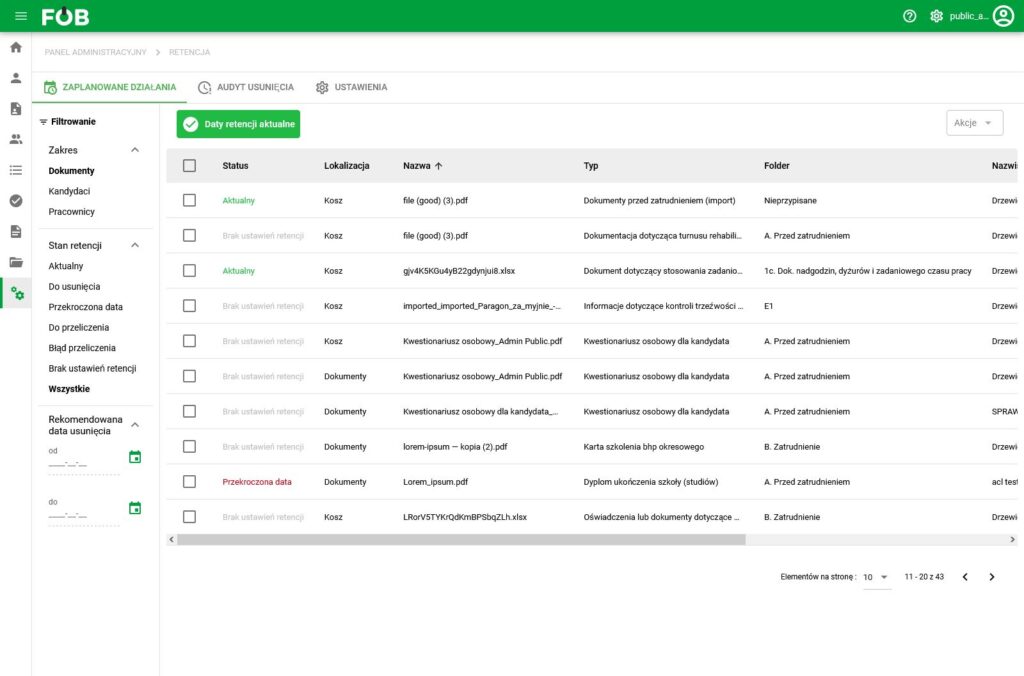
List of records with calculated retention dates
Anonymization Actions
Performing anonymization is available after selecting records under the "Actions" -> "Perform anonymization" button
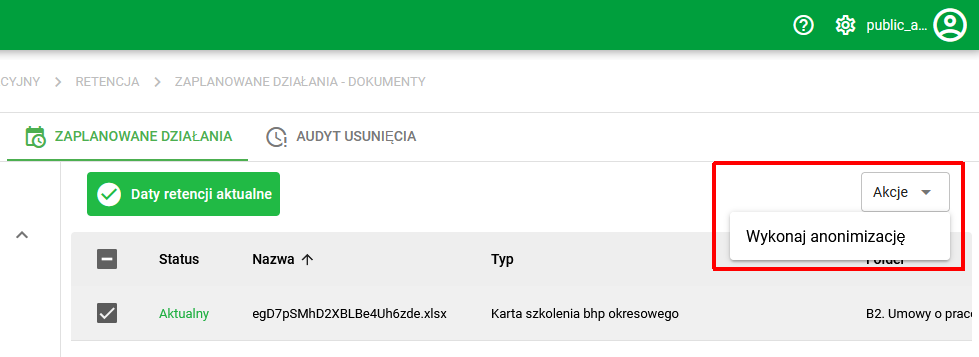
- When anonymization is performed on an employee, other records related to the employee will also be automatically deleted. When documents are anonymized, only the documents themselves are deleted.
- Additionally: It is possible to perform anonymization also on records with the currently set retention date.
Removal Audit
The deletion audit view lists deleted records with the actual deletion date and information about the user who performed the deletion action.
The menu on the left side of the window allows you to set filters: data range, deletion dates and the user who deleted the record.
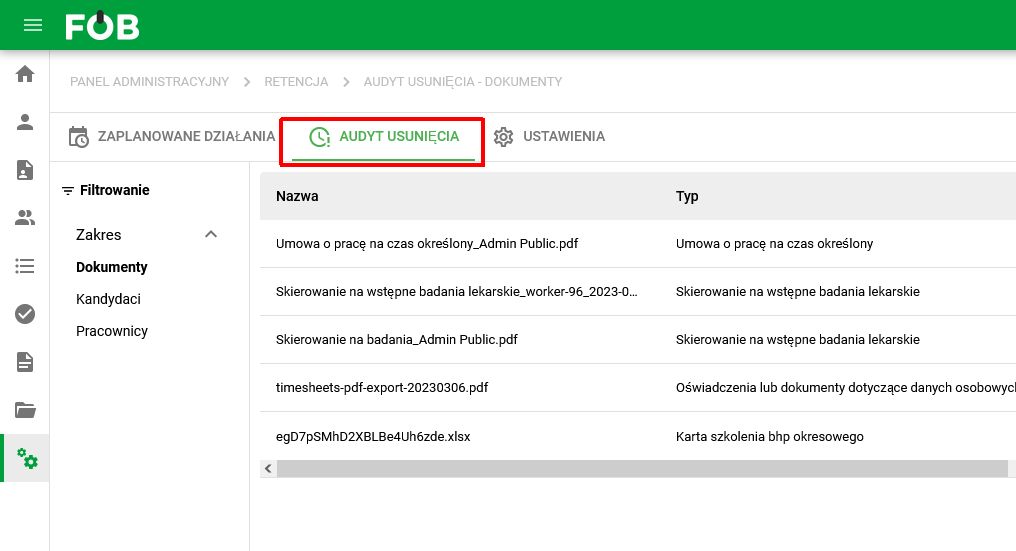
Audit of deleted records
Summary
Managing document retention in the eFOB system is crucial to legal compliance and effective employee records management. Share this article on social media so that others can benefit from this valuable information.