Types of electronic signatures
1. What are they and what are they for?
Signature types are specific methods of signing documents, assigned to one of the signature groups (coded e.g. SES / AES / QES).
Available methods depend on the organization configuration, permissions, and process. Select a method actually enabled for the company; a name in the list does not confirm integration availability. Check uncertain configuration with the administrator or eFOB team.
2. Example types of signatures in the system
SES: Simple electronic signature
An electronic signature intended for processes that do not require an advanced electronic signature (AES) or a qualified electronic signature (QES).
Available methods:
- Facsimile: a graphical representation of a signature as text or an image, available free of charge and built into eFOB.
This feature does not require an external signature provider.
AES: Advanced electronic signature
An electronic signature that meets additional requirements for identifying the signer and protecting document integrity.
AES signatures can be used in selected processes if they meet those processes' formal and legal requirements.
Availability: The use of AES signatures depends on the organization's configuration. Contact the eFOB HelpDesk to enable the appropriate signing methods.
QES: Qualified electronic signature
An electronic signature with the highest legal status, legally equivalent to a handwritten signature.
Available methods:
- KIR / Szafir: applying a qualified signature using the built-in signing window.
- Signius: applying a qualified signature through an external integration.
Available QES integrations:
- Signius
QES integrations under development:
- Autenti
- EuroCert (dopodpisu.pl)
- DocuSign
Availability: The available methods depend on the organization's configuration and the settings of the specific process.
Handwritten signature
A traditional signature written by hand on a paper document.
eFOB can store documents signed by hand, for example as scans. Such a scan is not a qualified electronic signature (QES).
Important: Before choosing a signing method, check the formal and legal requirements for the document. Placing a signature image on a document or assigning it a particular type in eFOB does not by itself mean that it meets the requirements for SES, AES or QES.
3. Managing signature types
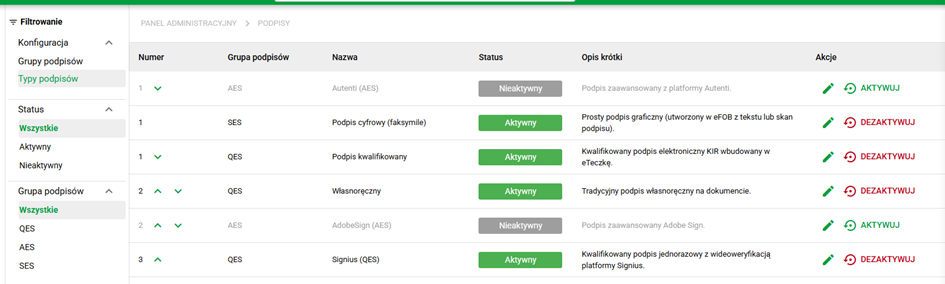
In the Groups window it is also possible to edit and deactivate signature types assigned to a given group.
The administrator can:
- search for signature types,
- activate or block signature types,
- arrange the order,
- edit descriptions visible to end users.
Default signing-details window
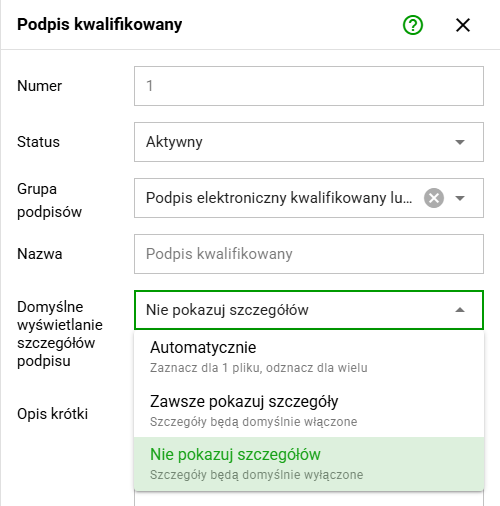
For the built-in KIR/Szafir qualified signature, an administrator can decide whether the details window opens by default. This supports the organization's signing workflow, such as placing visible marks on individual documents or signing larger batches of files.
Edit the built-in qualified-signature type and set Default signature details display:
- Automatically: enables details for one file and disables them for multiple files.
- Always show details: enables the details window by default.
- Do not show details: disables the details window by default.
Save the configuration. Users can override it in Local settings. A local preference does not change the organization setting for other people and does not apply to other signing methods.