Microsoft and Google sign-in with automatic account creation
An employee is a person whose data and documents are held in eFOB. A user is a person with an account that lets them sign in and use the app according to their permissions. An employee record can exist without a user account. The configuration described here creates a user account for an existing employee when they first sign in with Microsoft or Google.
Employees can sign in to eFOB with a Microsoft Entra ID or Google Workspace work account. Administrators can also turn on automatic account creation. An employee whose record already exists in eFOB then receives a user account at the first sign-in, without an administrator creating it.
Administrators decide which sign-in methods are available in the organization. Microsoft, Google, and eFOB username and password can be used at the same time. Automatic account creation is turned on separately for each Microsoft and Google connection.
How automatic account creation works
The mechanism is the same for Microsoft and Google:
- The employee must already exist in eFOB. The system does not create employee records or companies. It links the new account to existing records, for example records imported by eFOBSync.
- The employee record determines the company. The system searches for the employee in all companies assigned to the connection. Access is granted only to companies where a matching record was found. Neither the email domain nor selecting a company in the connection is enough.
- One person has one account. If an employee has records in several companies of the organization and the system can confirm unambiguously that they belong to the same person, the employee receives one account with access to those companies.
- The configuration grants roles. A new user receives only the roles selected in the connection for each company. Roles and groups from Microsoft Entra ID or Google Workspace are not transferred to eFOB.
- Ambiguity blocks account creation. If the system cannot safely determine which employee is signing in, it does not pick one arbitrarily. The account is not created and the case is left to an administrator.
What to prepare
For both providers:
- Administrator access to the organization settings in eFOBadmin.
- A list of companies employees should be able to access. The chosen sign-in method, Microsoft or Google, must be allowed in those companies' settings.
- Employee records in the relevant companies. The Personal email address field must match the login of the employee's work account with the provider.
- Module roles and data roles to grant to new users in each company.
For Microsoft:
- The Microsoft Entra directory identifier (Tenant ID). Find it in the Microsoft Entra admin center, under Entra ID, on the Overview page, in Tenant ID. This identifies the directory, not an application.
- Employees' logins, that is, their user principal names (UPNs). The mailbox address may differ from the login, so check this value with your Microsoft Entra administrator.
For Google:
- The Google Workspace domains employees will sign in from, such as
company.com. Find them in the Google Admin console, under Account > Domains > Manage domains. - Employees' Google Workspace account addresses. A Google account's login is also its email address.
Within each company, the address must identify one employee unambiguously. Duplicates, including inactive records or records in the Recycle Bin, can prevent account creation. If a person has records in several companies, check that their first name, last name, date of birth, and personal email address match across those records. A shared email address alone is not enough to treat records as the same person.
Matching requires active employee and personal-data records. It does not depend on the employment activity field or contract start and end dates. An inactive record does not grant access to a company.
When employment ends, access should be blocked primarily with the identity provider, in Microsoft Entra or the Google Admin console, by disabling the employee's account. eFOB does not automatically deactivate the user's eFOB account when their account is blocked at the provider.
The separate Deactivate users task can also disable access to selected companies in eFOB. It is available for selected integrations and runs when enabled in the synchronization configuration.
Adding a Microsoft connection
When a company is assigned to a connection, Microsoft sign-in in that company works only for accounts from the connected Microsoft Entra directories. This also applies to users who had eFOB accounts before the connection was added, and it applies whether or not automatic account creation is turned on. If people from another directory, such as external consultants, sign in to the company, add a connection for their directory as well or give them another sign-in method.
Each Microsoft Entra directory can be connected only once. If it is already used in another connection, eFOB shows "This directory is already connected".
-
Open eFOBadmin, then Settings and Login.
-
In Microsoft login (Entra ID), select Add connection.
-
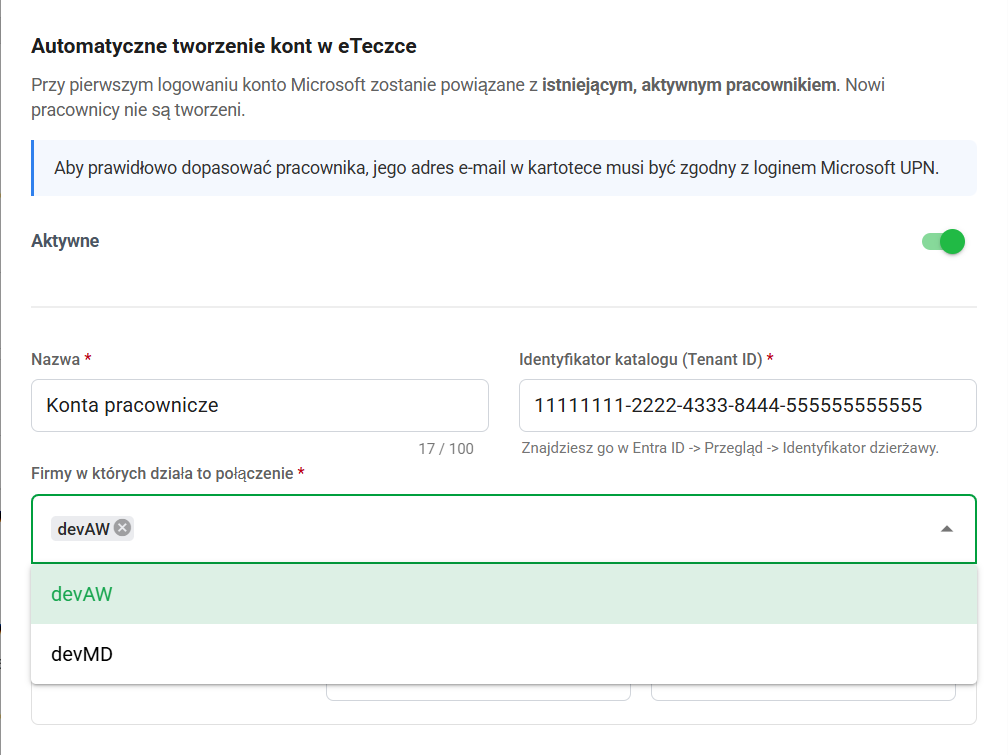
Turn on Active under Automatic account creation. While it is off, the other fields in the window are disabled.
-
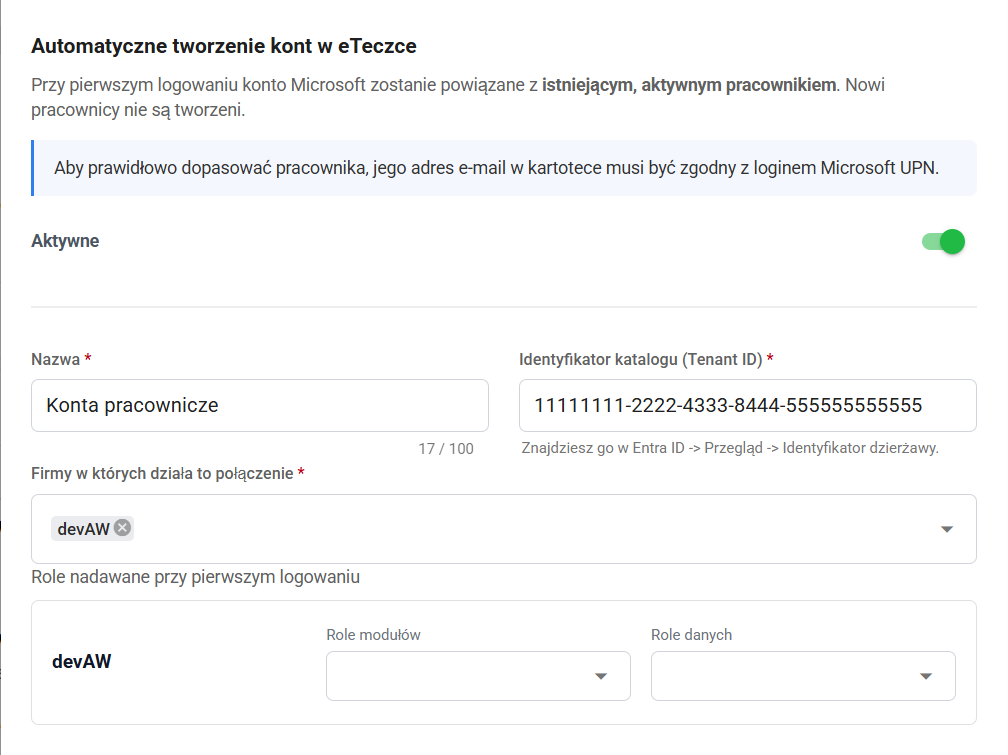
Enter a Name, such as "Employee accounts", and the Directory identifier (Tenant ID). The identifier must be a GUID.
-
Select the companies in which the connection should operate.
-
Under Roles granted on first login, select Module roles and Data roles separately for each company.
-
Select Save.
At sign-in, eFOB checks that the account comes from the connected directory. Work accounts from that directory are supported. Guest (B2B) accounts from other directories and personal Microsoft accounts are not supported.
Adding a Google connection
When a company is assigned to a connection, Google sign-in in that company works only for Google Workspace accounts from the connected domains. This also applies to users who had eFOB accounts before the connection was added, and it applies whether or not automatic account creation is turned on.
Each Google Workspace domain can be connected only once. If it is already used in another connection, eFOB shows an error message.
- Open eFOBadmin, then Settings and Login.
- In Google login (Workspace), select Add connection.
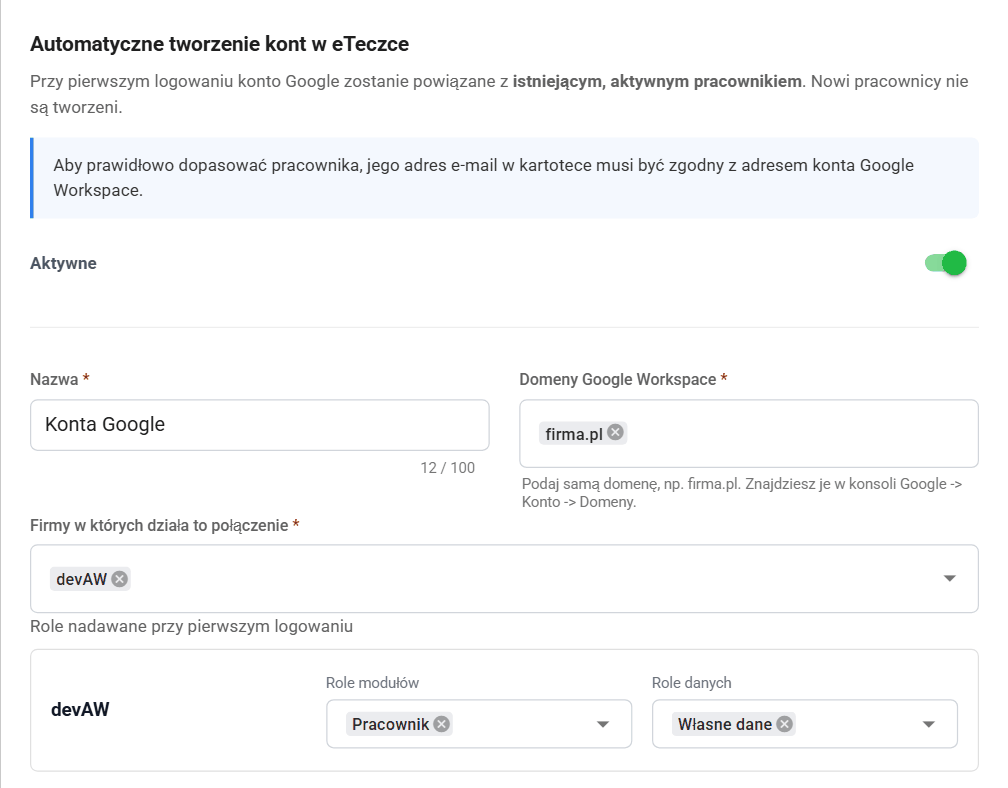
- Turn on Active under Automatic account creation.
- Enter a Name, such as "Google accounts", and the Google Workspace domains. Enter only the domain, such as
company.com, without@. If the organization uses several domains, add each of them. - Select the companies in which the connection should operate.
- Under Roles granted on first login, select Module roles and Data roles separately for each company.
- Select Save.
At sign-in, eFOB checks that the account belongs to Google Workspace and to one of the connected domains. Personal Google accounts, such as gmail.com addresses, are not supported, even if the address is entered in the employee record.
The same rule applies to both providers: grant only the permissions employees need. If no roles are selected, the system does not grant additional roles of that type. Administrator roles cannot be granted automatically.
An employee's first sign-in
The employee opens the eFOB sign-in screen and selects Microsoft or Google. They should use a work account from the directory or domain specified in the configuration.
After the employee authenticates with the provider, eFOB:
- Checks that the account comes from a connected Microsoft Entra directory or Google Workspace domain.
- Looks for an eFOB account already linked to this Microsoft or Google account. If it finds one, it signs the user in.
- Looks for an existing eFOB account with an email address equal to the login. If an active account exists, the system does not create a new one. It links the account to the Microsoft or Google account and signs the user in. The roles configured in the connection are not granted in this case, and company access follows the account's existing settings.
- If there is no account and automatic account creation is on, searches for the employee in all companies assigned to the connection.
- If the match is unambiguous, creates one user account, links it to the employee records, and grants the roles configured for the companies where the employee was found.
Creating the account, linking it to the employee, and granting roles happen together. If any step fails, the account is not created.
The new account signs in with the provider through which it was created and has no local eFOB password. At the first sign-in, the user must still accept the required legal documents.
Later sign-ins
At later sign-ins, eFOB recognizes the user by the stored, permanent identifier of their Microsoft or Google account, not by email address. Changing the address at the provider does not create a second account.
A later sign-in does not create the account again, grant new roles, or extend company access. If an employee moves to another company or receives a new record in one, an administrator or HR synchronization grants access to that company. An inactive account is not reactivated automatically either.
Checking the configuration
Before enabling sign-in for all employees, check it with a test account, separately for each connection:
- Prepare an employee record with the correct personal email address and no linked user account.
- Sign in with Microsoft or Google in a separate browser window.
- Check the companies and permissions available to the user.
- In the user list, check the created account, roles, and employee link. Account creation and role assignments are recorded in the change history and audit events.
When an account is not created
| Problem | What to check |
|---|---|
| Employee not found | Check that the personal email address in eFOB matches the Microsoft login (UPN) or the Google Workspace account address, the employee record is active, and its company is included in the connection. |
| Employee cannot be matched unambiguously | Check for multiple records with the same address in one company, including the Recycle Bin, for inconsistent data in the person's records across companies, and whether the employee record is or was linked to another user account. An administrator must resolve such a link. |
| Account already exists | The login already belongs to an eFOB account that could not be used, for example because it is inactive. The system does not create a second account or automatically reactivate an inactive one. An administrator must resolve the conflict. |
| This type of account cannot be used to sign in | The employee is signing in with a guest (B2B) account, a personal Microsoft account, or a personal Google account. A work account from the connected directory or domain is required. |
| This account cannot be used to sign in to the organization | The account comes from a Microsoft Entra directory or Google Workspace domain that is not connected in this organization. |
| Account creation is disabled | Check Active in the connection configuration. |
| Sign-in method is unavailable | Check that Microsoft or Google is allowed in the matched companies and in the existing account's settings, if the person already has an account. |
Messages shown to employees intentionally do not reveal configuration details or other people's data. To find the cause, compare the account data at the provider with the employee record and the connection configuration.
Changing or disabling the configuration
Edit the connection from the list under Microsoft login (Entra ID) or Google login (Workspace). The roles selected in this window apply when creating new accounts. Changing these settings does not replace role management for existing users.
Disabling automatic account creation does not delete existing accounts or revoke their access. Change existing users' access in the account and company settings. The connection still restricts sign-in in the assigned companies to accounts from the connected directory or domain.
Before deleting a connection, check which users rely on it and ensure administrators have another working sign-in method. The confirmation window shows the number of linked accounts and a warning about administrators without an alternative sign-in method. If changing or deleting the connection would leave a company without an active administrator who can sign in, eFOB does not save the change and lists the affected companies. For the same reason, you cannot turn off the last sign-in method that administrators use.
After a connection is deleted, a company with no other connection for the same provider no longer restricts sign-in to a specific directory or domain. If the method is allowed in the company and account settings, users can sign in to that company with an account from any Microsoft Entra directory or any Google Workspace domain.