Login to “eFOB admin”
eFOB admin is an administration module at the level of the entire organization (i.e. many companies in the multi-company option) of the eFOB platform. It enables organization administrators to manage synchronization processes.
In this article we will discuss the process of logging in to eFOB admin, changing Organization and the option of returning to the classic eFOB.
Login to eFOB admin
1. Please enter your login details (login and password) on the eFOB login page:
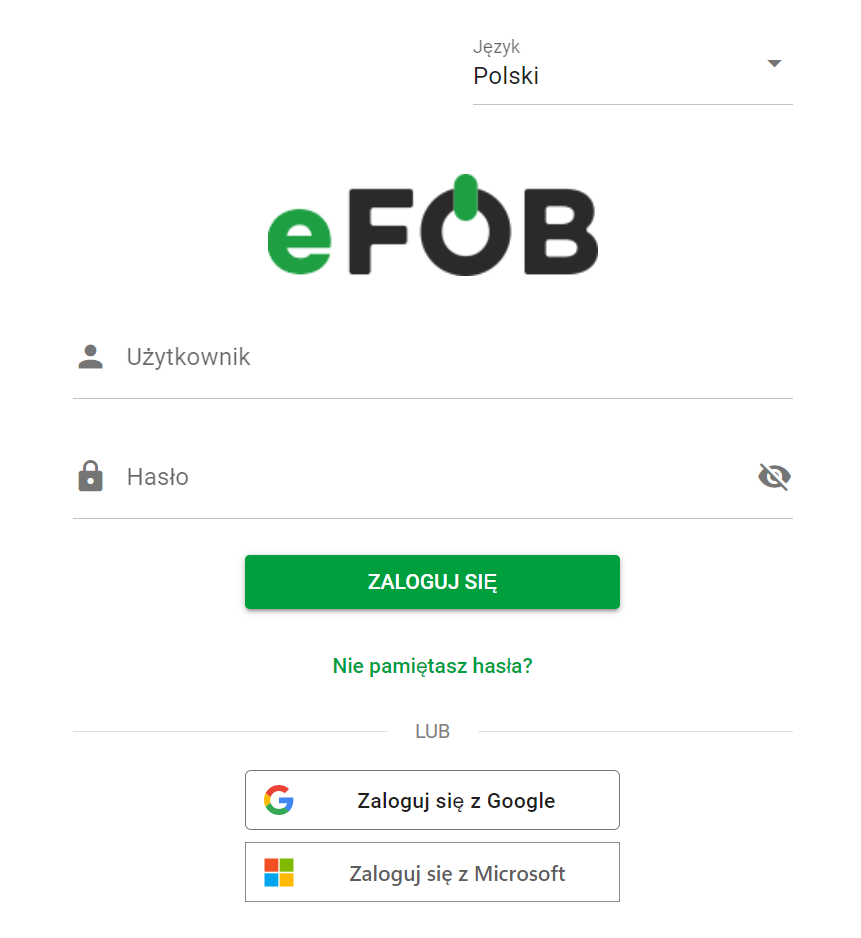
Login screen
More about login methods in the article: How to log in to the eFOB application – eFOB
2. Click the button at the bottom ADMINISTRATIVE SETTINGS:
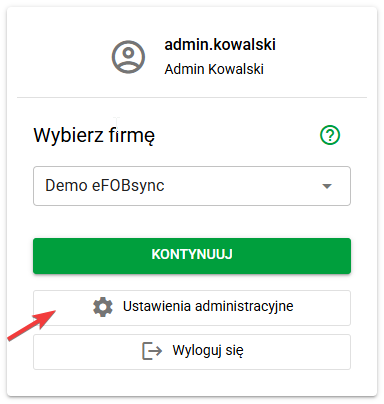
Organization admin login screen
After completing these steps, the main dashboard eFOB admin will be displayed, where you can proceed to further functionalities of the system.
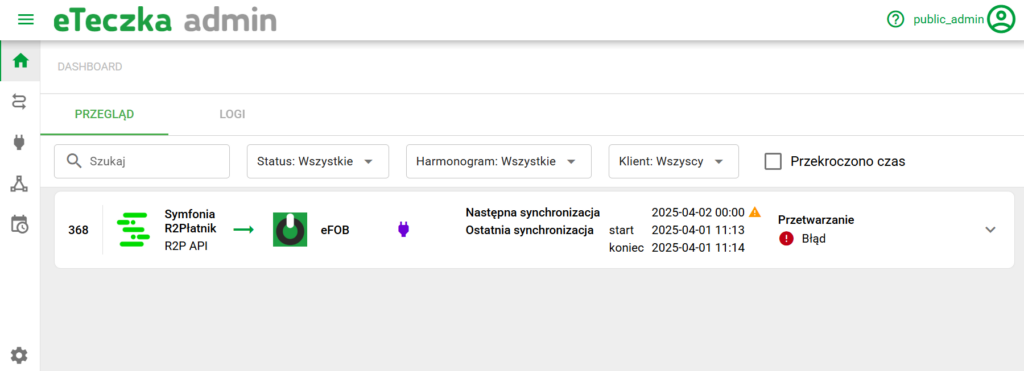
Changing the organization in eFOB admin
For administrators of many organizations, there is an option to change it in the menu:
- Click the green user icon in the upper right corner.
- Click on the ORGANIZATION list.
- Select another organization from the available list.
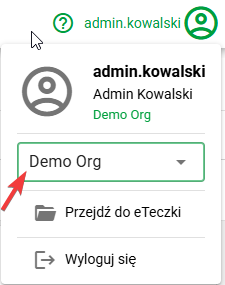
After selecting a new organization, the user will be transferred to a new environment of another Organization.
Switch to the classic eFOB
For organization administrators who need to use the classic version of the eFOB application, an option to switch without having to log out is available in the menu:
- Click the green user icon located in the upper right corner of the screen.
- Select the GO TO FILE button.
- Click the CONTINUE button in the new window.
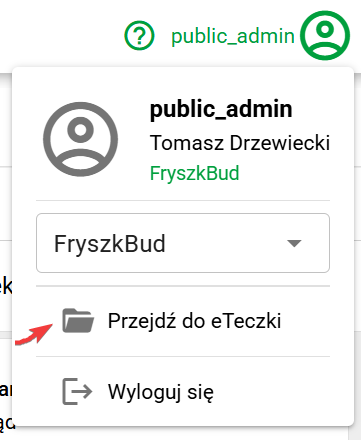
After completing the above steps, the user is logged in to the classic eFOB.
NOTE: Switching to eFOB requires the user to have appropriate rights to eFOB, which are independent of the rights of the Organization Administrator.
Switch to the company context in eFOB
Similar to changing organizations, admins with permissions to multiple eFOB companies can also change the company they are connected to
- Click the green user icon in the upper right corner of the screen.
- Click the GO TO FILE button, which will take the user to the company selection screen.
- Select COMPANY from the list of available options.
NOTE: Users with access to only one company will be automatically logged in to that company and the company change selection screen will be skipped.