Data source
In the eFOBAdmin system, data source configuration is a key step in the process of creating a new synchronizer. The data source defines where the data for synchronization will be retrieved from. In this article we will discuss how to properly configure a new data source and what options are available.
Select the data source type
When creating a new synchronizer in eFOBAdmin, the user is guided through several steps to configure the connection. One of them is choosing the type of data source. On the SELECT SOURCE TYPE screen, the user can select the appropriate option depending on his needs. Various types of data sources are available, including:
HR and payroll: This option is suitable when the data to be synchronized comes from personnel and payroll management systems.
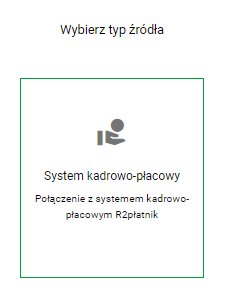
Source Type
After making the selection, the user clicks the NEXT button to proceed to the next configuration step.
System
Then the user selects the system to which he wants to connect:
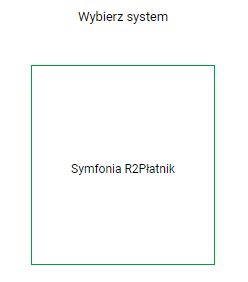
System
Connection type
Next, the connection selection screen appears. Here we choose what type of connection we need:
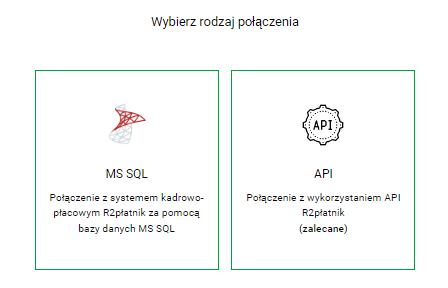
Connection type
- MS SQL: Enables connection to the HR and payroll system via the Microsoft SQL Server database. This is a popular option when data is stored in relational structures.
- API: Used to connect to the database via an application programming interface (API). It is a flexible solution that allows integration with various systems.
Select a data range
After configuring the connection, the user must select the range of data to be synchronized. It could be:
- Basic: Synchronizes only basic information, such as name, surname, document number.
- Maximum: Syncs the full set of data, including address data and other details.
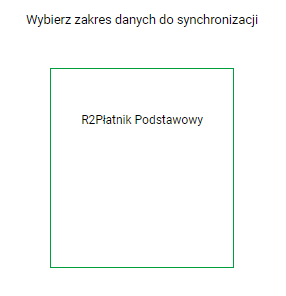
Data range
Connection configuration
In the next step, the user enters details about the connection to the selected data source. The following information is required:
- Database hostname: The address of the server where the database is located.
- SQL Server Instance Name: The specific SQL Server instance whose data is to be synchronized.
- Port: The port number used to connect to the server.
- Database Name: The specific database from which data will be retrieved.
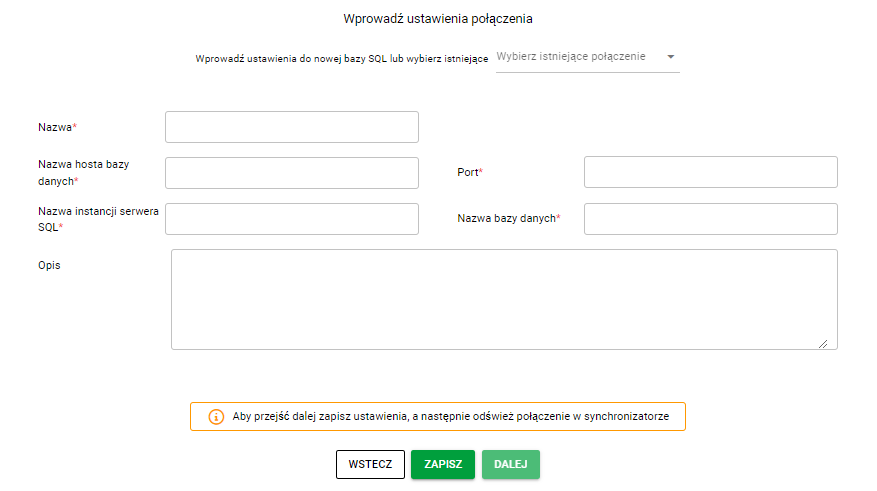
Connection Settings Screen
After completing them, the system verifies the correctness of the connection. If everything is OK, the user sees the message CONNECTION VERIFIED and can proceed.
Finalizing Configuration
The final step is to save the settings and start the synchronizer. After completing the configuration, the new synchronizer is ready for operation. The user is taken to a screen confirming that the synchronizer has been successfully created.eFOBAdmin offers an intuitive interface that guides you step-by-step through the configuration process, ensuring that all steps are completed correctly. Thanks to this, users can easily and effectively manage data synchronization in their organizations.