Connection selection and configuration
A key step in the data synchronization process is to properly configure the connection. Within one data flow, it depends on where and what data will be downloaded for synchronization.
In this article, we will discuss how to select and configure a connection in the eFOB admin module when creating a data flow.
Select the source type
Currently, only a connection to HR and Payroll systems is available, where data from the HR and Payroll system are sent unilaterally to eFOB.
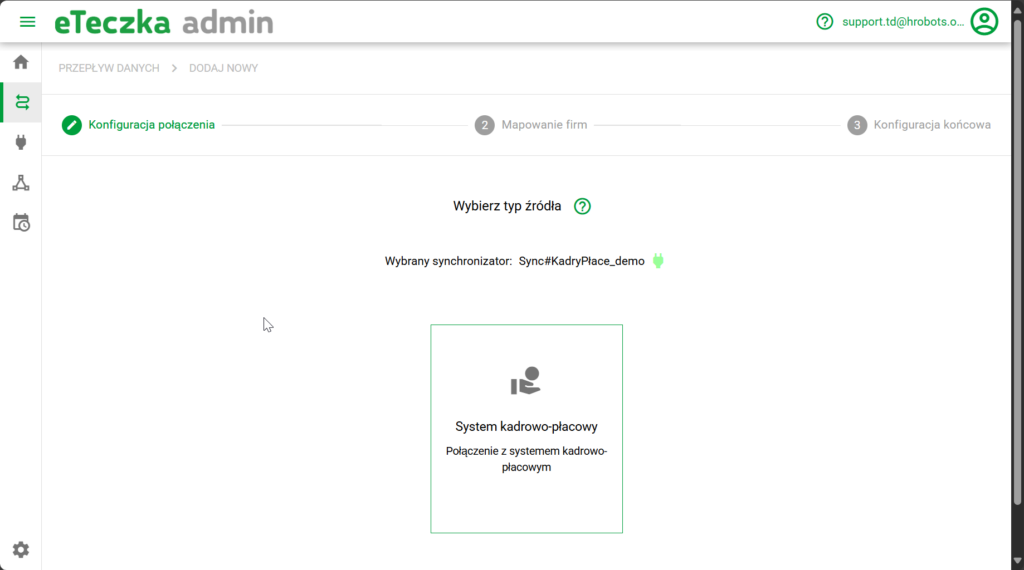
In the future, it is planned to expand it to include document downloads, the number of supported systems, and reverse synchronization.
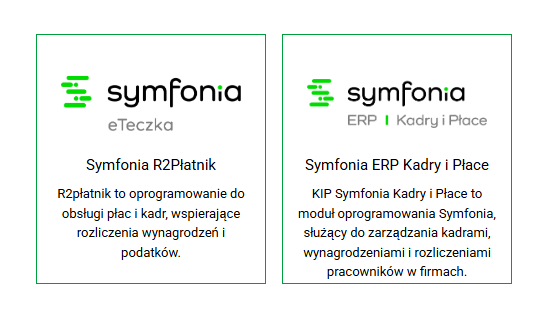
System selection
The user initially selects the system that will serve as the source of data that will be uploaded to eFOB.
Select the connection type
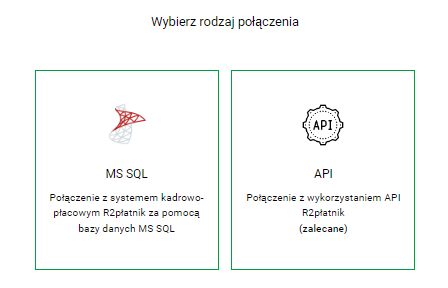
After selecting the system, the user is asked to select the connection type. Available options include:
- MS SQL: Enables connection to the HR and payroll system via the Microsoft SQL Server database. This is a popular option when data is stored in relational structures (available for R2Płatnik and KiP).
- API: Used to connect to the database via an application programming interface (API). It is a flexible solution that allows integration with various systems (only available for R2Płatnik).
Connection type
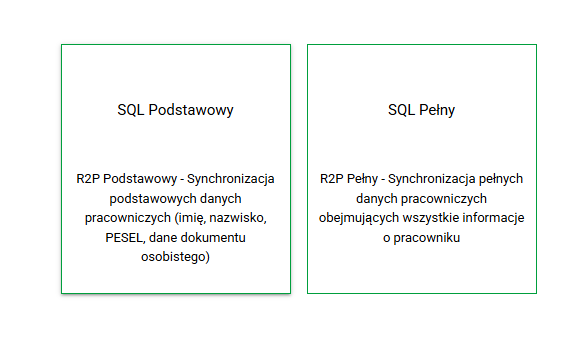
Select a configuration scheme
In the next step, the user selects the scope of synchronized data - basic or full - both in the case of selecting the MS SQL and API connection.
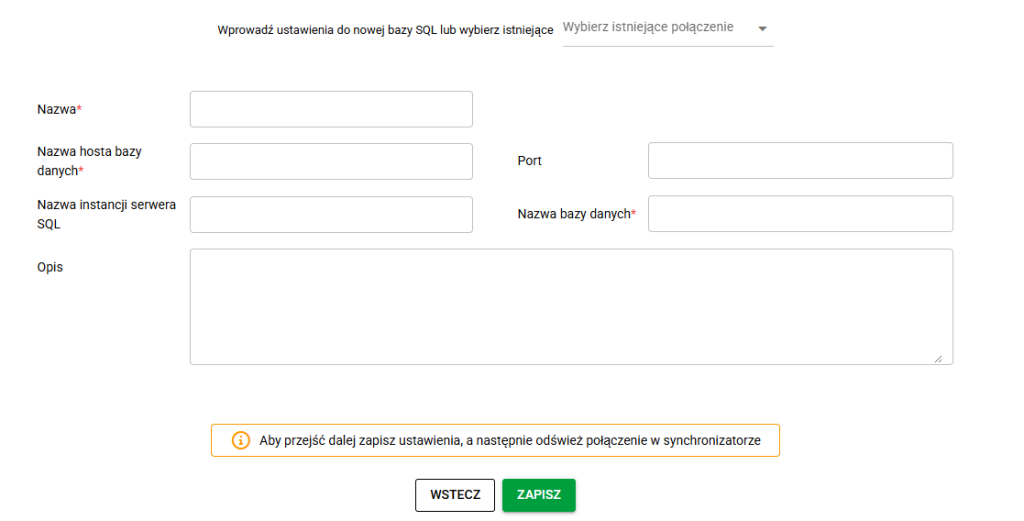
Configure MS SQL connection settings
In the next step, the user enters details about the selected connection type. Depending on your selection, the connection details include:
For MS SQL connection:
- Name*: Connection name, freely set by the user.
- Database hostname*: Address of the server where the database is located (standard for local installation: localhost).
- Port: The port number used for connection (default for Microsoft SQL: 1433).
- SQL Server Instance Name: The name of the specific server instance to which the user wants to connect (standard for MS SQL is the name of the running 'SQL Server' service visible in Windows/Services, e.g. SQLEXPRESS).
- Database Name*: The specific database from which data will be retrieved. The standard values are given below:
- Symfonia R2Płatnik: PLATNIK10
- Symfonia KiP: – (field not used)
- Description: Description of the connection, freely set by the user.
* Indicates required fields_
The above data for connection to the MSSQL database for R2Płatnik can be checked in the free Microsoft SQL Server Management Studio (SSMS) tool.
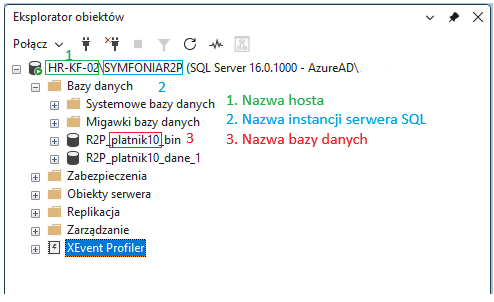
Note: In some configurations, field 1. Hostname may appear as a value used in the SSMS connection, e.g. “HR-KF-02\SYMFONIAR2P”. However, if there is no symbol \ and there is only the name of the computer, e.g. HR-KF-02, then:
- Database hostname*: enter this value (i.e. HR-KF-02)
- SQL server instance name: leave blank.
Configuration of API connection settings (R2Płatnik)
In the case of API connection (currently only R2Płatnik):
- Name*: Connection name, freely set by the user
- Path to the configuration folder*: Path to the R2Płatnik configuration folder from which the synchronizer downloads the required data about the system
- Description: Description of the connection, freely set by the user
* Indicates required fields_
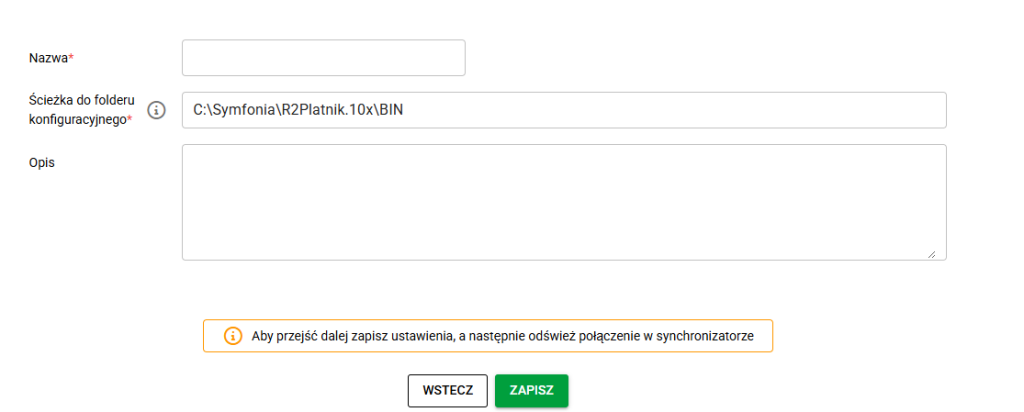
After completing this data, the user clicks the SAVE button and then NEXT. The system verifies the correctness of the entered data by displaying a message that the connection has been successfully tested.
Go to the next stages
After successfully testing the connection, the user proceeds to the final configuration screen.