“eFOB admin” settings
eFOB admin has a Settings module that allows you to change settings for the entire organization, i.e. many companies at the same time, in terms of:
- Login – ability to change settings regarding
- standard, Microsoft and Google login options
- two-factor authentication (2FA) settings
- File extensions – ability to change settings regarding blocking file extensions of documents that can be transferred to eFOB.
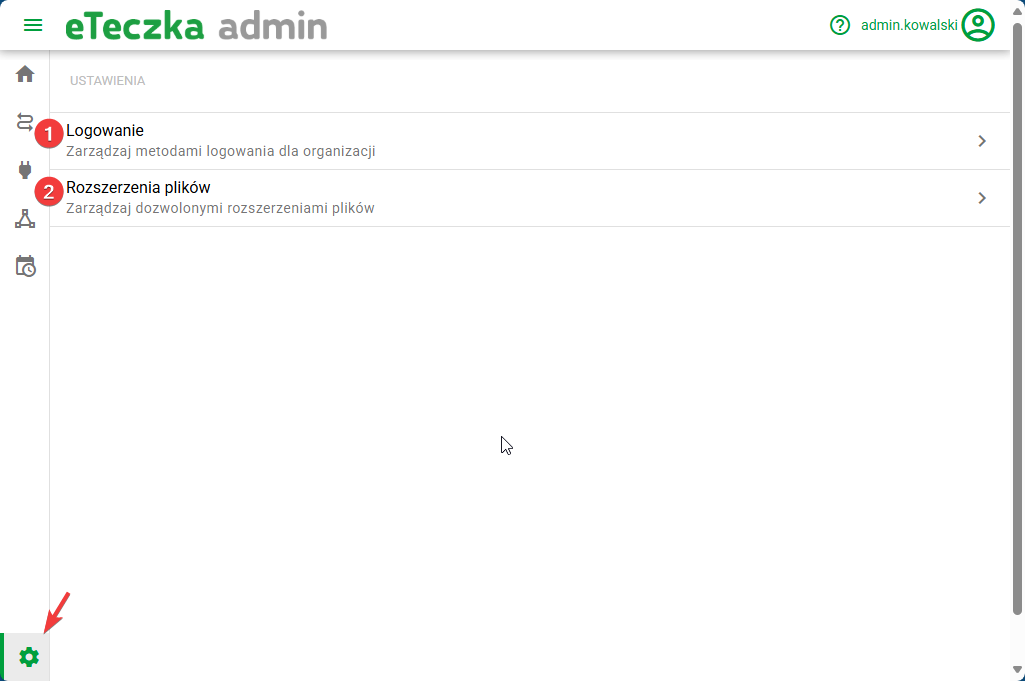
Login
You can change your login settings in two ways:
- global settings for all companies
- individual settings configured per company (may be important for multi-company cases, e.g. for an accounting office serving different clients who prefer different login methods)
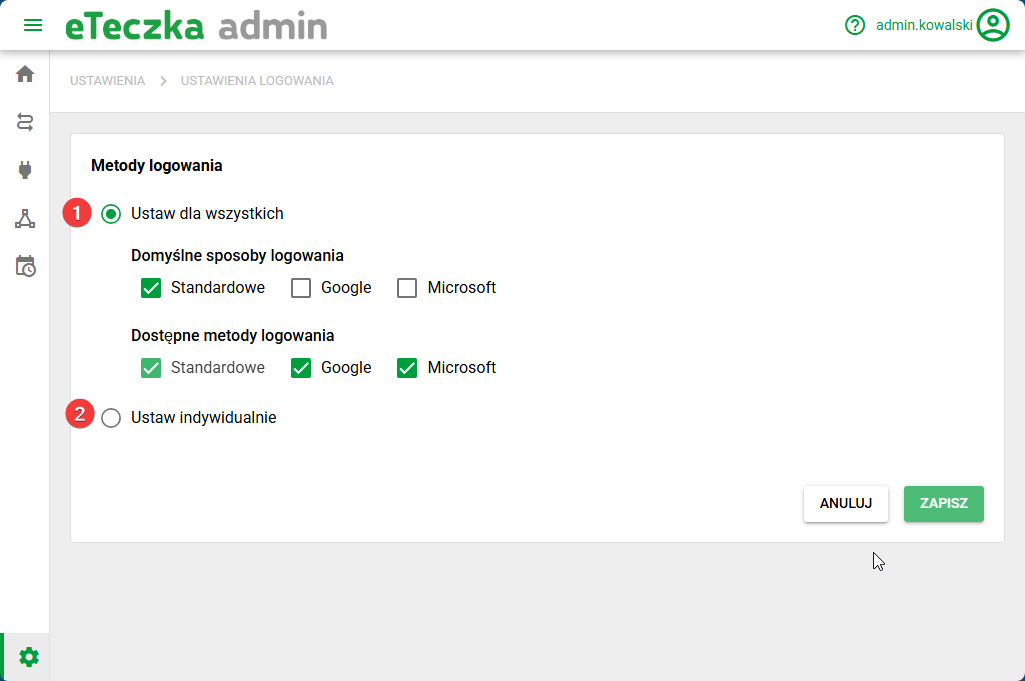
In both cases, two types of settings are available:
- Default login methods – such methods will be automatically set for each new User
- Available login methods - such methods will be available for change for each individual User (i.e. initially each user can be designated for standard login by password, but it is possible to change this user, e.g. for administrators, to set the login only to 'Microsoft')
If a user has Microsoft or Google login assigned, they should use the appropriate button on the login screen. If the login method does not match, the application will display a message, and the configuration can be checked in the user's account settings.
The above-mentioned settings are later used in the login process.
Two-factor authentication (2FA)
On the same screen, you can change 2FA authentication settings in two ways:
- global settings for all companies
- individual settings configured per company (same as in login settings)
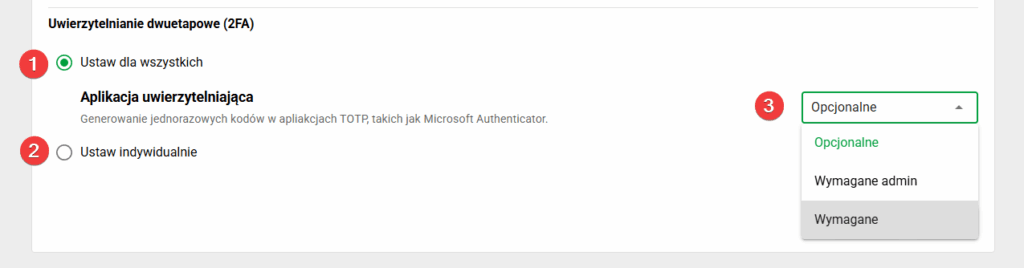
In both cases, three types of settings are available:
- Optional – Users can manually enable 2FA in their profile. The system will recommend this option when activating the account, but will not force it when logging in.
- Admin required – 2FA is mandatory for accounts with admin privileges in any company. Other users will have this option recommended when activating their account and will be able to enable 2FA on their own in their profile.
- Required – 2FA mandatory for all users. The system will force it to be set the next time you log in if there is no previous setting for a specific user
NOTE: If a user logs in to multiple companies, each with different 2FA requirement settings, the most stringent settings will always be applied to their account.
The above-mentioned settings are later used in the two-step login process. If 2FA is required and the user does not yet have active protection, the system will direct them to configuration at the next login. If 2FA is optional, the user can enable it themselves in account settings, in the Two-step verification section.
Illegal file extensions
Blocking threats associated with unsafe file extensions is a key part of protecting your system from malware attacks. This increases system security by eliminating the possibility of running potentially dangerous programs, scripts and files. Thanks to these restrictions, the system becomes less susceptible to external attacks, such as malware infections, malicious scripts or changes to the system registry.
Disallowed extension settings
To edit the list of prohibited extensions for a selected organization, log in to eFOBAdmin, click the settings icon, and then select the "File extensions" item. In the next window, you can select the list of prohibited settings using the selector:
- to add prohibited extensions from the available list, select them in the column on the left and click the right arrow button "Move selected"
- to withdraw prohibited extensions, select them in the column on the right and click the left arrow button "Move selected"
- to add your own extensions, enter them in the text field (entered text must start with a dot) and click the arrow button next to it
- after editing the list of prohibited extensions, save the changes by pressing the “Save” button
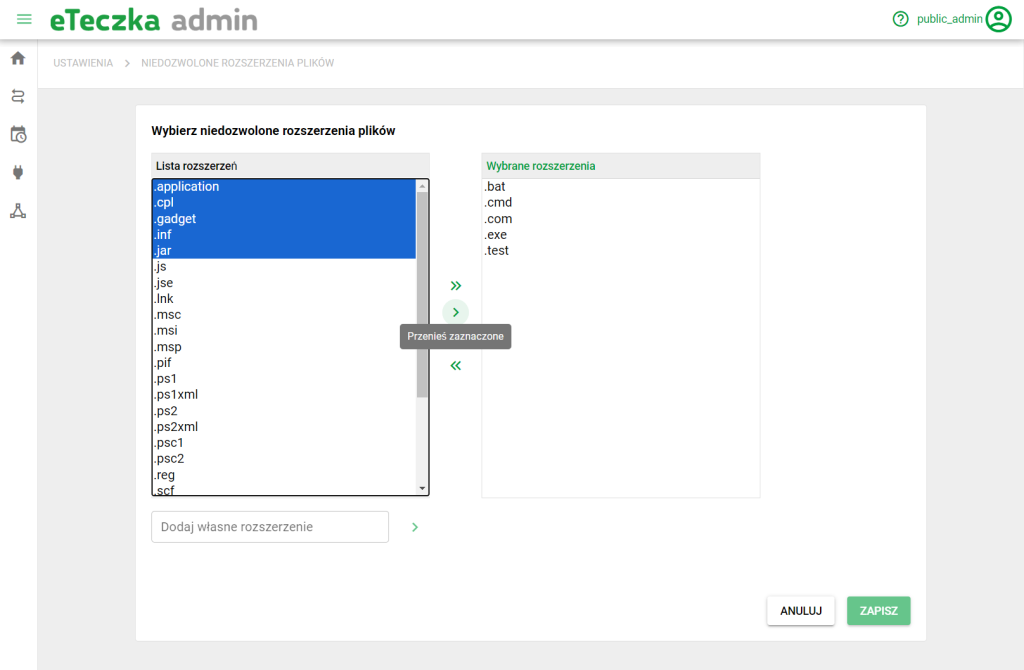
Manage Prohibited Extensions Screen
Blocked extensions by default
The eFOB application verifies and blocks the following file extensions by default:
1. Protection against executing malware
Extensions such as .EXE, .MSI, .COM and .SCR are executable file formats that may contain full programs or malware components. Malicious files can be hidden within seemingly safe installers, programs or even screen savers, making them difficult for end users to detect. Blocking these extensions at the administrative system level prevents such files from being accidentally launched, protecting the system from unwanted applications and viruses.
2. Avoiding automatic script execution
Script files such as .BAT, .CMD, .VB, .VBS, .JS, and .JSE may contain executable commands that run automatically when the file is opened. Scripts can be used by attackers to take control of a system, execute code remotely, modify files, or install malicious software. Therefore, blocking these extensions is crucial to avoid scripts from running without the user's knowledge.
3. Registry File Risk Mitigation
Files with the .REG extension may make changes to the Windows registry, which may affect the operation of the operating system, applications and security. Malicious registry files can add unauthorized entries, delete important data, and even modify security settings, making it easier for hackers to access your system. Blocking these types of files prevents unauthorized modification of the registry.
4. Protection against AutoRun exploit and other system scripts
.INF files that are used by the AutoRun function can run dangerous programs automatically when a medium (e.g. pendrive) is connected to the system. These types of files are often used to spread malware via removable media. Blocking them at the administrative level effectively reduces this threat.
5. Blocking PowerShell script files and Windows Script Host components****PowerShell script files, such as .PS1, .PS2, .PSC1, and .PSC2, can run a series of commands and system scripts. They can be used both for system management and to launch attacks on the system. Blocking these files helps prevent attacks using PowerShell. Similarly, .WS, .WSH and .WSC files (Windows Script Host Components) can be used by attackers to trigger unauthorized activities, so blocking them is also recommended.
6. Protection against unauthorized shortcuts and system commands
.LNK (program shortcuts) and .SCF (Windows Explorer commands) files can be used to run dangerous programs or commands with additional parameters that can, for example, delete files from the system without warning. Blocking these extensions prevents shortcuts and commands from being used to perform malicious activities.
7. Protection against importing dangerous data
Installation files such as .MSI and .MSP, as well as files containing script data such as .JAR (Java files), can be used to install malicious applications or execute unsafe code. Locking these files at the system level prevents them from being run without proper authorization.