eFOB synchronizer (eFOBsync and eFinder admin)
How do I log in to eFOBsync?
NOTE: Log in with the technical user and password created in eFOB admin.
Login description is available on the page: Login to eFOBsync.
How to quickly start synchronization?
- You should submit an application via the eFortfolio support department for:
- creation of an Organization (the organization should be automatically created and assigned to the first/first System Administrators, if no information is available, please request a notification)
- granting the eFOB user the rights of an Organization Administrator (for security reasons, notifications regarding these rights will only be processed from the current Organization Administrator)
- You should
- log in to the eFOB admin panel (Logging in and navigating in eFOBAdmin – eFOB)
- install the eFOBsync application locally (eFOBsync Installation Instructions)
- In the admin eFOB in the Data Flows module
- STEP #1. You need to create a dataflow and perform the following actions within it
- STEP#2. You need to create a new connection to the eFOBsync synchronizer or select an existing one
- creating a technical user and writing down a password for him, the so-called API key (NOTE: the technical user is different from the Organization Administrator user that we use when logging in to eFOB, more on the page Mechanisms of eFOB data synchronization)
- Logging in with the above-mentioned user in eFOBsync (the green status 'Logged in' should be visible in the window)
- STEP #3. Creating and testing a connection to the HR and Payroll system (Selecting and configuring the connection – eFOB)
- STEP #4. After refreshing in eFOBsync, logging in with the database user/password (or API) to the HR and Payroll system server
- STEP #5. Selecting company mapping from the HR and Payroll system -> company/customer eFOB
- STEP#6. Establishing a schedule for synchronization and other data
- STEP #7. Summary
- Start the flows in eFOBsync (‘START’ button)
- The configured Data Flow will be visible in eFOBsync (a few minutes after creation or after refreshing with the manual button in the upper right corner):
- in the 'OVERVIEW -> Scheduled' section for automatic flows
- in the 'ACTIONS' tab for manual flows
eFOBsync and data synchronization on the example of KiP (SQL)
This webinar presents information on data synchronization from Symfonia KiP to eFOB:
- Data synchronization schemes
- Creating a data flow
- eFOBsync installation and synchronization
- Error monitoring
First synchronization to eFOB
STEP #1. New data flow
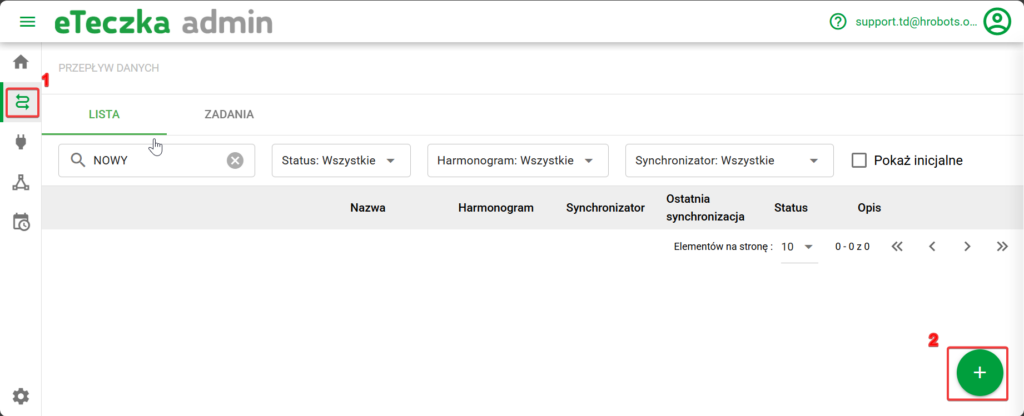
STEP #2. Create or select a connection to the eFOBsync synchronizer
When configuring the connection, select an option:
- Add new – it will create a new eFOBsync synchronizer logged in to the technical user (Step #2.1)
- Select existing - will use the existing eFOBsync connection configuration
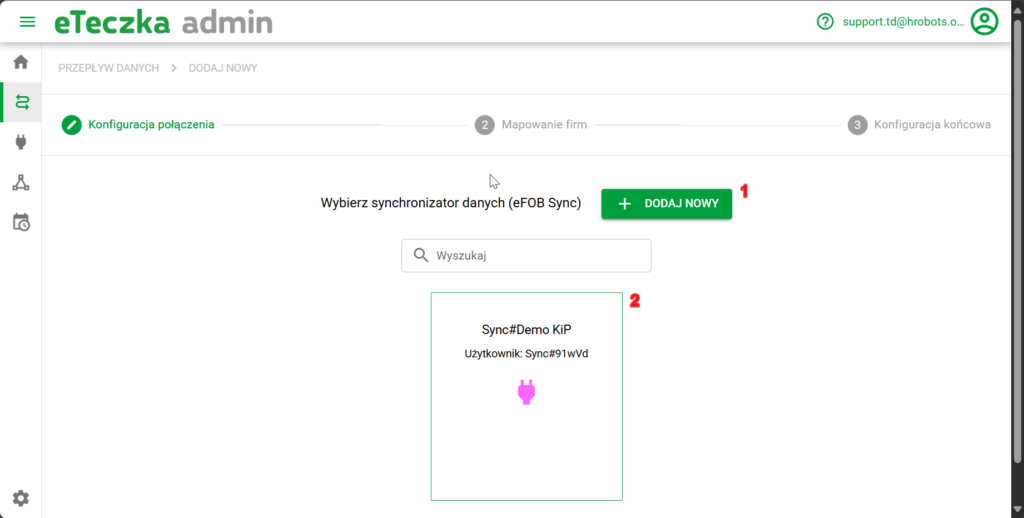
STEP#2.1. Configuring a new connection to the eFOBsync plugin
After installing the new eFOBsync, the first step is to configure its connection in eFOB admin.
To do this, click the 'Add new' button in the eFOB admin panel.
A. Create a name/color for the new eFOBsync connection
When configuring the connection to the eFOBsync synchronizer, you can modify the following options:
- Synchronizer name (required)
- Color of the synchronizer
- Description (optional)
B. Create a technical user
After selecting 'Next' in the previous step, the following will be created:
- New technical user to use in eFOBsync
- The so-called API Key of the above-mentioned user used for authentication in eFOBsync
- Using the copy button, we can conveniently copy the above-mentioned values
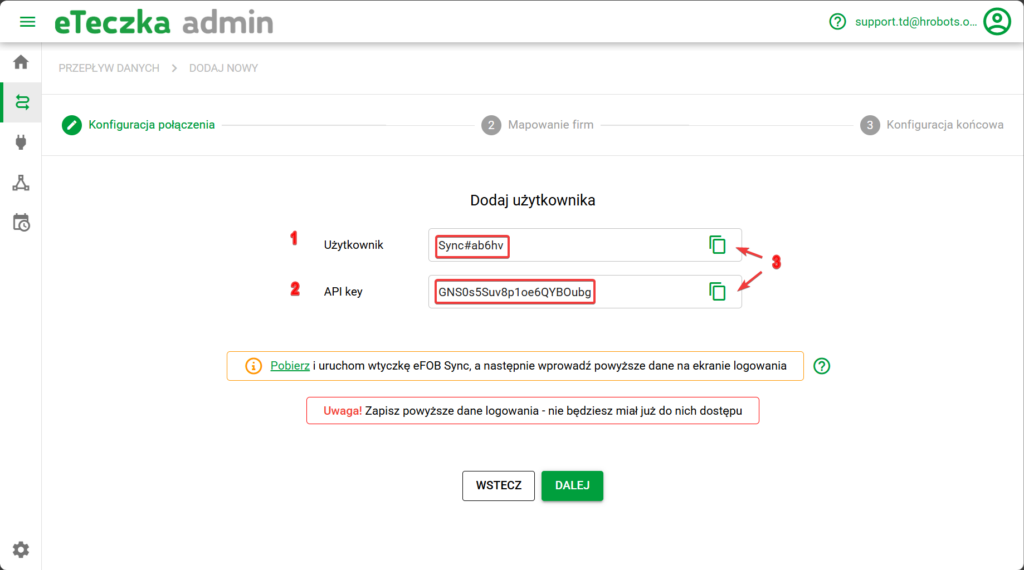
NOTE: The above-mentioned data, especially the API key (2), is visible only on this screen. Therefore, these values should be entered directly in eFOBsync and can be saved in another safe place, e.g. a password manager. At a later stage, it will only be possible to re-create the API key (2), for security reasons it will not be possible to view it in eFOB admin.
After selecting 'Next', the system will go to the waiting mode for logging in to eFOBsync (point C).
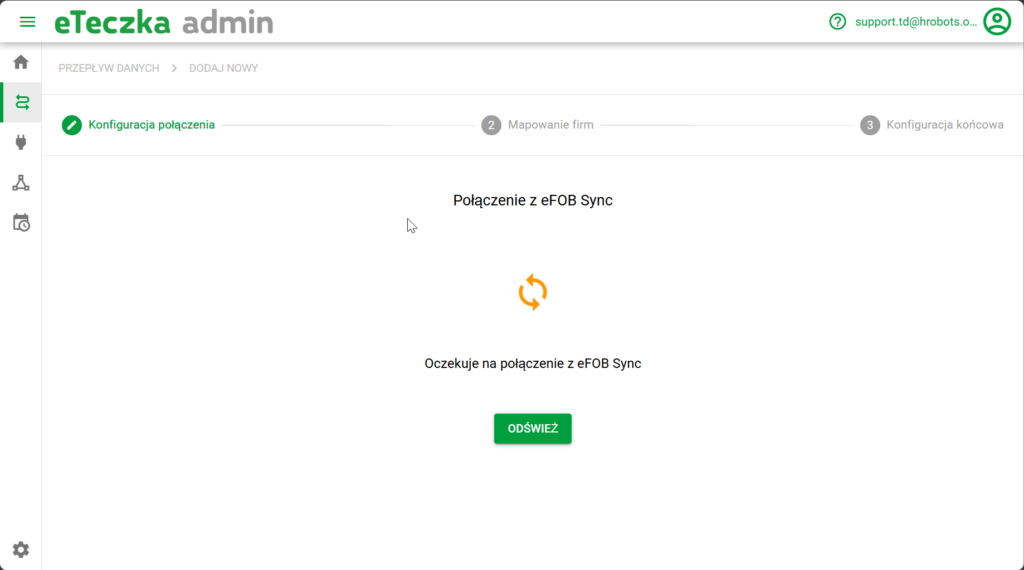
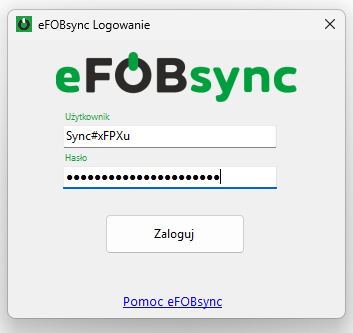
C. Login to eFOBsync as a technical user
The above technical user data (1) and (2) must be entered in the eFOBsync main login window (User and Password fields).
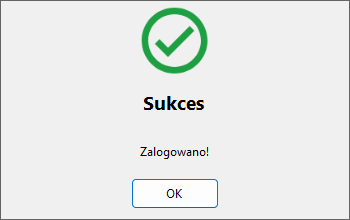
If login is successful, a success message will be displayed.
After successfully logging in to eFOBsync, the screen in eFOB admin will also show that the connection has been established.
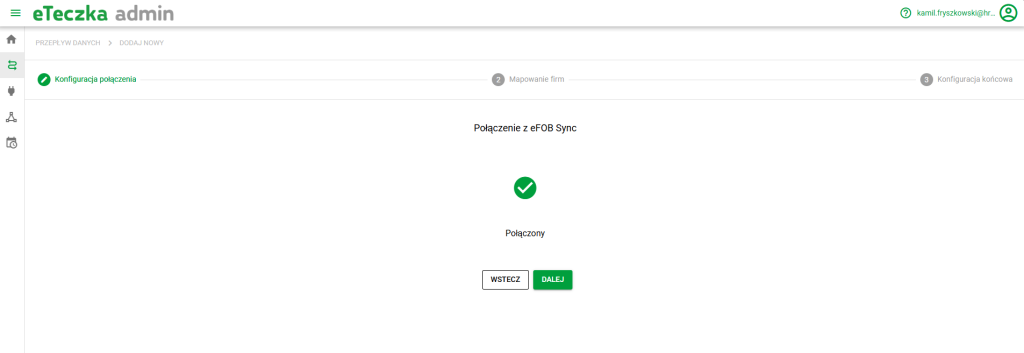
STEP#2.2. Using an existing connection to the eFOBsync synchronizer
When using the existing synchronizer, points A-C (from step 2.2 above) will not take place and you will be able to go directly to the next point. This scenario will be useful in the future when many different data flows will be configured on one eFOBsync instance.
STEP #3. Connection configuration
You should then configure a new connection to the HR and Payroll system using the configured synchronizer.
The configuration of the new connection is described in detail at the link below: Connection selection and configuration – eFOB
STEP #4. Verify the connection and start the data flow
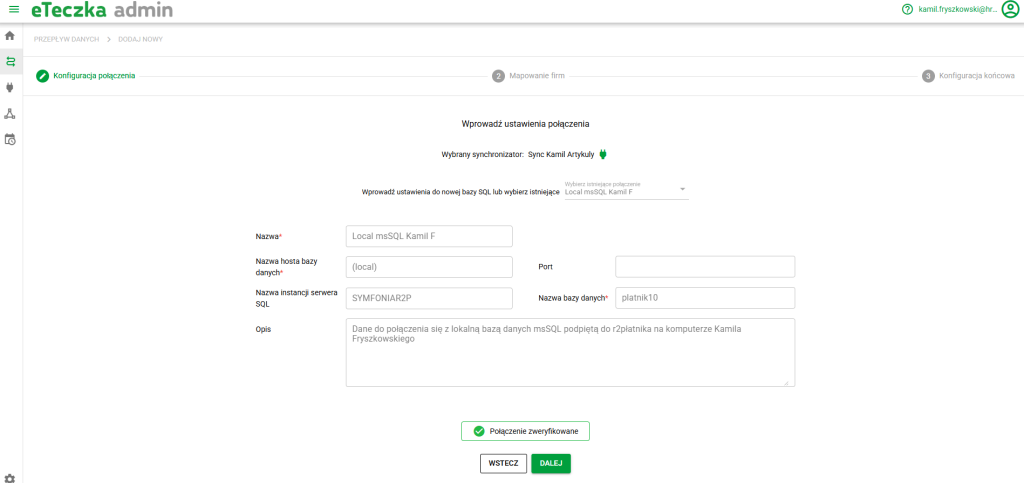
After saving the settings, connection verification will begin. You need to refresh the connection in the synchronizer.

Dataflow update
After successful verification, the flows will be updated. A success message will appear.
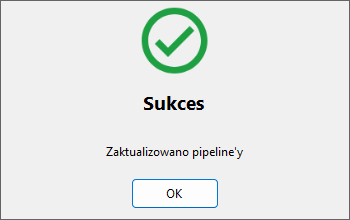
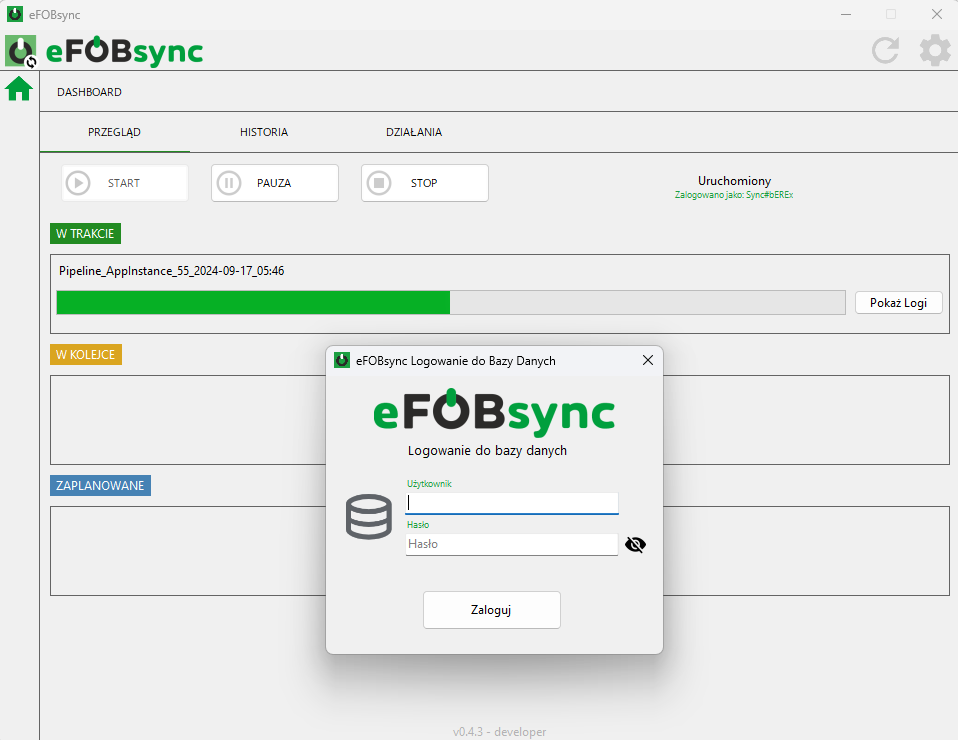
Data synchronization
After logging in to the database, the data synchronization process will be started and the progress will be visible on the dashboard screen. The user can monitor the queue, scheduled tasks and the progress of current synchronizations.
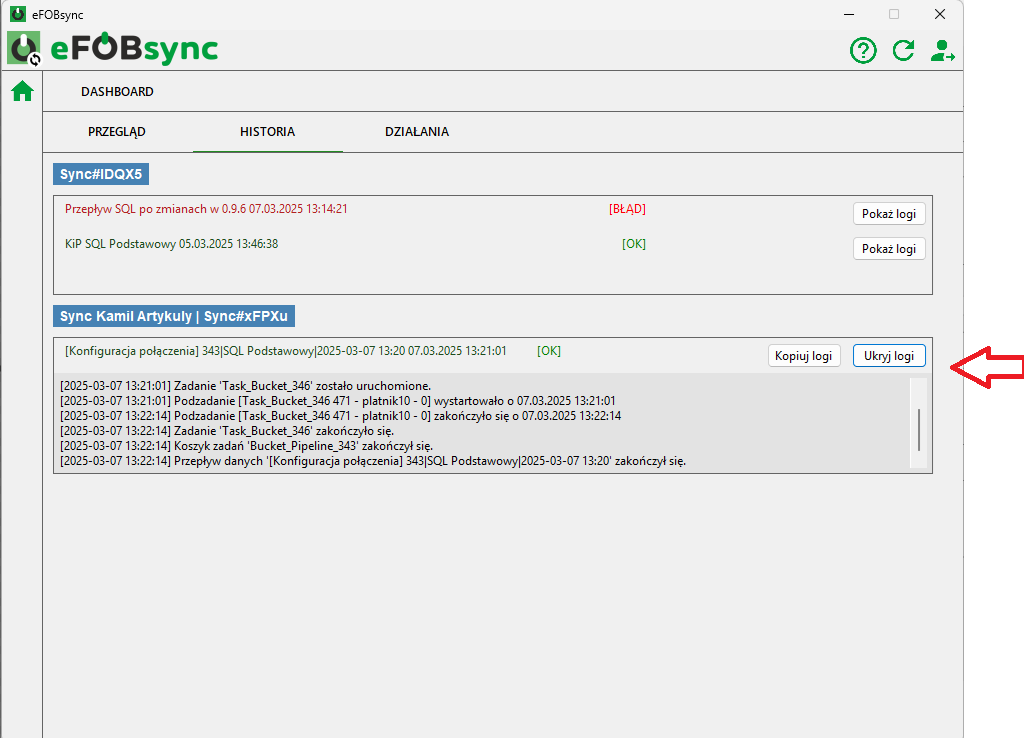
If the connection is successful, the 'History' tab in eFOBsync will show the following information:
Appropriate information will also appear in the eFOB interface:
STEP #5. Selection of companies
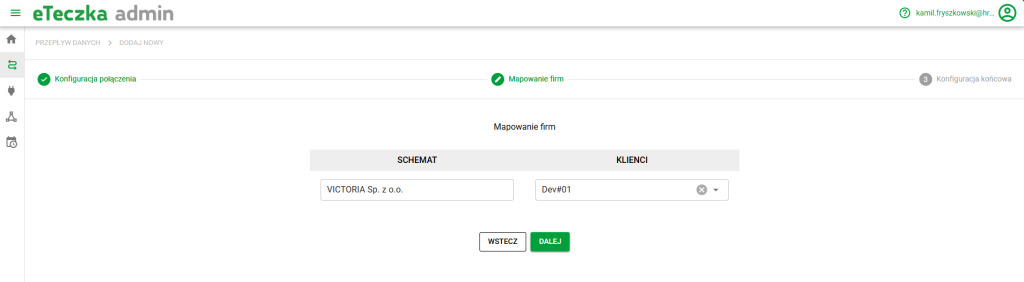
After pressing the "Next" button, we will be able to create a mapping. The companies found in the system are available in the left column, and the tenants available in eFOB are available on the right. The screenshot below shows the situation in which data from Victoria will be synchronized on the DEV#01 tenant.
STEP #6. Final data setting
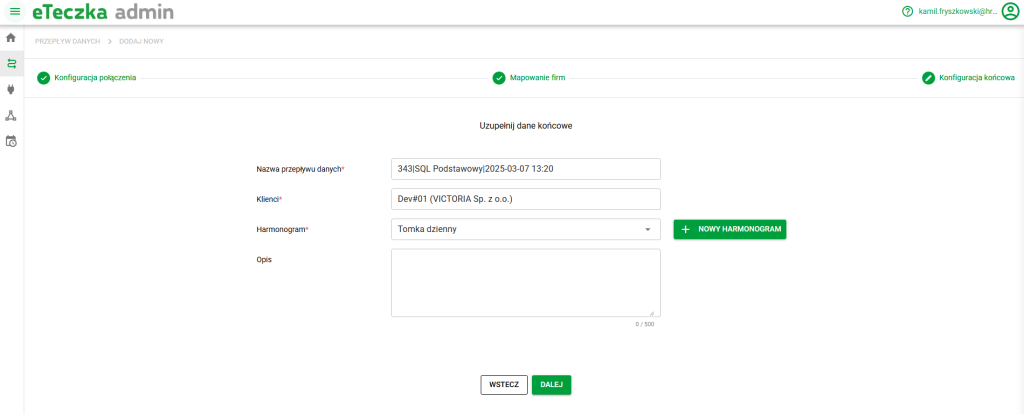
Then we have a chance to complete the final data. The user can choose a name that is legible for him, as well as a startup schedule. More about schedules: Schedules – eFOB
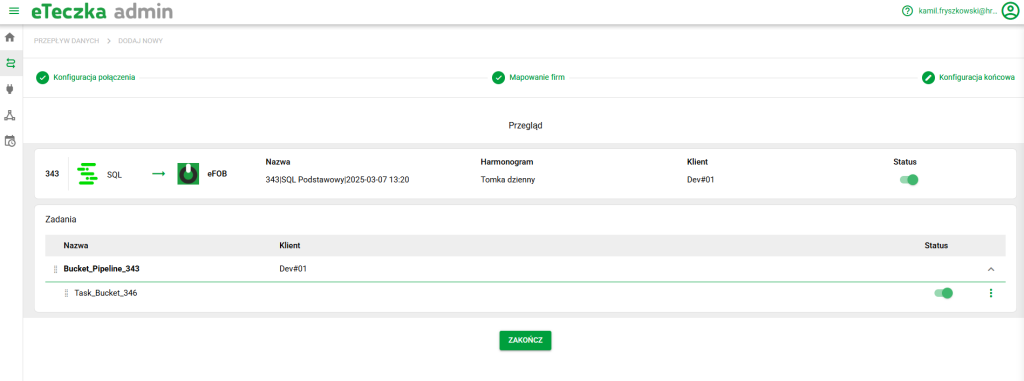
STEP #7. Summary
Finally, a final prompt is displayed containing all the parameters set. The synchronizer is ready for operation.