eFOBsync login
Prerequisites
Required:
- eFOBsync application installed and working (eFOBsync installation instructions – eFOB)
- Internet access (logging in connects to the eFOB platform in the cloud)
- A working or currently configured data flow (eFOB syncronizer (eFOBsync and eFOB admin) - eFOB).
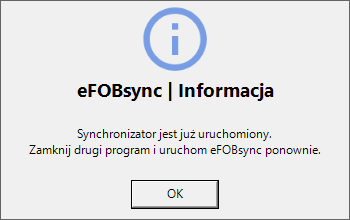
NOTE 1: If the eFOB sync application is already running, the following information window will be displayed. Only one start of the eFOBsync application is allowed per user account.
NOTE 2: For security reasons, logging in to eFOBsync takes place with the technical user and API-key, not with the user/password we have for eFOB.
Login to eFOBsync as a technical user
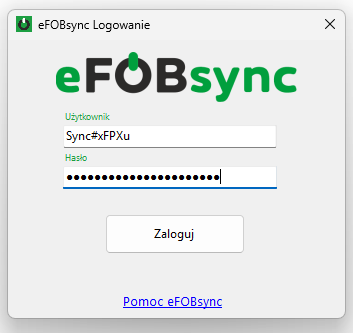
Technical user details (login and API key) must be entered in the eFOBsync main login window.
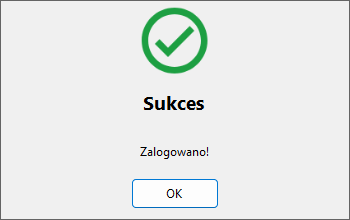
If login is successful, a success message will be displayed.
Additionally, in the window, the user and his organization will be displayed on the main screen (1):
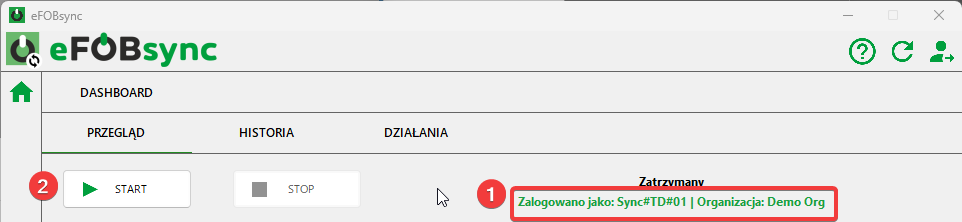
By default, the synchronizer will be in a stopped state, so it must be started by clicking the Start button (2).
Errors when logging in with a technical user
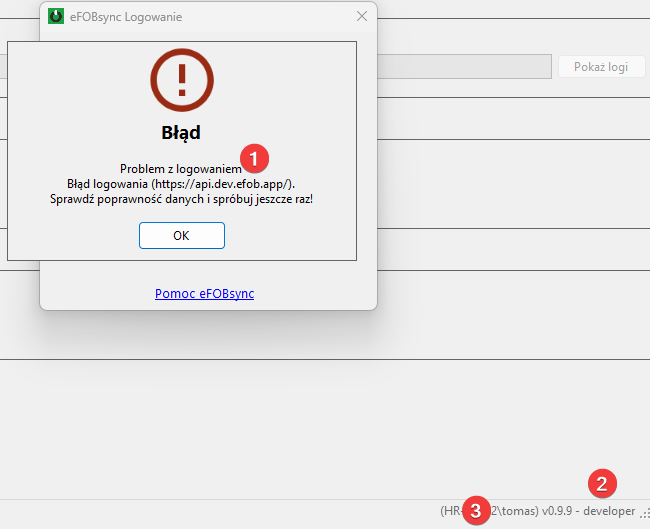
In case of login problems, an error message window will be displayed. In addition to the correctness of the entered technical user and API key password, you should also verify:
(1) and (2) eFOB platform to which we log in - the DEVelopment environment is indicated on the screen below. We can change the environment (PROD by default, test and DEV) when reinstalling eFOBsync.
(3) Computer and user - visible in the bottom bar of the program, on the screen below the computer is "HR***" and the user is "tomas". The information is important especially in the case of subsequent logins to SQL databases authenticated by the user. In the context of logging in, eFOBsync may be important in the context of a given user's permissions (e.g. blocking a given user's connections on the firewall).
Technical user – creation
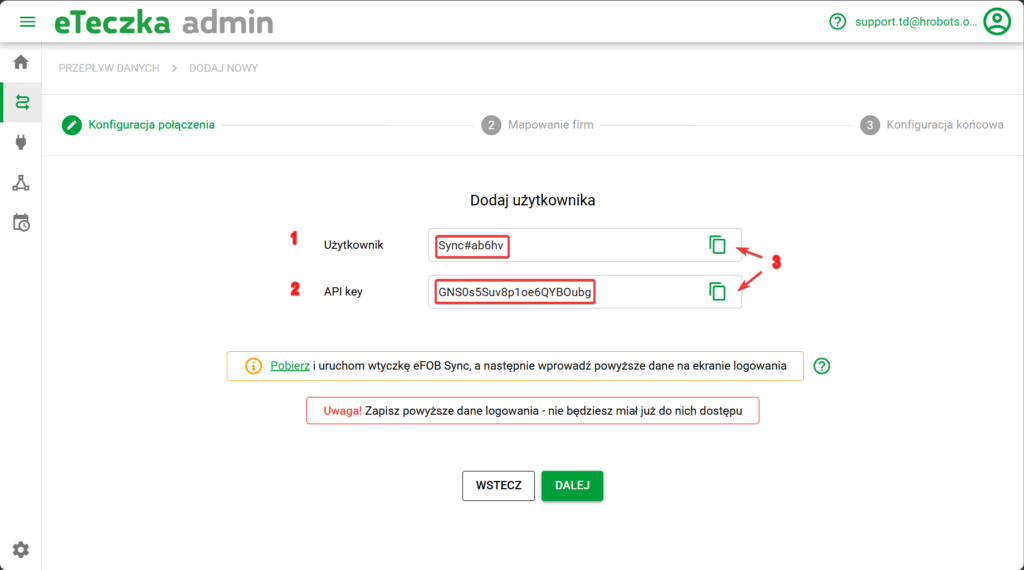
When you create a new data flow (eFOB syncronizer (eFOBsync and eFOB admin) - eFOB), a new technical user is created. The boxes for use in eFOBsync are marked on the screen below:
- New technical user to use in eFOBsync
- The so-called API Key of the above-mentioned user used for authentication in eFOBsync
- Using the copy button, we can conveniently copy the above-mentioned values
Password reset for an existing technical user
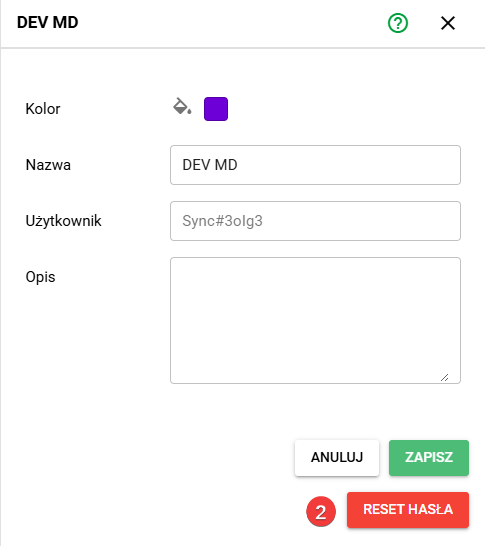
For security reasons, once the password has been set, it is not visible and cannot be viewed in eFOB admin. It is possible to restart it in two places:1. On the main panel of the "Synchronizers" screen 2. In the edition of a specific Synchronizer
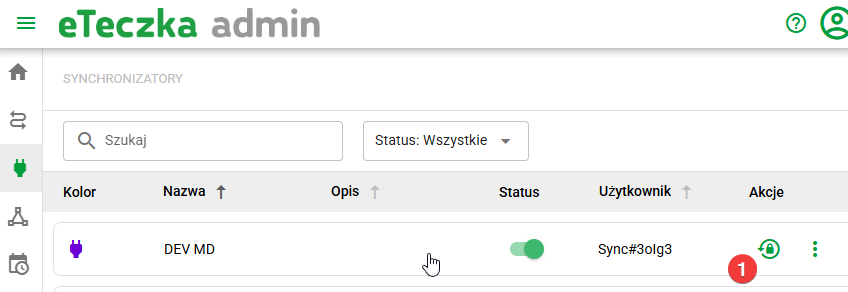
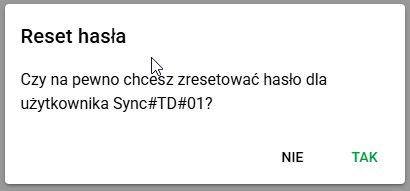
Before resetting your password, a confirmation window will appear.
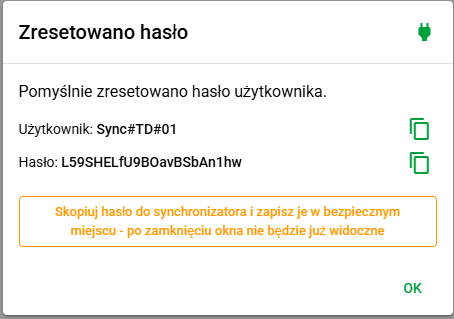
After resetting the password, the user and password (API key) will be displayed again to paste into eFOBsync.