eFOBsync installation instructions
eFOBsync is a tool used to synchronize data between HR and payroll systems (including Symfonia R2Płatnik, Symfonia ERP HR and Payroll, Enova and Optima class systems) and the eFOB platform. Below is the installation guide for this software.
The general operation of the synchronizer mechanisms is described: Operation of the eFOBsync program - eFOB, and the eFOBsync program itself is described: Synchronizer - eFOB.
Application requirements
- Operating System:
- Windows 10 or newer
- Windows Server 2019 or later
- Runtime Environment: .NET 8 Core Runtime
- CPU and RAM: standards recommended for Windows installation, no additional requirements from eFOBsync
- Disk: minimum 50 MB of available space for the installation and working files of the application (not including .NET 8 Core or other database components or applications, e.g. HR and payroll)
- network connectivity:
- access of the installed application to the eFOB server necessary for synchronization (some firewalls additionally block connection for freshly installed applications)
- access to the Microsoft SQL Server database server for a synchronized HR and payroll application (recommended connection of at least 100 Mbps)
- User permissions: ability to install local applications, no local administrator requirements during installation
- Browser with Internet access: To configure the connection, you must also log in to eFOB. Browser compatibility is described in Known limitations.
STEP #1: Run the installer
The current version of eFOBsync is available for download at the link: eFOBsync_Setup.zip
Once you have downloaded the eFOBsync installer, run it. You will see the installer welcome screen:
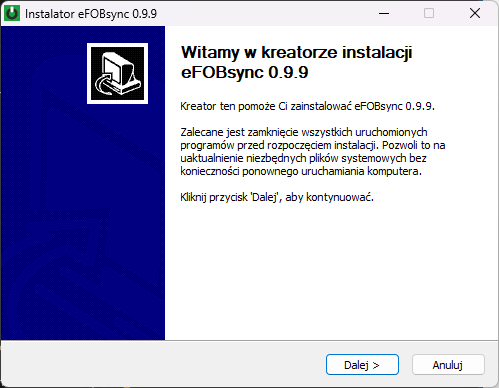
Click the Next button to continue.
STEP#2: Selecting the installation folder
Now select the location where you want to install eFOBsync. By default, the program will be installed in the current user's local applications folder:
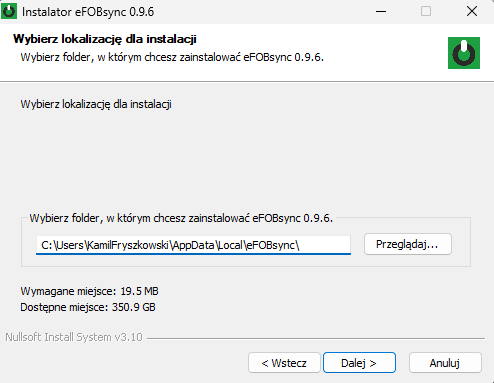
If you want, you can click Browse and select a different destination folder. After making your selection, click Next.
STEP#3: Selecting the installation environment
In this step, select your installation environment.
By default, the (1) eFOB **production environment https://efob.app/) is selected and the option (2) 'Run the program at system startup' is selected.
If you participate in testing, you can choose other environments (test) or development environments (dev and local).
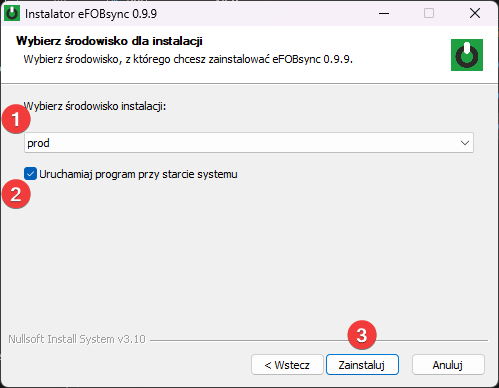
Once you have made your selection, click (3) Install to begin the installation process.
Microsoft Defender security messages
On some computers, despite the digital signature of all files and the installer itself, the program may not be recognized by Microsoft Defender (or other antivirus programs).The following error message will be displayed. To install, click (1) 'More information' and verify the digital signature (2).
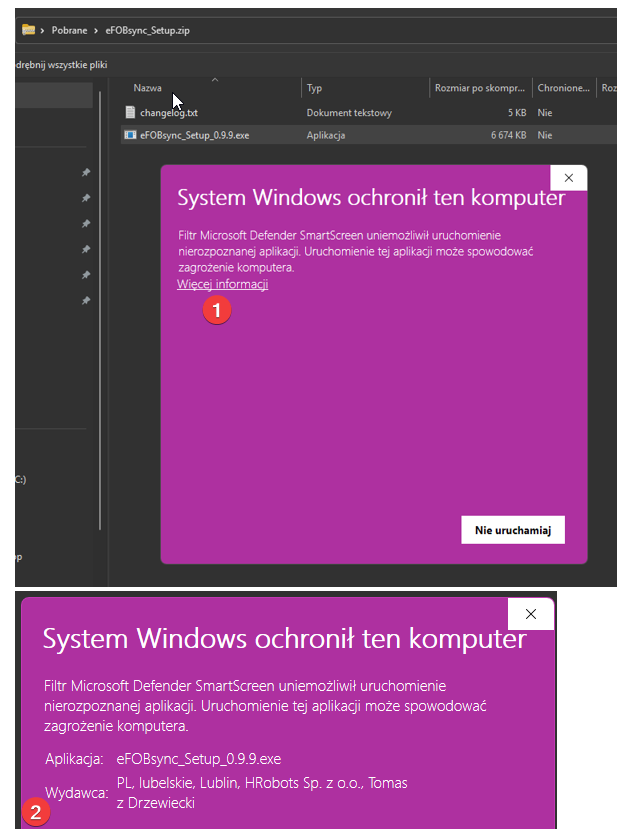
NOTE: ONLY if the data of the digital signature issuer is consistent with (2) "PL, lubelskie, Lublin, HRobots Sp. z o. o., Tomasz Drzewiecki" - you must accept the exception and enable installation of the program.
If a different signature is found, please immediately notify the HRobots support line via a service request along with information about the source of the installer download (link).
STEP#4: Installation
The installation process will start and you will see a progress bar.
The installer will extract the files and install all necessary components:
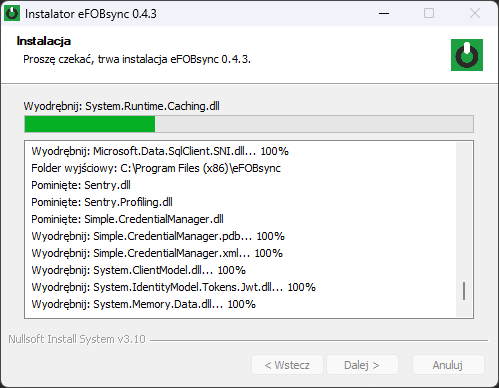
Installation process
If there is no additional .Net environment, a message will be displayed asking you to download and install it.
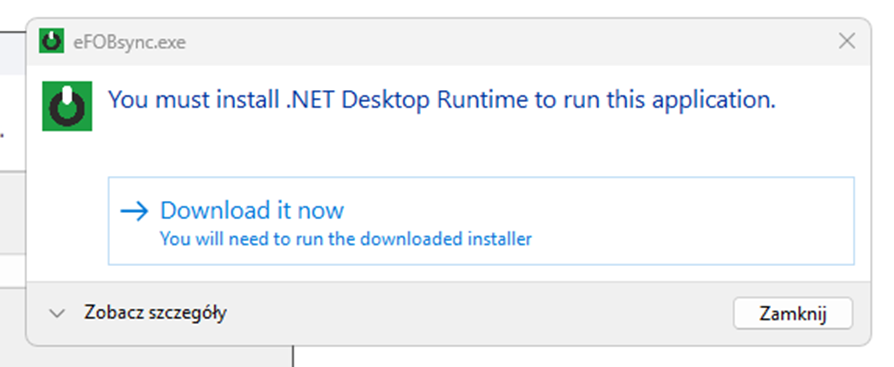
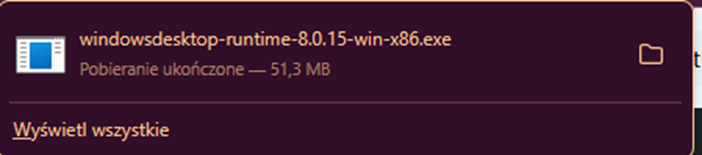
The .Net 8 environment is required for eFOBsync to work.
STEP#5: Finish and run eFOBsync
In the final step after installation, you can automatically launch the new or updated eFOBsync program.
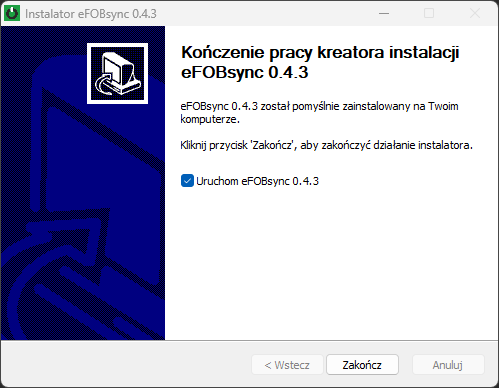
Summary screen
If you need to turn it off and on again, eFOBsync is available in the menu:
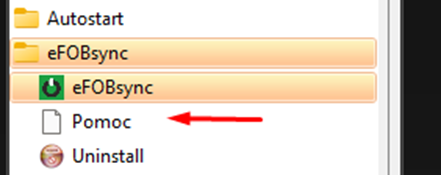
After launching the eFOBsync application, you should:
- Start logging in to eFOB as a technical user (Logging in to eFOBsync – eFOB).
- Configure data flow for synchronization between the HR and payroll system and the eFOB platform (eFOB synchronizer (eFOBsync and eFOB admin) – eFOB).
After updating eFOBsync, if the user was previously logged in or the flow was previously configured, you will not need to perform any further steps. The application itself will read the previous settings and start the data flow.
DIAGNOSTICS: eFOBsync activity logs
The log files are located in the "Local" directory under the account of the system user who runs eFOBsync. The easiest way to get to this directory is as follows:
- Press the Win + R key combination
- In the displayed 'Run' window, enter
appdata - Click OK and then navigate to the directory:
- Local → eFOBsync → logs
- This folder contains the file
application_log.log
- Then go to the directory:
- Local → eFOBsync → history
- This folder contains the file
history.xml
Both files may contain information that will help you diagnose the problem you are experiencing.