Data Flows
eFOB admin is a module built into eFOB for managing data synchronization processes. Data flows is a screen displaying data synchronization orders between a specific system (e.g. HR and payroll program or database) and the eFOB platform.
Data flows are executed according to a fixed schedule, a schedule that specifies the conditions necessary to start a data flow. Data flow is therefore a combination of a schedule and created synchronization tasks. More about the concept in the article sync tasks.
OVERVIEW tab
The OVERVIEW tab offers viewing, editing, deactivating and deleting existing data flows.
It is also possible to filter data by: status, schedule assigned to the flow and synchronizer.
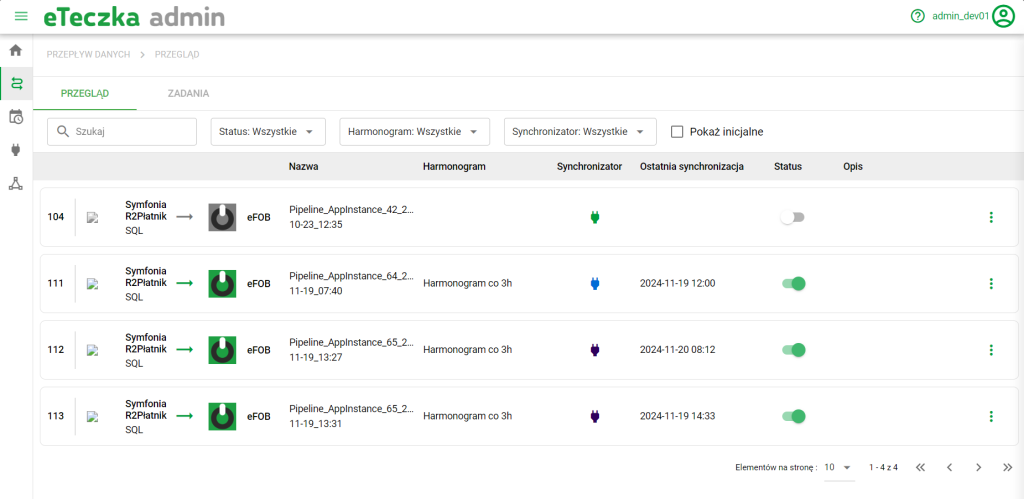
Data Flow Screen
By default, the table hides flows that have not been configured correctly or fully and should be removed. To display them, select the "Show initial" option. The name of the 'initial' flow will be visible as crossed out.
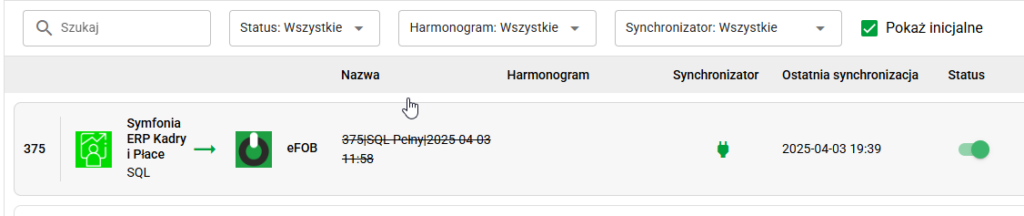
Note: Delete unconfigured flows.
Menu options
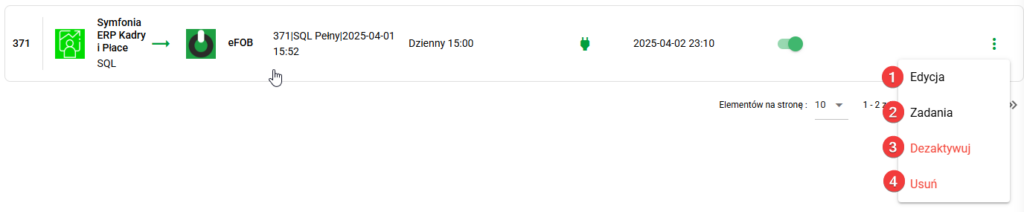
- Flow editing – description below.
- Tasks – going to the details of the data flow, equivalent to clicking on the flow.
- Deactivate / Activate – changes the Data Flow Status to inactive / active. Inactive flows are not started.
- Delete – completely removes the data flow and its run logs
Edit flow
In the flow edit panel, the user can modify:
- its basic data Name and Description,
- synchronizer assigned to it (i.e. connected eFOBsync application)
- the schedule assigned to it
To open the flow editing panel, expand the menu under the three dots button and select the "Edit" option.
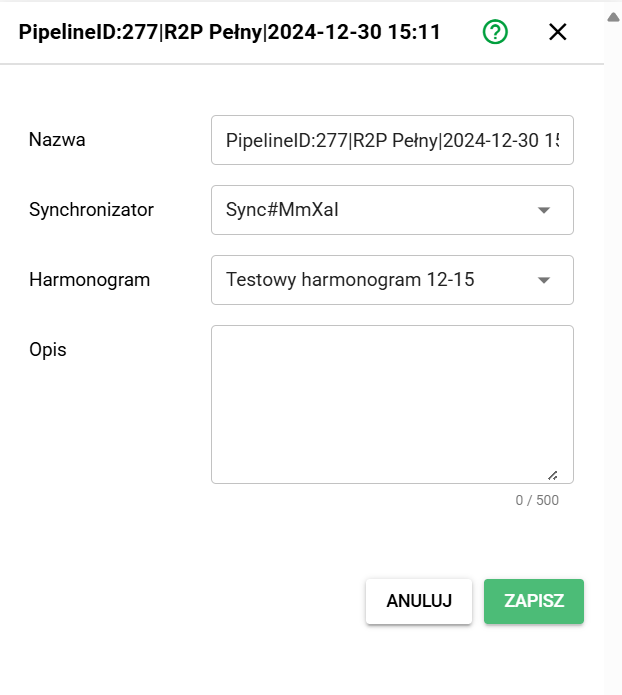
Data flow editing panel
TASKS tab
The TASKS tab offers viewing or searching for data flows, as well as editing their configuration details - i.e. groups and tasks performed in these flows.
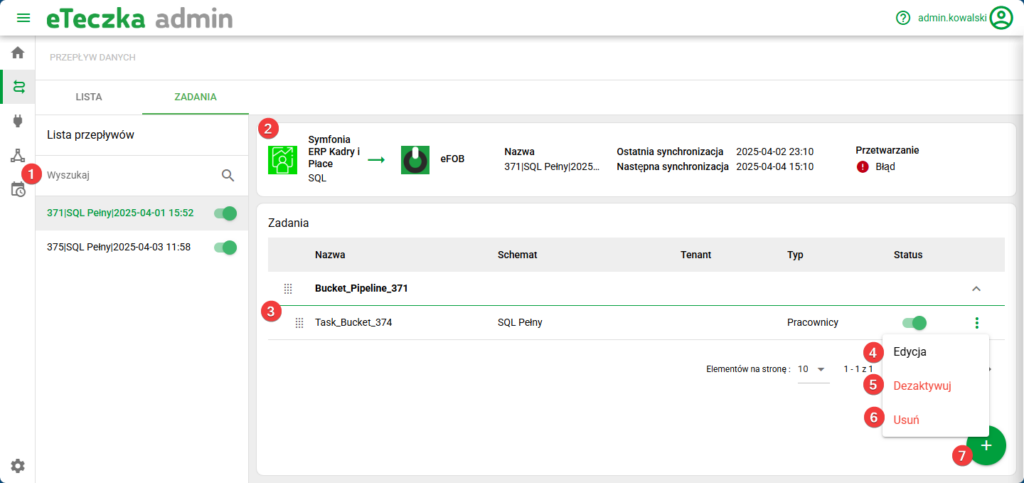
Options available in the tab:
- Search – text search for data flows by their name.
- Details of the last start of the data flow - analogous to the LIST tab.
- Changing order – ability to change the order of task groups and tasks.
- Edit – editing the selected task.
- Deactivate – deactivation of a particular task.
- Delete – deletion of a particular task.
- Add – button that allows you to add a task or group of tasks.
For the task concepts, see Synchronization concepts.
Available task types depend on the integration and synchronizer type. Supported cloud integrations also let you configure access removal after a contract ends. Before running the task, check the company scope and make sure contract data is up to date. For setup, manual-run conditions, and result checking, see End access after a contract finishes.