Connections
eFOB admin is a module built into eFOB for managing data synchronization processes. Connections is a screen that allows you to view and manage connections configured by the user.
You can read more about configuring new connections in the article: Connection selection and configuration.
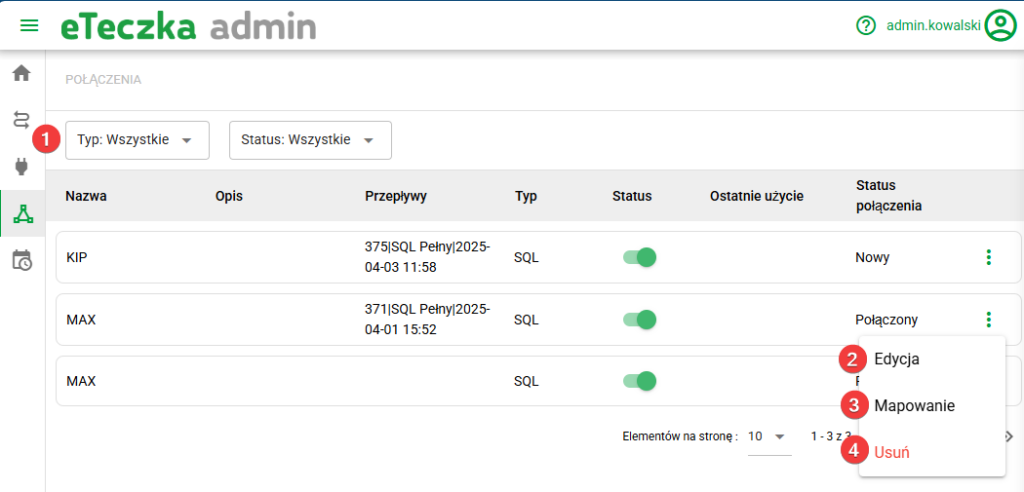
Screen options
- Type and Status Filter – ability to filter by type (All, SQL, R2P SQL, other) and status (All, New, Error, Connected).
- Edit – allows you to edit the connection – more detailed description below.
- Map – allows you to change the assignment of the company (e.g. from the HR and payroll source system) to the company in eFOB – more detailed description below.
- Delete – completely removes the connection and the possibility of using it - more detailed description below.
Connection editing panel
After clicking on the selected flow, an editing panel will be displayed, where the user can modify the selected connection parameters. The type of fields that can be edited depends on the type of connection (R2P API, SQL).
NOTE: It is not possible to change the type of an existing connection.
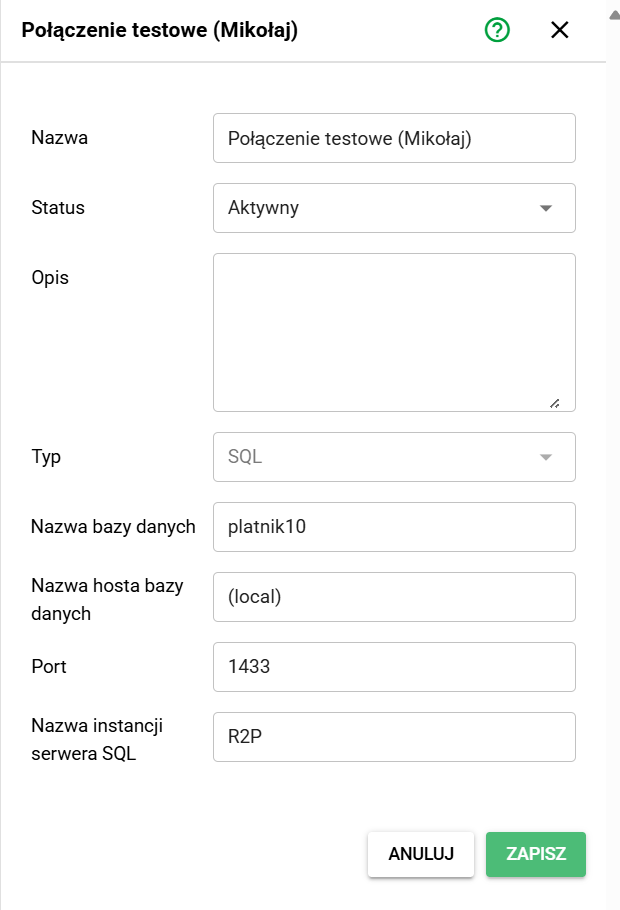
Edit panel – MS SQL connection
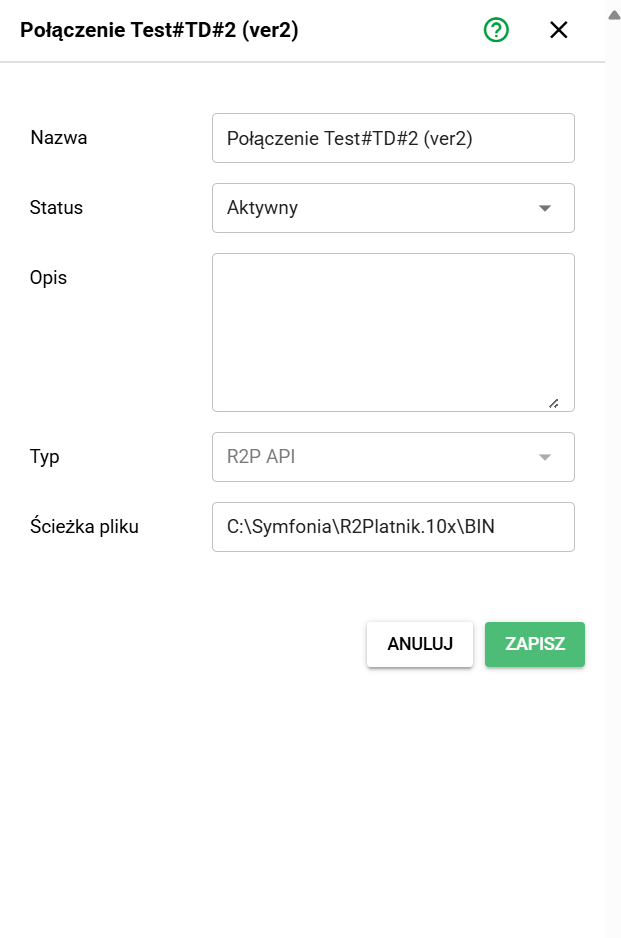
Edit panel – R2P API connection
For MS SQL connection:
- Name*: Connection name, freely set by the user.
- Status: Active or Inactive if we are not using the connection
- Description: Description of the connection, freely set by the user.
- Type: SQL or R2PAPI
- Database Name*: The specific database from which data will be retrieved. The standard values are given below:
- Symfonia R2Płatnik: PLATNIK10
- Symfonia KiP: – (field not used)
- Database hostname*: Address of the server where the database is located (standard for local installation: localhost).
- Port: The port number used for connection (default for Microsoft SQL: 1433).
- SQL Server Instance Name: The name of the specific server instance to which the user wants to connect (standard for MS SQL is the name of the running 'SQL Server' service visible in Windows/Services, e.g. SQLEXPRESS).
* Indicates required fields_
The above data for connection to the MSSQL database for R2Płatnik can be checked in the free Microsoft SQL Server Management Studio (SSMS) tool.
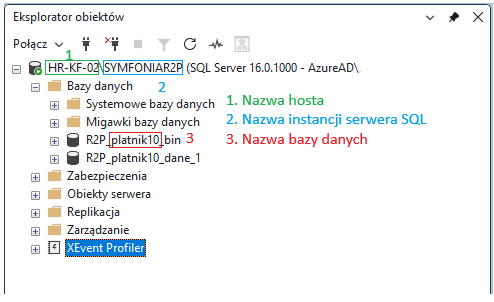
Note: In some configurations, field 1. Hostname may appear as a value used in the SSMS connection, e.g. “HR-KF-02\SYMFONIAR2P”. However, if there is no symbol \ and there is only the name of the computer, e.g. HR-KF-02, then:
- Database hostname*: enter this value (i.e. HR-KF-02)
- SQL server instance name: leave blank.
Editing mappings
For connections for which mapping was defined during creation, it is possible to preview and modify it:
- On the left: external companies (e.g. from the HR and payroll system).
- On the right: eFOB for Customers. A maximum of one customer can be assigned to each external company, and it is not possible to assign the same customer to different companies.
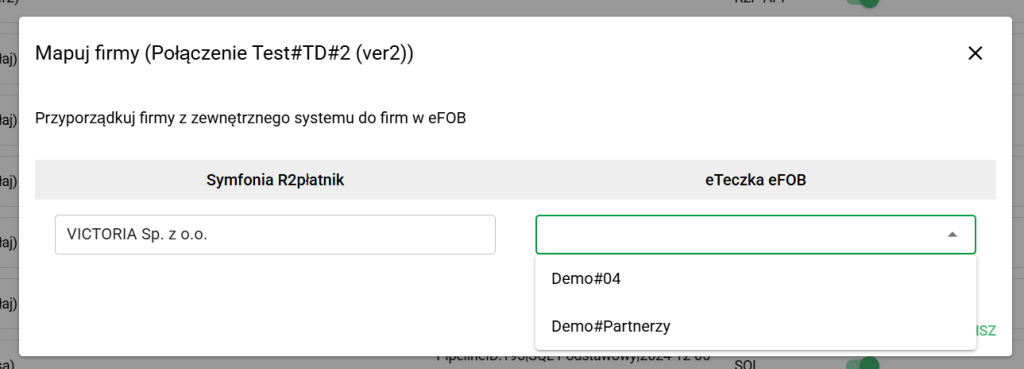
Company mapping window
Delete connections
To delete a selected connection, expand the menu under the three dots button and select the “Delete” option.
It is possible to delete only unused connections - if the connection is assigned to a data flow, an attempt to delete it will return an error. To delete such a connection, you must first delete all data flows assigned to it.
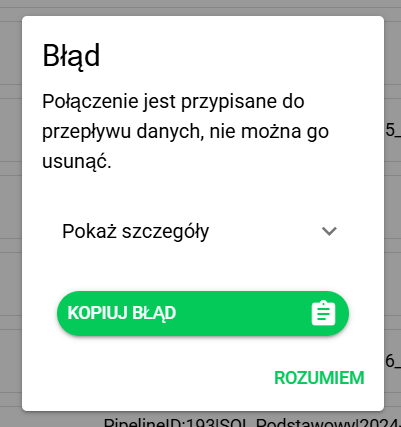
Error deleting connection